


Your iPhone can tap back when you type, press an icon, or get a call, and most of the time you barely notice it. But then you start wondering what those tiny taps actually mean.
If you’ve ever felt confused by the difference between vibrations and those precise clicks, you’re not alone.
What are haptics on iPhone is the key question here, and I break it down in a simple way so you finally understand what your phone is doing under your thumb.
You’ll learn how haptics work, why they feel different in each situation, and how to control them so your iPhone responds exactly the way you want.
What Is Haptics on an iPhone?
Haptics are physical sensations your iPhone creates to confirm actions or communicate information through touch. Apple describes haptic feedback as the vibration you feel when you touch and hold an icon on the Home Screen.
The iPhone uses its Taptic Engine to produce controlled haptic responses. These responses can vary in strength, duration, and character rather than feeling like one identical buzz every time. Apple’s haptic technology can create patterns with different levels of intensity and sharpness.
How refined that engine feels can also depend on which hardware generation you’re on, which is one reason people weigh whether newer iPhone releases are worth the jump before upgrading.
That is why typing can produce a light tap while another action may feel firmer or last longer.
Haptics are not limited to one setting either. Keyboard feedback, calls and alerts, Music Haptics, and other touch responses can be controlled in different parts of iOS.
Where Do You Feel Haptics on an iPhone?
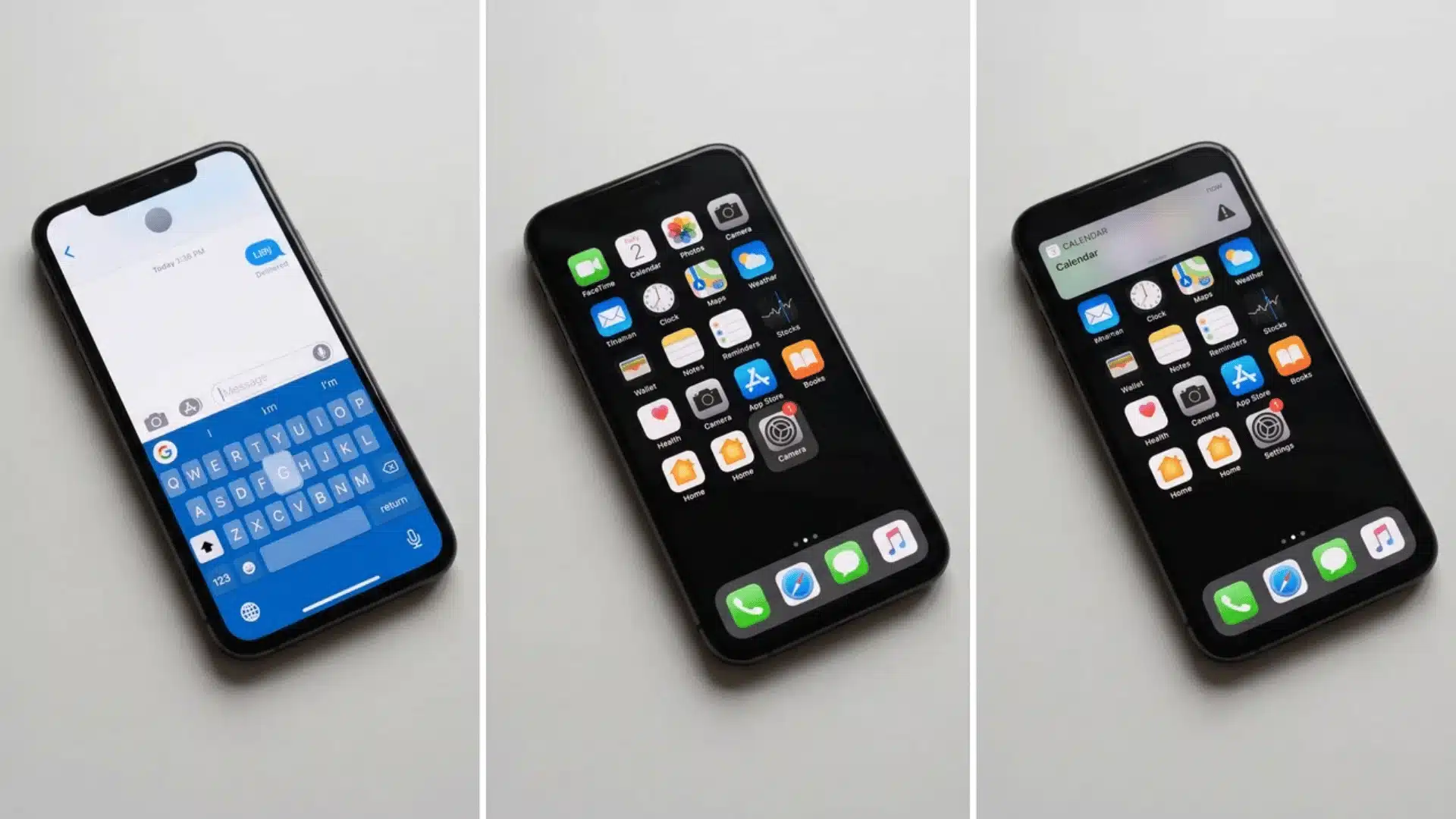
Several parts of the iPhone use tactile feedback, but they do not all behave in exactly the same way. Four common places are system interactions, the keyboard, music, and incoming alerts.
1. System Haptics
Basic iPhone interactions can produce short physical responses that confirm an action.
One familiar example is touching and holding an app icon on the Home Screen. Other supported controls and interactions can also produce tactile feedback as iOS responds to what is happening on screen. Apple specifically uses the Home Screen long-press as an example of haptic feedback.
These taps are designed to make touchscreen controls feel less flat.
2. Keyboard Feedback
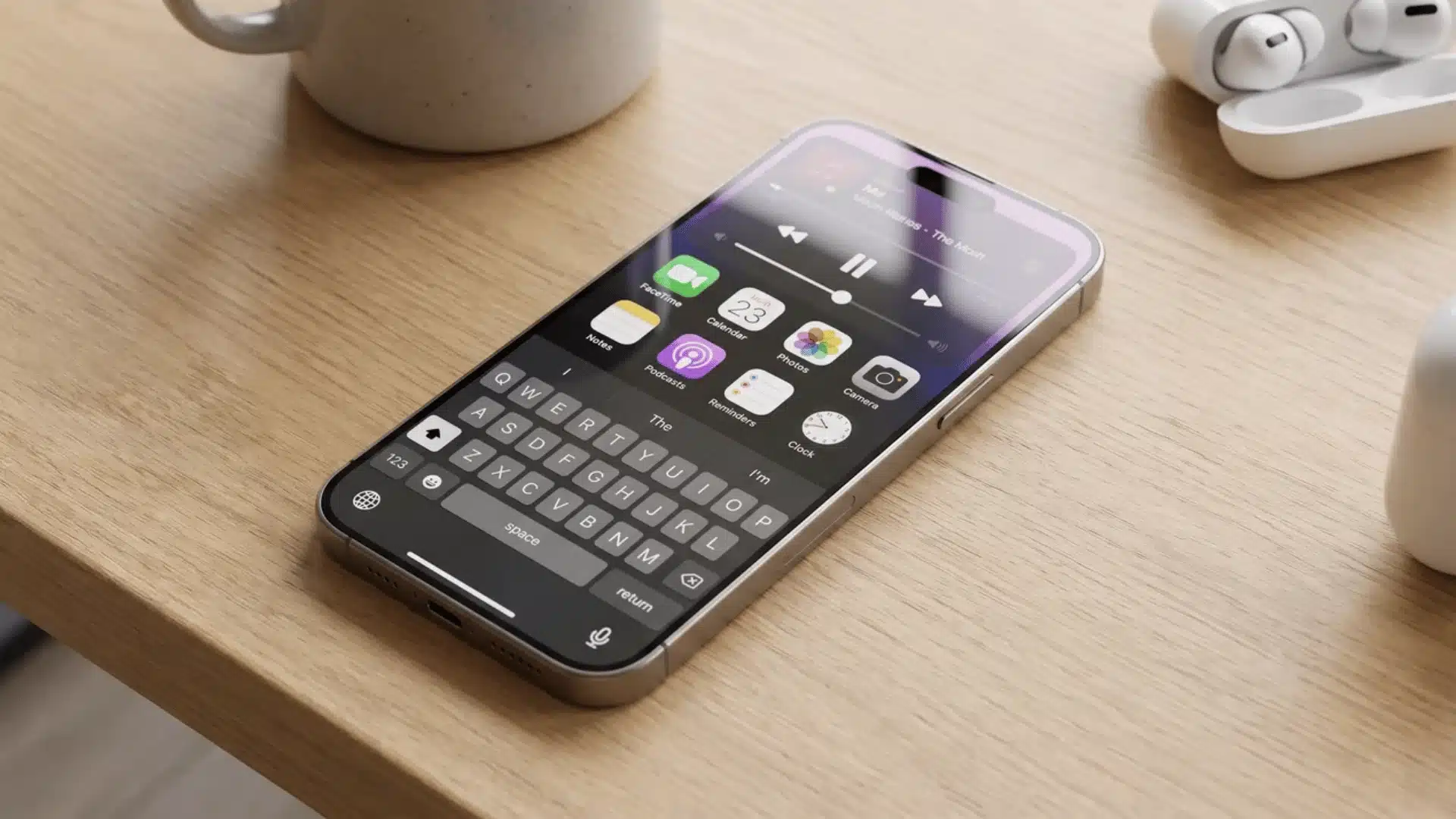
Keyboard haptics produce a small tap each time you press a key on the onscreen keyboard.
The effect is subtle and quick, so typing creates a series of small physical responses under your fingers. Keyboard sound and keyboard haptics are separate controls, meaning one can remain active while the other is disabled.
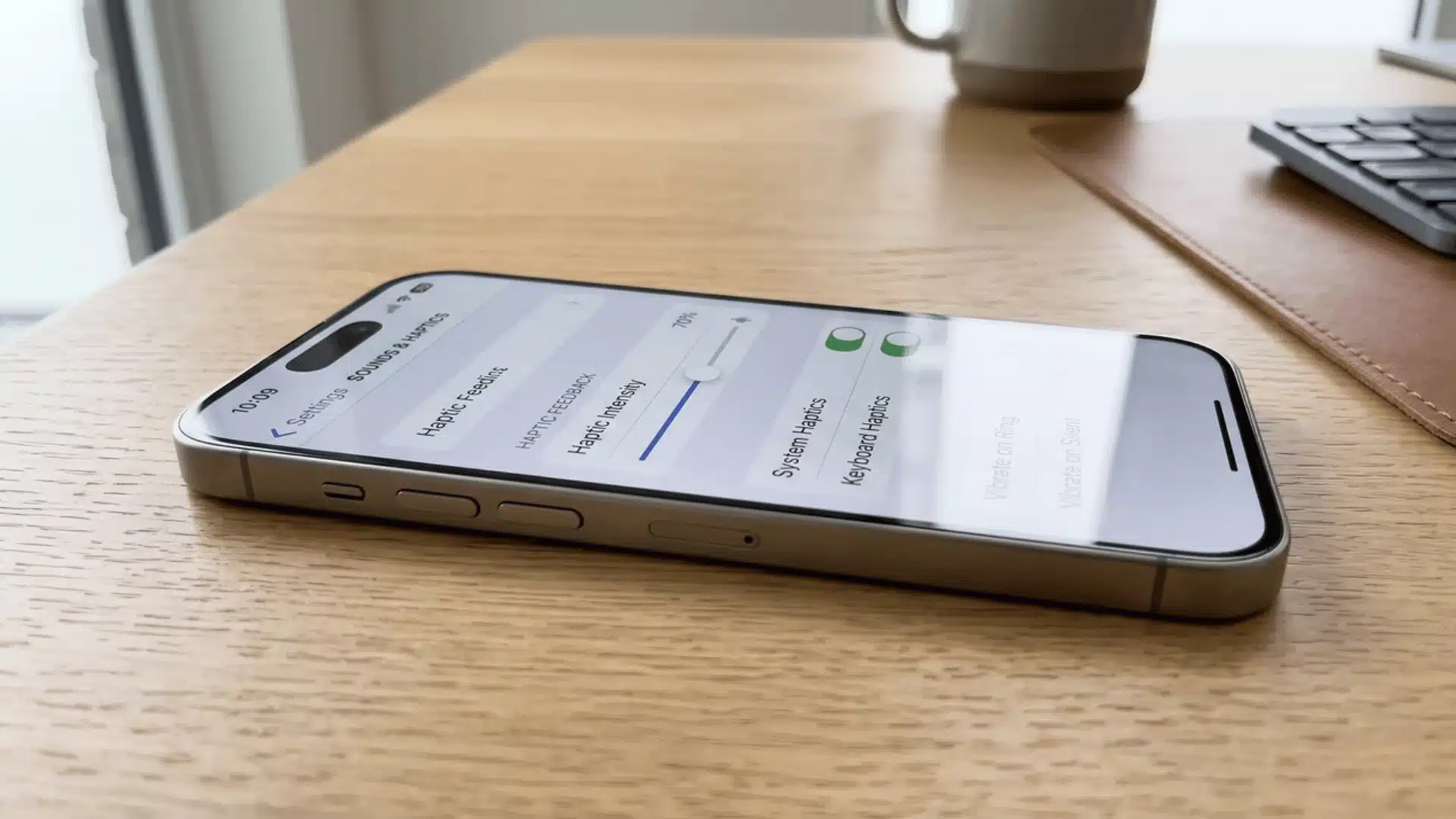
The setting is available under Settings > Sounds & Haptics > Keyboard Feedback.
3. Music Haptics
Music Haptics turns supported songs into synchronized taps, textures, and refined vibrations.
Rather than repeating the same pattern, the feedback follows elements of the audio. Apple currently lets users choose options such as Full Mix or Vocals Only and adjust haptic intensity.
Music Haptics works with supported iPhone models and compatible music from Apple Music, Music Classical, Shazam, and some third-party apps.
4. Ringtone and Alert Haptics
Calls, texts, emails, reminders, and other notifications can also use vibration patterns.
These patterns can be paired with sounds or used when the iPhone is in Silent Mode, depending on the selected setting. Apple also lets users choose vibration patterns for specific alert types or create a custom one.
The same Settings app is where you’d also look if you’re trying to get connected smart accessories syncing properly, since notification behavior and device pairing both live under similar iOS menus.
That makes notification haptics different from the short feedback felt while interacting with controls.
Here is a simple comparison of the main places where haptic feedback appears.
| Type | Where It Appears | Typical Feedback | Main Setting |
|---|---|---|---|
| System interactions | Icons and supported controls | Short confirmation taps | iOS interaction settings |
| Keyboard Feedback | Onscreen keyboard | Light tap with each key | Sounds & Haptics > Keyboard Feedback |
| Music Haptics | Supported music | Taps, textures, and synchronized vibrations | Accessibility > Music Haptics |
| Ringtone and alert haptics | Calls, texts, and notifications | Vibration patterns | Sounds & Haptics > Haptics |
The exact sensation can vary by action, alert pattern, app, and setting, so these categories should not be treated as four completely isolated hardware systems.
Haptics vs. Vibration: What Is the Difference?
“Haptics” and “vibration” overlap more than they first appear to. Apple itself describes haptic feedback as vibration felt during certain iPhone actions.
The useful difference is how the vibration is used.
Traditional phone vibration is usually associated with getting your attention, such as an incoming call. Haptic feedback can be much shorter and more closely tied to a specific interaction.
Here is the practical difference.
| Feature | General Vibration | Haptic Feedback |
|---|---|---|
| Main purpose | Gets your attention | Gives physical feedback |
| Common use | Calls and notifications | Typing, controls, interactions |
| Pattern | May last or repeat | Often short and precise |
| Variation | Depends on alert pattern | Can vary in intensity and character |
| Example | Phone vibrating for a call | Small tap after pressing a control |
Both involve physical movement from the phone. The difference is mainly the purpose and the type of feedback being produced.
How to Turn Haptics On or Off on iPhone
There is no single control for every type of haptic behavior. The right setting depends on what kind of vibration or tactile feedback you want to change.
1. Change Haptics for Calls and Alerts
Apple places the main call and notification controls under Sounds & Haptics. Current iPhone settings provide several choices for when these patterns should play.
- Open Settings.
- Tap Sounds & Haptics.
- Tap Haptics.
- Choose Always Play, Play in Silent Mode, Don’t Play in Silent Mode, or Never Play.
Selecting Never Play prevents vibration for incoming calls and alerts.
This control is useful if notification vibration is the main thing bothering you.
2. Turn Keyboard Haptics On or Off
Keyboard feedback has its own control, so it can be changed without adjusting ringtone and alert behavior.
- Open Settings.
- Tap Sounds & Haptics.
- Tap Keyboard Feedback.
- Turn Haptic on or off.
Sound is controlled separately on the same screen.
This is the setting I would change first if constant tapping while typing starts to feel distracting.
3. Turn Music Haptics On or Off
Music Haptics sits under Accessibility rather than the normal ringtone controls.
- Open Settings.
- Tap Accessibility.
- Tap Music Haptics.
- Turn Music Haptics on or off.
Supported versions also provide controls for the type and intensity of the feedback.
You can also control Music Haptics while compatible audio is playing.
4. Turn Off All iPhone Vibrations
There is also a broader setting for anyone who wants to stop vibration across the device.
Go to: Settings > Accessibility > Touch > Vibration
Turn Vibration off to disable all vibrations. Apple notes that doing this also disables vibrations for earthquake, tsunami, and other emergency alerts.
For that reason, changing individual haptic controls is usually a better choice when you only want to disable one type of feedback.
Should iPhone Haptics Be On or Off?
There is no universal best setting. Some haptic feedback is useful because it confirms an action without adding more sound, while constant tapping can become irritating.
A few situations make each choice easier to judge:
- Keep System Feedback: Physical confirmation can make buttons, presses, and other touchscreen actions easier to notice.
- Keep Alert Haptics: Vibrations can signal a call or message when ringtone sounds are inappropriate.
- Try Keyboard Haptics: Light feedback can make touchscreen typing feel more responsive without enabling keyboard sounds.
- Disable Keyboard Feedback: Repeated tapping under each key can feel distracting during long messages or documents.
- Try Music Haptics: Supported songs can provide another way to experience rhythm and other parts of the audio.
Battery life should not be the only reason for choosing one setting. Apple states that turning on keyboard haptics might affect iPhone battery life, but it doesn’t give a fixed percentage because usage varies.
For my own setup, I prefer keeping everyday tactile feedback while treating keyboard and music feedback as optional. That gives useful confirmation without making every interaction feel busy.
What Happens If You Turn Off Haptics on iPhone?
The result depends on the setting changed.
Turning off Keyboard Feedback removes the taps you feel while typing but doesn’t automatically change ringtone vibration.
Setting Call and Alert Haptics to Never Play stops vibration for incoming calls and alerts.
Turning off Music Haptics stops the synchronized tactile effects used with compatible songs.
Turning off Vibration under Accessibility is much broader and disables all iPhone vibrations, including vibrations used for certain emergency alerts.
So, changing one haptic option does not always mean every physical response disappears. Check the specific setting tied to the feedback you want to change.
Summing Up
I’ve found that once you understand what are haptics on iPhone, it becomes easier for you to decide which taps and vibrations actually help in daily use.
You don’t have to treat every feedback the same because each one serves a different purpose, from typing responses to alerts and music feedback.
I like to adjust each setting based on what feels useful, so nothing becomes distracting or unnecessary during the day. You can do the same by starting small, testing changes, and keeping only what improves your experience.
Try a few adjustments today and see how your iPhone feels, and share what works best for you in the comments below if you want.
Frequently Asked Questions
Can I create a custom vibration for a contact?
Yes. Open a contact, tap Edit, and choose the ringtone or text tone settings. Apple lets you select a haptic pattern, while alert settings can also include a custom vibration you create yourself.
Why are keyboard haptics not working on my iPhone?
First check Settings > Sounds & Haptics > Keyboard Feedback and make sure Haptic is enabled. If it still does not work, Apple recommends checking that Vibration is enabled under Settings > Accessibility > Touch.
Does Music Haptics work with every song?
No. Music Haptics works with supported content. Apple says it is available for millions of songs across Apple Music, Music Classical, Shazam, and compatible third-party apps rather than every audio track.
Can I turn off every vibration on my iPhone?
Yes. Go to Settings > Accessibility > Touch and turn off Vibration. Keep in mind that Apple says this also stops vibration for earthquake, tsunami, and certain other emergency alerts.