

Is your Chromebook crawling when it should be flying? You open a tab, wait… open another, wait some more, and suddenly what should be a breeze turns into a frustrating ordeal.
If you’ve been wondering why my Chromebook is so slow, you’re definitely not alone. Chromebooks are built for speed and simplicity, but over time, even the best ones can start to drag and feel sluggish.
The good news? Most of the causes are completely fixable without any technical expertise.
In this post, you will walk through the most common culprits behind a slow Chromebook and share simple, practical steps to get it running fast again.
Why is My Chromebook Running So Slow?
Chromebooks are lightweight machines with real limits; too many open tabs, low RAM, a full storage drive, or too many extensions running in the background can all quietly drain performance.
Low system memory, especially limited RAM, can also make everyday tasks feel slower than expected when multitasking.
An outdated Chrome OS version or multiple apps running simultaneously make things worse, leaving your Chromebook running slow even during basic tasks.
There are a few less-obvious reasons your Chromebook is slow, too. A cluttered downloads folder, malware, or unwanted programs can hog system resources without you even noticing.
If your Chromebook has hit its Auto Update Expiration (AUE) date, it no longer receives performance updates, and even a weak Wi-Fi connection can make a cloud-dependent Chromebook feel frustratingly slow and unresponsive.
Other Reasons Your Chromebook is Running So Slow
Sometimes the cause of a slow Chromebook isn’t just tabs or storage; it can go deeper than that. A recent update, an aging device, or the wrong settings can all quietly kill your Chromebook’s performance.
Here’s what else could be slowing things down:
- A recent Chrome OS update can temporarily cause slowdowns as your Chromebook adjusts to new system changes. If it persists, rolling back or performing a Powerwash may help.
- Your Chromebook may simply be too old. Once it hits its Auto Update Expiration (AUE) date, it stops receiving performance and security updates, making it increasingly slow over time.
- Checking your AUE date is simple: head to Settings, and if your device is expired or close to it, an upgrade might be the most practical fix.
- Wrong power and performance settings can limit how fast your Chromebook runs. Switching to a higher performance mode can make a noticeable difference.
- Sync and background apps running constantly drain memory and processing power; turning off unnecessary sync activity can free up resources and speed things up.
- Outdated or incompatible apps installed after an update can conflict with Chrome OS, making your Chromebook slow and unresponsive even on simple tasks.
How to Fix a Slow Chromebook: Step-by-Step
If your Chromebook is running slow, the good news is that most fixes are simple and don’t require any technical expertise. Follow these steps to speed up your Chromebook and get it back to performing at its best.
Step 1: Clear Cache and Browsing Data
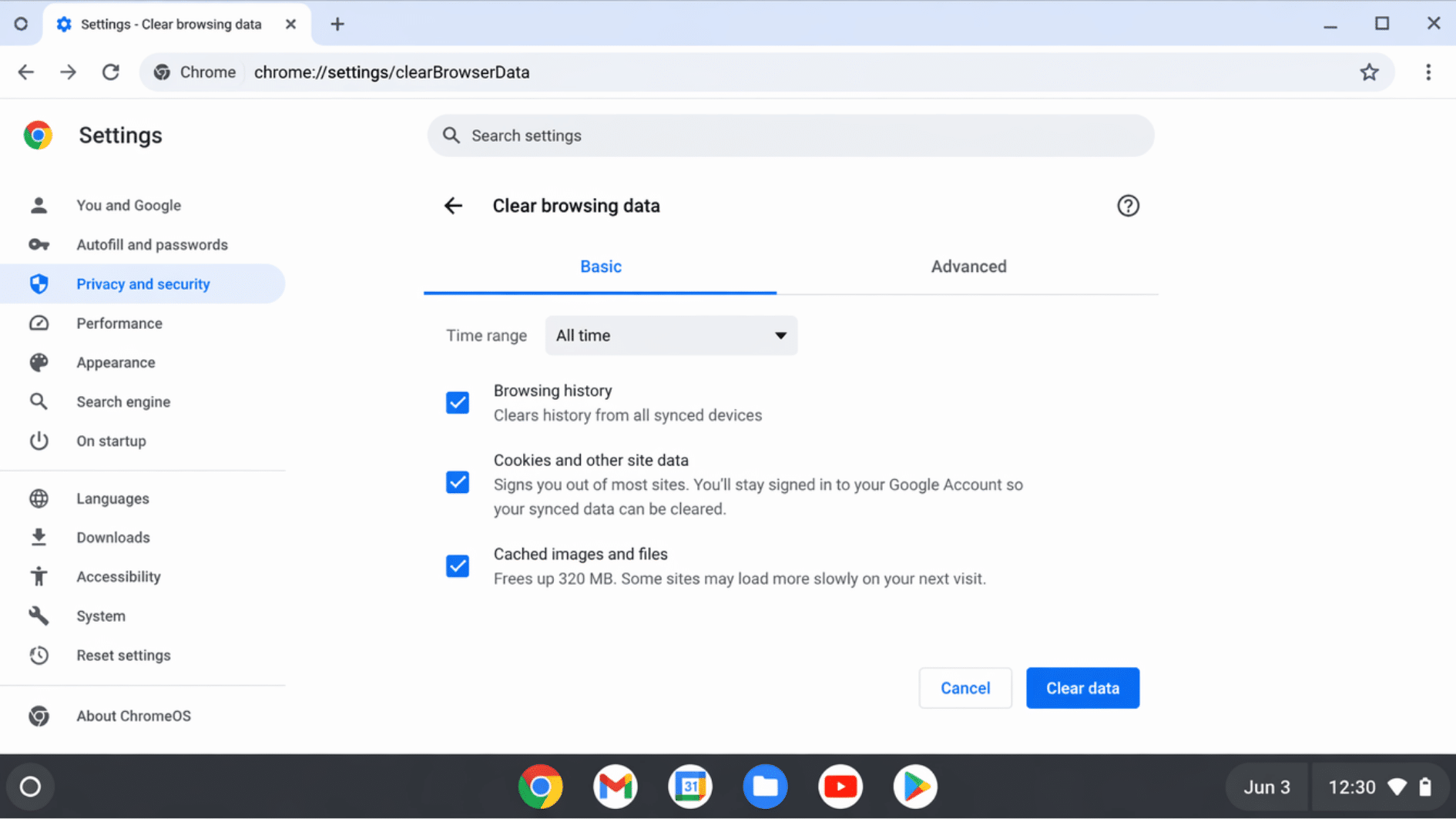
Over time, your Chromebook stores a lot of temporary data, including cached files, cookies, and browsing history, which can pile up and slow things down. Clearing this regularly is one of the quickest ways to fix a slow Chromebook.
- Open Chrome and press Ctrl + Shift + Delete
- Select All time as the time range
- Check Cached images and files, Cookies, and Browsing history
- Click Clear data and restart your Chromebook
💡 Tip: Make it a habit to clear your cache once a month to keep your Chromebook running smoothly.
Step 2: Disable or Remove Unused Extensions
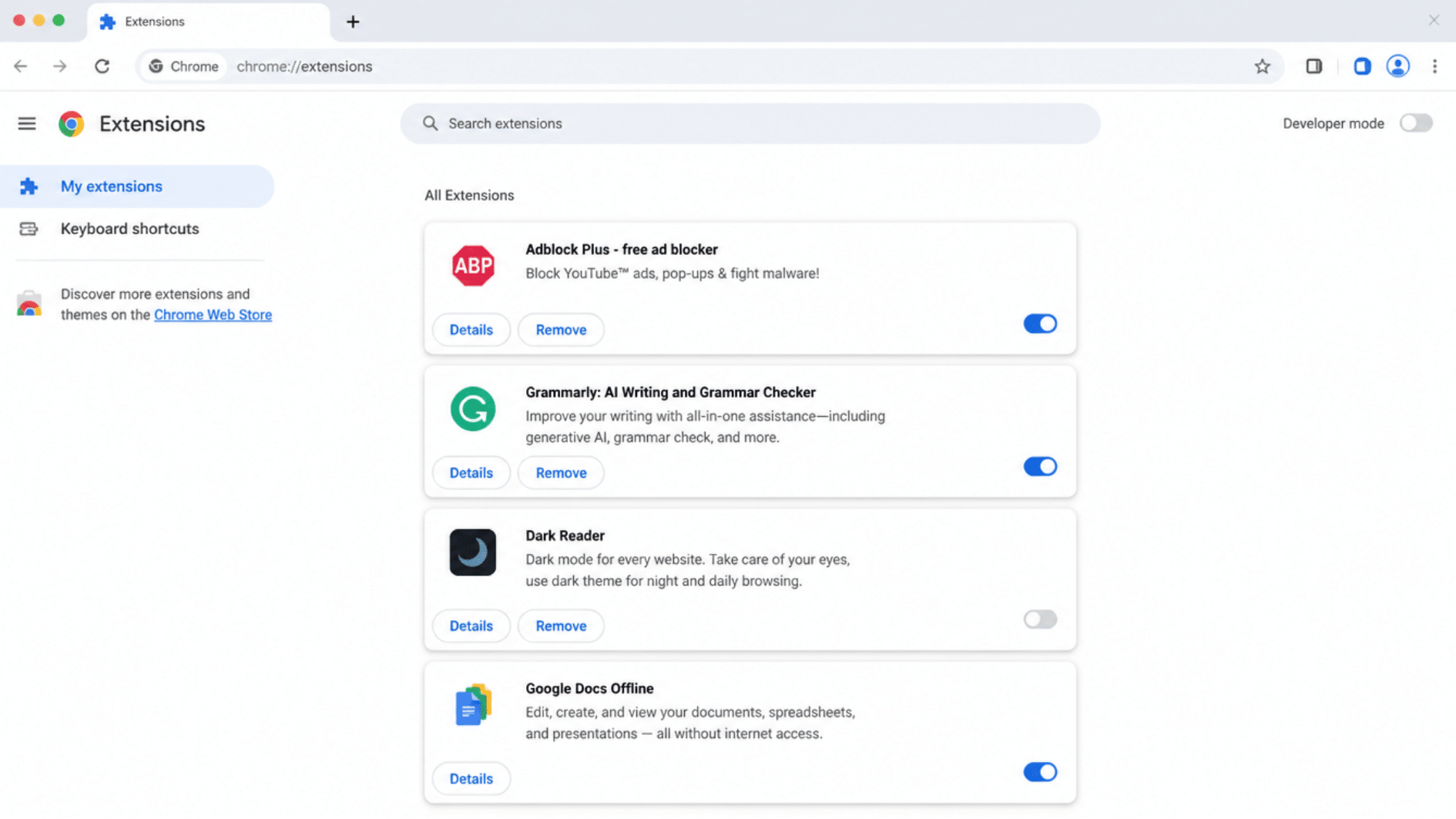
Extensions are one of the biggest hidden reasons why your Chromebook is so slow. Each one runs in the background and eats up memory, even when you’re not using it.
- Open Chrome and go to chrome://extensions
- Review every extension and toggle off anything you don’t actively use
- Click Remove on extensions you no longer need at all
- Restart Chrome and check if performance improves
💡 Tip: Keep no more than 3 to 5 essential extensions active at a time for the best performance.
Step 3: Free Up Storage Space Fast
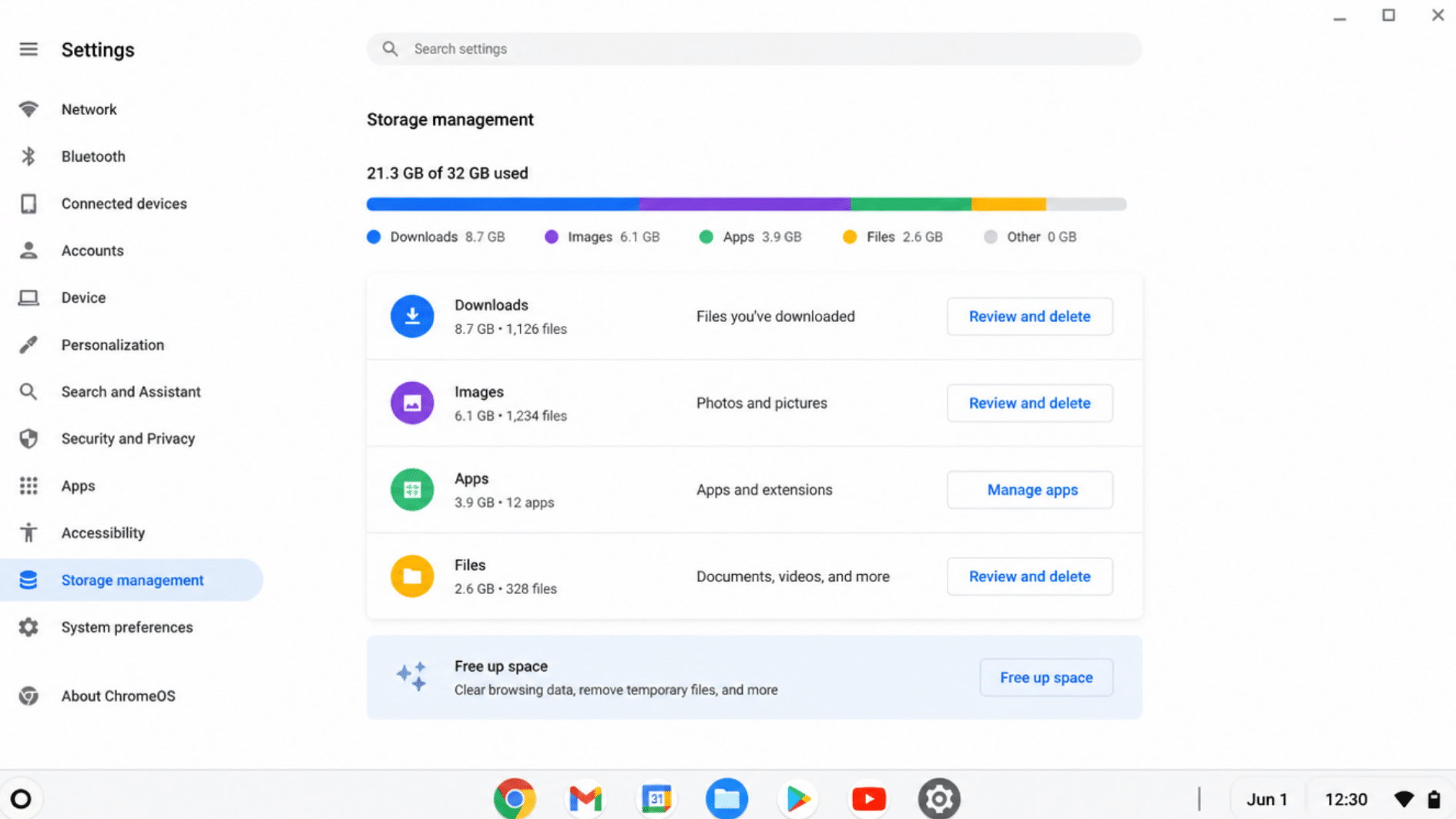
A full or nearly full storage drive is a common reason your Chromebook runs slow. When there’s no breathing room, your device struggles to perform even basic tasks.
Storage capacity also plays a key role in overall system responsiveness, especially when comparing different SSD performance levels in everyday devices.
- Open the Files app and delete anything you no longer need
- Clear your Downloads folder; it’s usually the most cluttered
- Move photos and large files to Google Drive to free up local space
- Go to Settings > Storage management to see what’s taking up the most space
💡 Tip: Aim to keep at least 20% of your storage free at all times for optimal Chromebook performance.
Step 4: Update Chrome OS Right Now
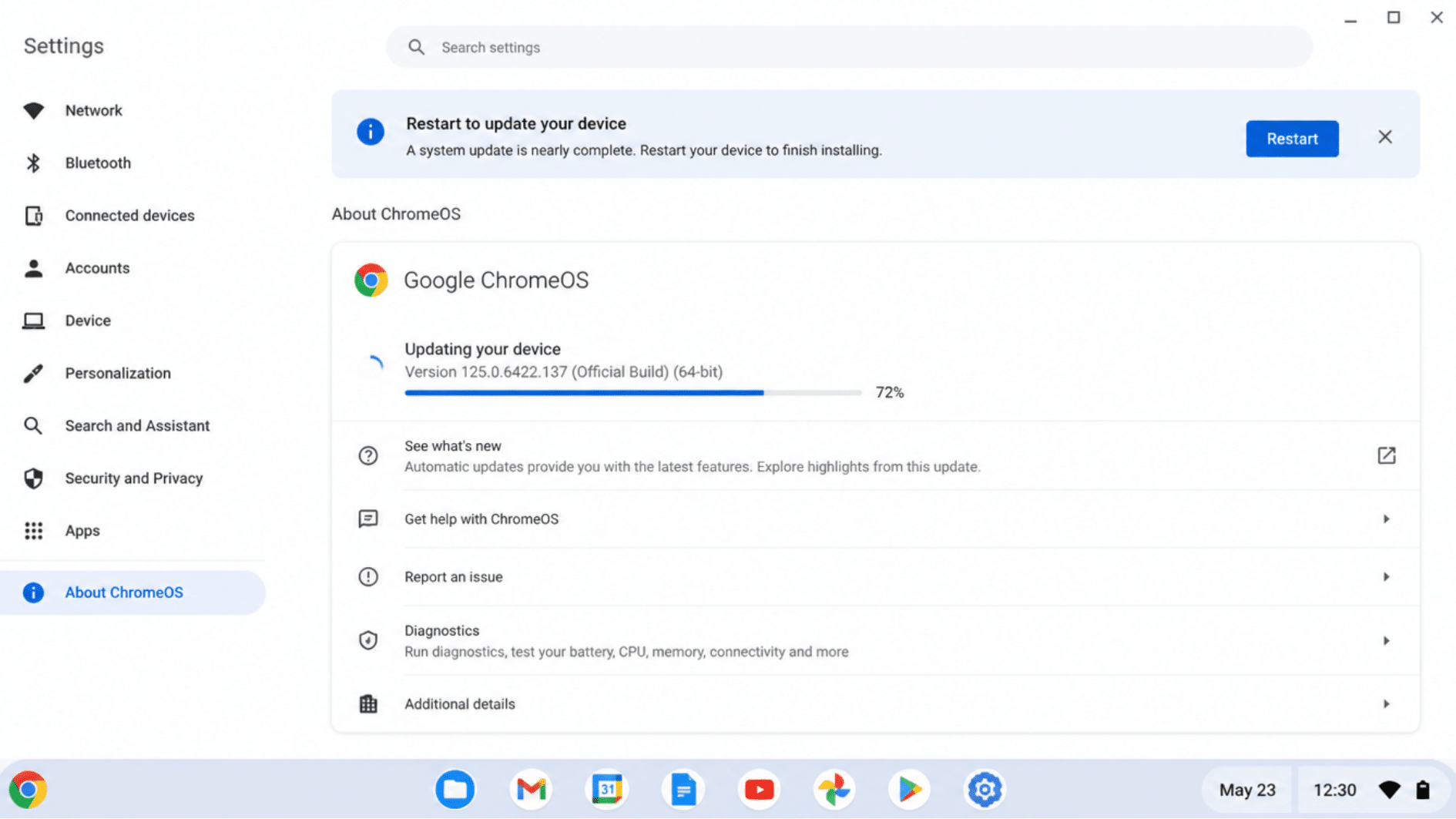
Running an outdated version of Chrome OS is a surprisingly common reason why Chromebooks run slow. Updates carry important performance improvements and bug fixes your device needs.
- Go to Settings > About ChromeOS
- Click Check for updates
- If an update is available, install it and restart your Chromebook
- Make sure automatic updates are turned on so you never fall behind
💡 Tip: If your Chromebook has reached its AUE date, it will no longer receive updates, this alone can explain why your Chromebook is getting slower over time.
Step 5: Adjust Performance and Power Settings
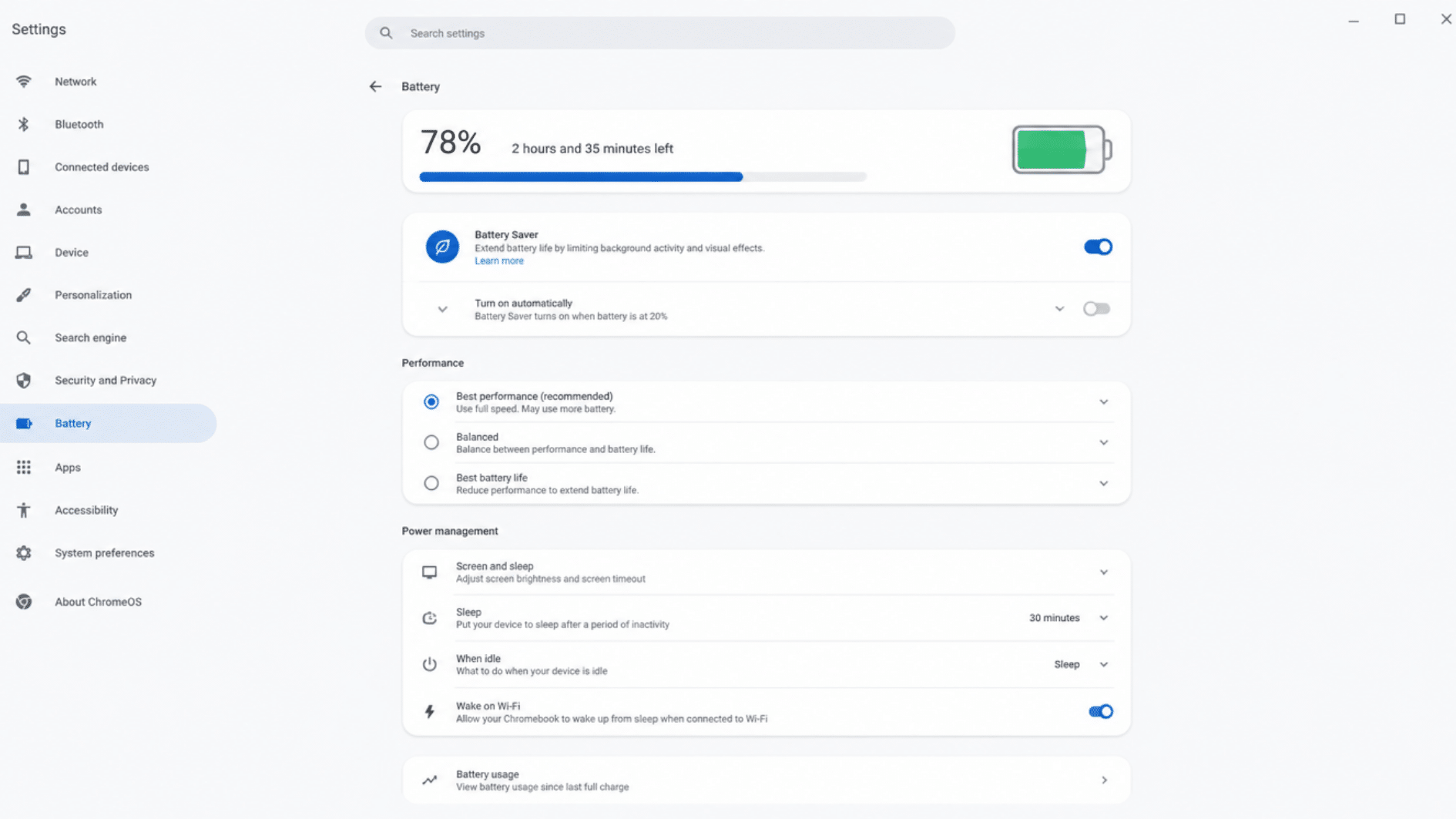
Your Chromebook’s default settings aren’t always optimized for speed. A few quick adjustments can make a noticeable difference in how fast your Chromebook responds.
- Go to Settings > Device > Power
- Set your power mode to Better performance or High performance if available
- Turn off Bluetooth when not in use to free up resources
- Reduce the number of apps set to launch at startup
💡 Tip: Keeping your Chromebook plugged in while working on heavy tasks gives it more power to perform at full speed.
Step 6: Powerwash Your Chromebook as a Last Resort
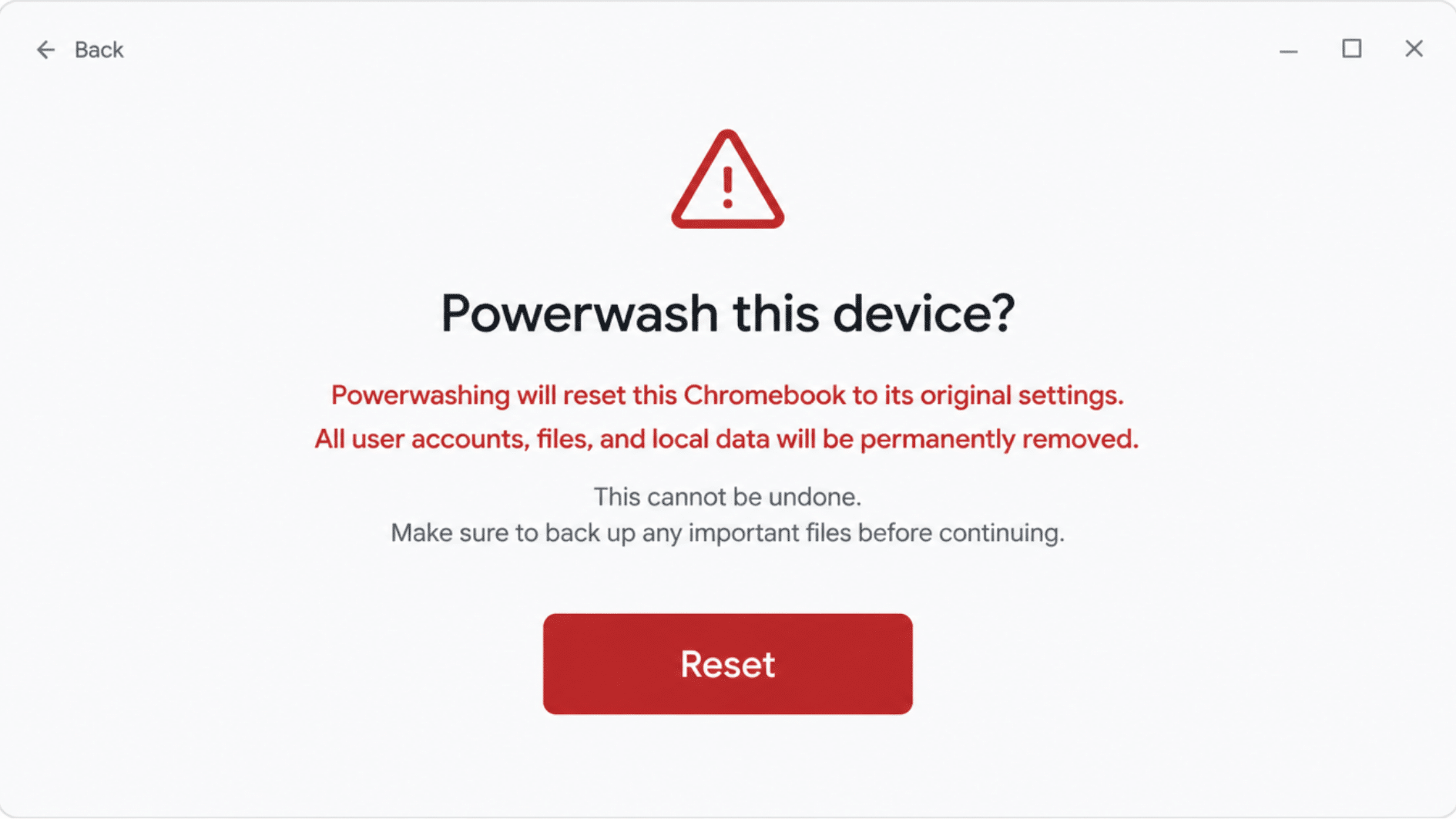
If your Chromebook is still running slow after trying everything above, a Powerwash, Chrome OS’s factory reset, might be the fix you need. It wipes everything and gives your device a completely fresh start.
- Sign out of your Chromebook and press Ctrl + Alt + Shift + R
- Select Restart and then choose Powerwash
- Follow the on-screen steps to complete the reset
- Sign back in with your Google account to restore your settings and files
💡 Tip: Before you Powerwash, make sure all your important files are backed up to Google Drive so you don’t lose anything.
When to Reset and Optimize Your Chromebook for Speed?
Sometimes fixing a slow Chromebook comes down to two things: adjusting the right settings and knowing when a full reset is the best move. Both are simpler than they sound.
Adjust Performance, Power, and Background Settings
Your Chromebook’s default settings aren’t always set up for speed. Small tweaks can free up memory and make a real difference in day-to-day performance.
- Set your power mode to Better performance under Settings > Device > Power
- Turn off Bluetooth and Wi-Fi when not in use to reduce background activity
- Go to Settings > Sync and turn off anything you don’t actively need
- Disable background apps and limit startup programs to only the essentials
💡 Tip: Turning off sync for apps you rarely use is one of the easiest ways to speed up a slow Chromebook instantly.
When and How to Powerwash Your Chromebook
If your Chromebook is still running slow after trying every fix, a Powerwash gives it a completely fresh start. It wipes all local data and restores Chrome OS to its original state — often making an old, sluggish Chromebook feel brand new again.
- Back up all important files to Google Drive before you begin
- Sign out and press Ctrl + Alt + Shift + R, then select Restart
- Choose Powerwash, confirm, and follow the on-screen instructions
- Sign back in with your Google account to restore your preferences
💡 Tip: A Powerwash won’t delete anything stored in Google Drive, only local files are removed, so back up anything saved directly on your device.
The Takeaway
A slow Chromebook can be frustrating, but as you’ve seen, the fixes are usually simpler than you’d expect.
From clearing the cache and removing unused extensions to freeing up storage, updating Chrome OS, and adjusting your power settings, you now have a clear path to better performance. And if all else fails, a Powerwash gives your device a clean, fresh start.
Most of the time, a few small changes are all it takes to bring your Chromebook back to life. So the next time you catch yourself wonderingwhy your Chromebook is so slow, you’ll know exactly where to look.
Please try these steps today; a faster, smoother Chromebook is well within reach.
Frequently Asked Questions
Can Too Many Google Account Syncs Slow Down My Chromebook?
Yes, syncing multiple Google accounts simultaneously puts extra load on your system. Limiting active accounts to only what you need can noticeably improve speed.
Does Enabling Developer Mode Affect Chromebook Performance?
Developer mode turns off some built-in optimizations and security features, which can slow things down. Enable it only if absolutely necessary for your workflow.
Can a Slow Chromebook Affect Video Calls and Streaming?
Absolutely. A sluggish Chromebook often shows up first during video calls and streaming, causing lag, buffering, and dropped frames even on a strong connection.
Is It Worth Repairing a Slow Chromebook or Just Replacing It?
If your Chromebook has passed its AUE date and basic fixes haven’t helped, replacing it is usually more cost-effective than repair.