



A PC can seem complicated until you understand what it actually does. You use one for work, study, games, shopping, or entertainment, yet terms like CPU, RAM, storage, and GPU can make choosing a computer feel confusing.
If you are asking, “What is a PC?” the answer starts with a simple idea: it is a personal computer designed for one person to use. I’ll explain how it works, which parts matter, and how desktops, laptops, gaming systems, and workstations differ.
You will also learn what to check before buying, so comparing specifications feels easier and choosing the right PC becomes much more straightforward.
What Is a PC?
A PC, short for personal computer, is a digital device designed for one person to use at a time. It can handle everyday tasks such as browsing the internet, writing documents, attending online classes, editing photos, watching videos, and playing games.
The term became common when computers became smaller, more affordable, and practical for individual ownership rather than being shared by large organizations.
A PC is not limited to a desktop tower. Laptops, mini PCs, all-in-one computers, gaming PCs, and workstations also fall under the same category.
What makes them personal computers is their ability to run software, store files, connect to accessories, and give users direct control over their work and entertainment. Most PCs use operating systems such as Windows or Linux, although the exact hardware, size, and performance can vary widely.
How Does a PC Work?
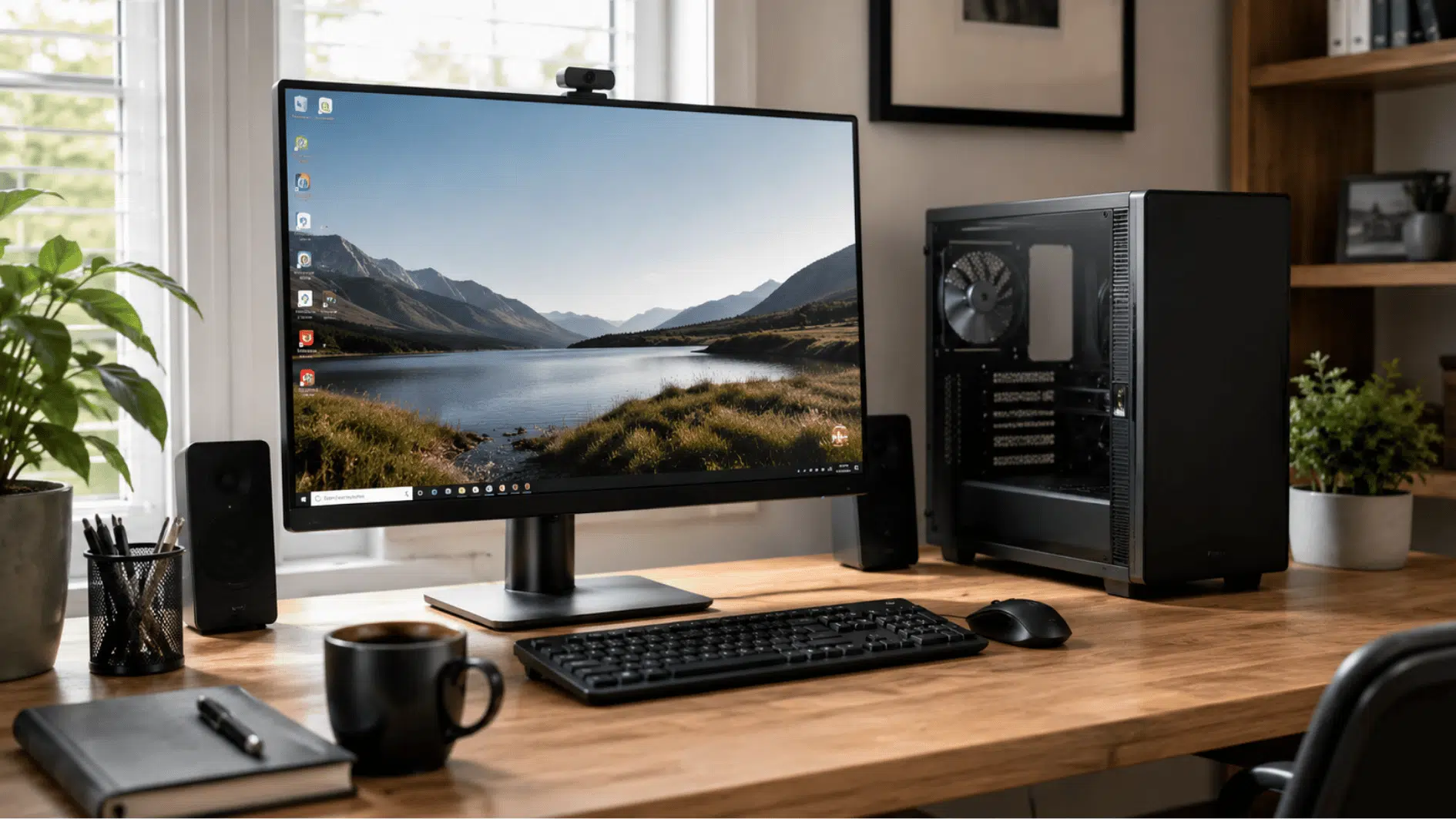
A PC works by combining physical components with software instructions to process information, run programs, store files, and display results for the user.
- Input: The keyboard, mouse, microphone, or other devices send commands and data to the computer.
- Processing: The CPU follows software instructions and performs calculations needed to complete each task.
- Memory: RAM temporarily holds active data so programs can run quickly and respond smoothly.
- Storage: The SSD or hard drive keeps files, applications, and the operating system permanently.
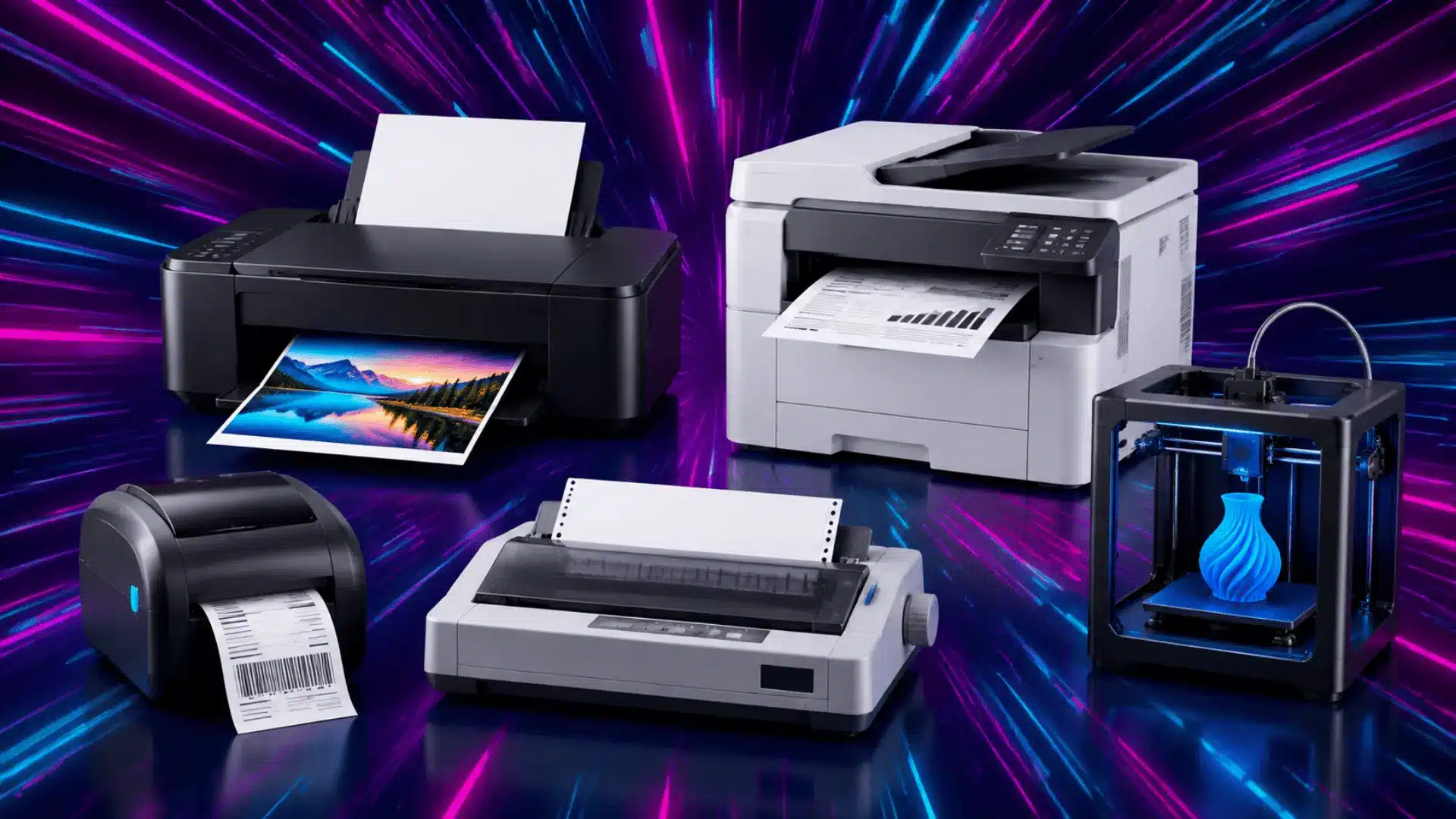
- Output: The monitor, speakers, or printer present the processed information to the user.
- Operating system: Windows, Linux, or another system manages hardware, software, files, security, and connected devices. Protection tools also help defend the PC against common digital threats.
These steps happen within seconds, allowing the PC to open applications, browse websites, play media, save documents, and complete everyday computing tasks.
What Are the Main Parts of a PC?
A PC is really a team of components working in sync, and understanding each piece makes it much easier to buy, upgrade, or troubleshoot one later.
| Component | What It Does | Think of It As |
|---|---|---|
| CPU | Executes instructions and runs calculations for every task. | The brain |
| RAM | Holds active data for smooth multitasking. | Short-term memory |
| Storage (SSD/HDD) | Stores files, apps, and the OS permanently. | The filing cabinet |
| Motherboard | Connects every component so they can communicate. | The nervous system |
| GPU | Handles visuals for gaming, editing, and design. | The artist |
| PSU | Converts wall power into usable energy. | The heart |
| I/O Devices | Keyboards, mice, monitors, speakers, printers. | The senses |
What Are the Different Types of PCs?
Not all PCs are built for the same purpose. Some are designed for portability, while others focus on performance, upgrades, or professional workloads. Understanding the different types can help you choose the one that best fits your needs.
1. Desktop PC
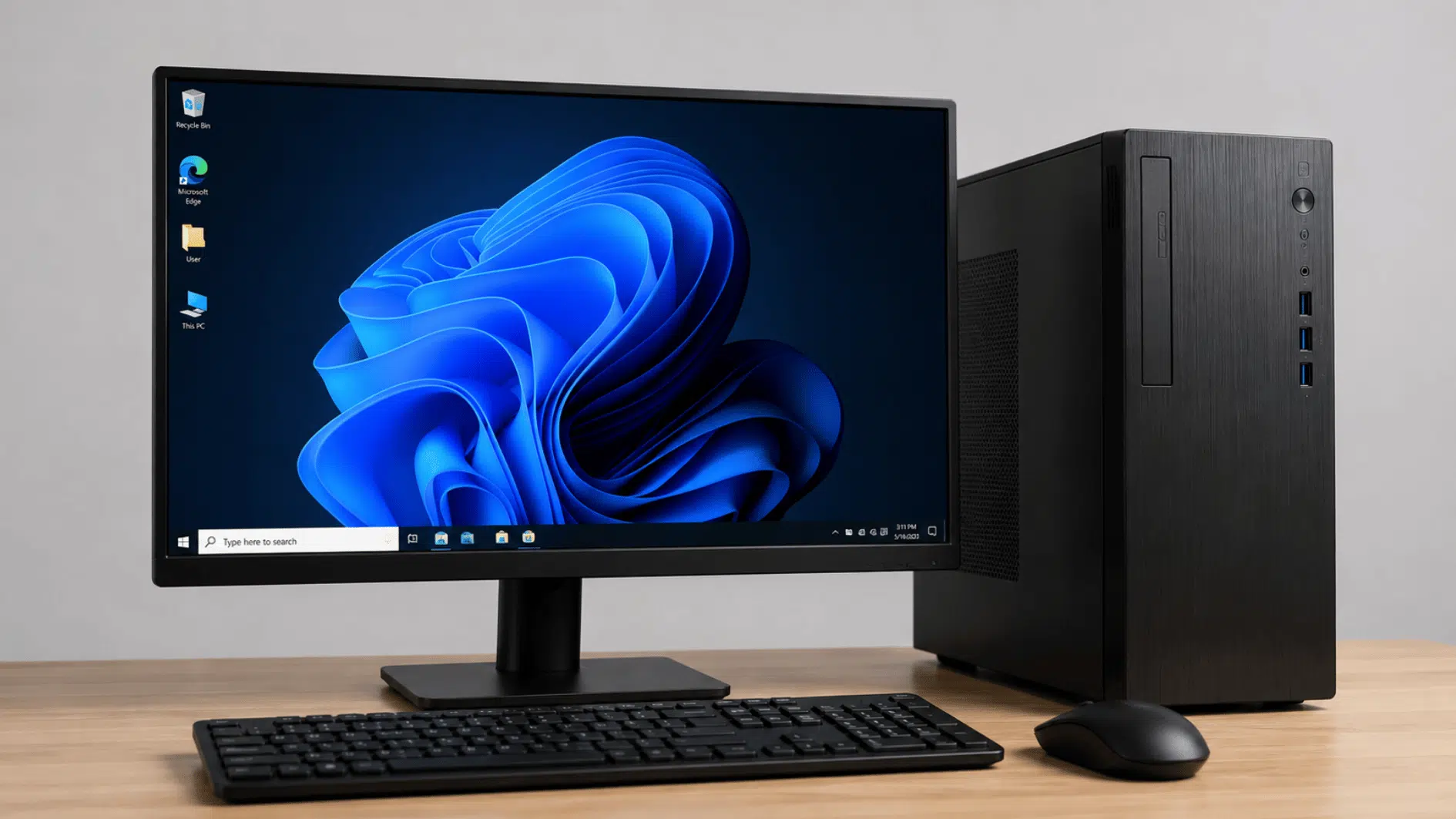
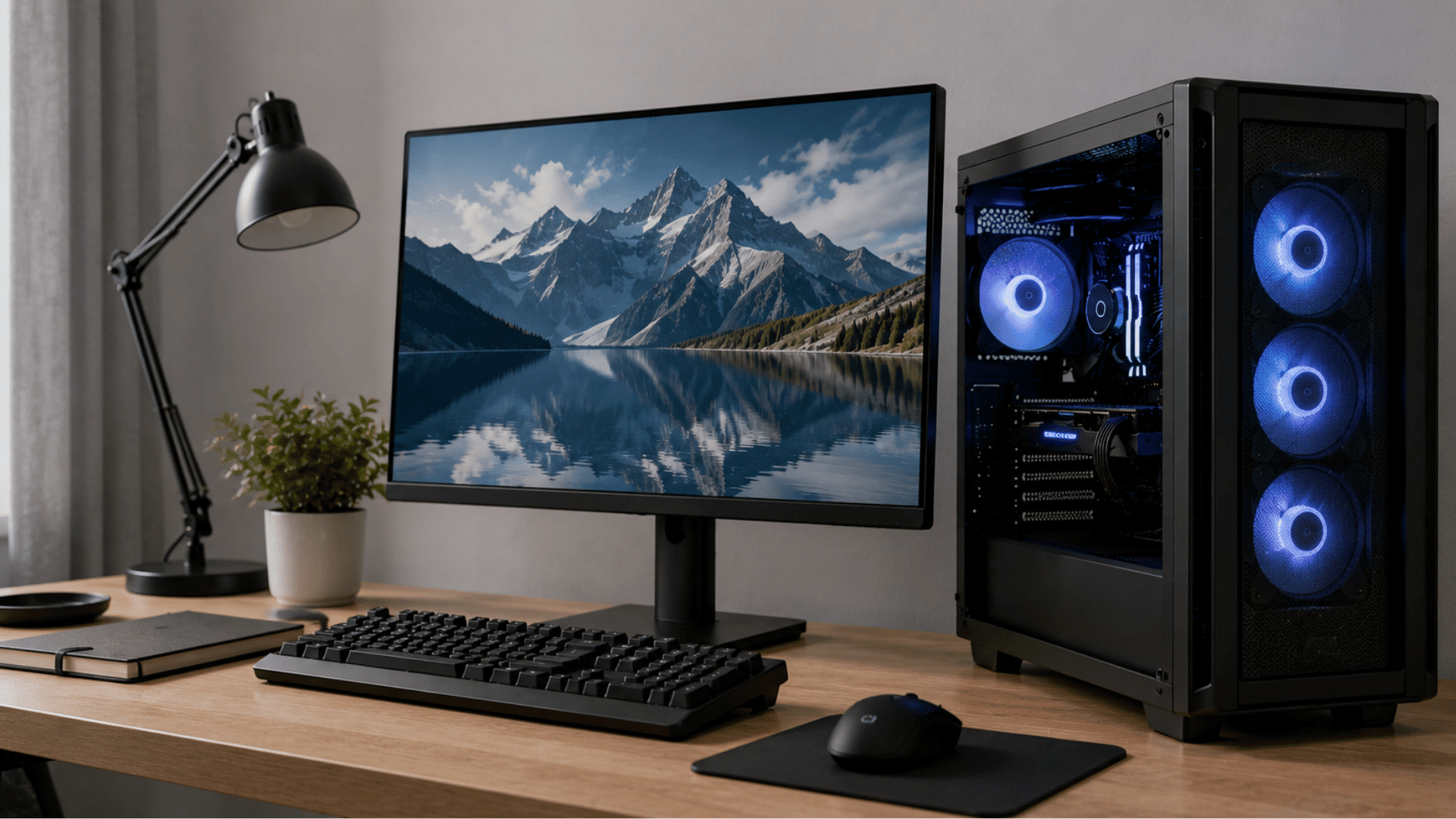
A desktop PC is a stationary computer that usually includes a tower, monitor, keyboard, and mouse. It offers strong performance, better cooling, and more room for hardware upgrades. Desktops are available for basic home use, office tasks, gaming, editing, and professional workloads.
Best for: Home users, office workers, gamers, and content creators.
- Easy to upgrade with more RAM, storage, or a new graphics card
- Often provides better performance than a similarly priced laptop
- Larger cases support stronger cooling and quieter operation
- Individual parts are easier to repair or replace
- Requires a permanent desk or dedicated workspace
2. Laptop PC
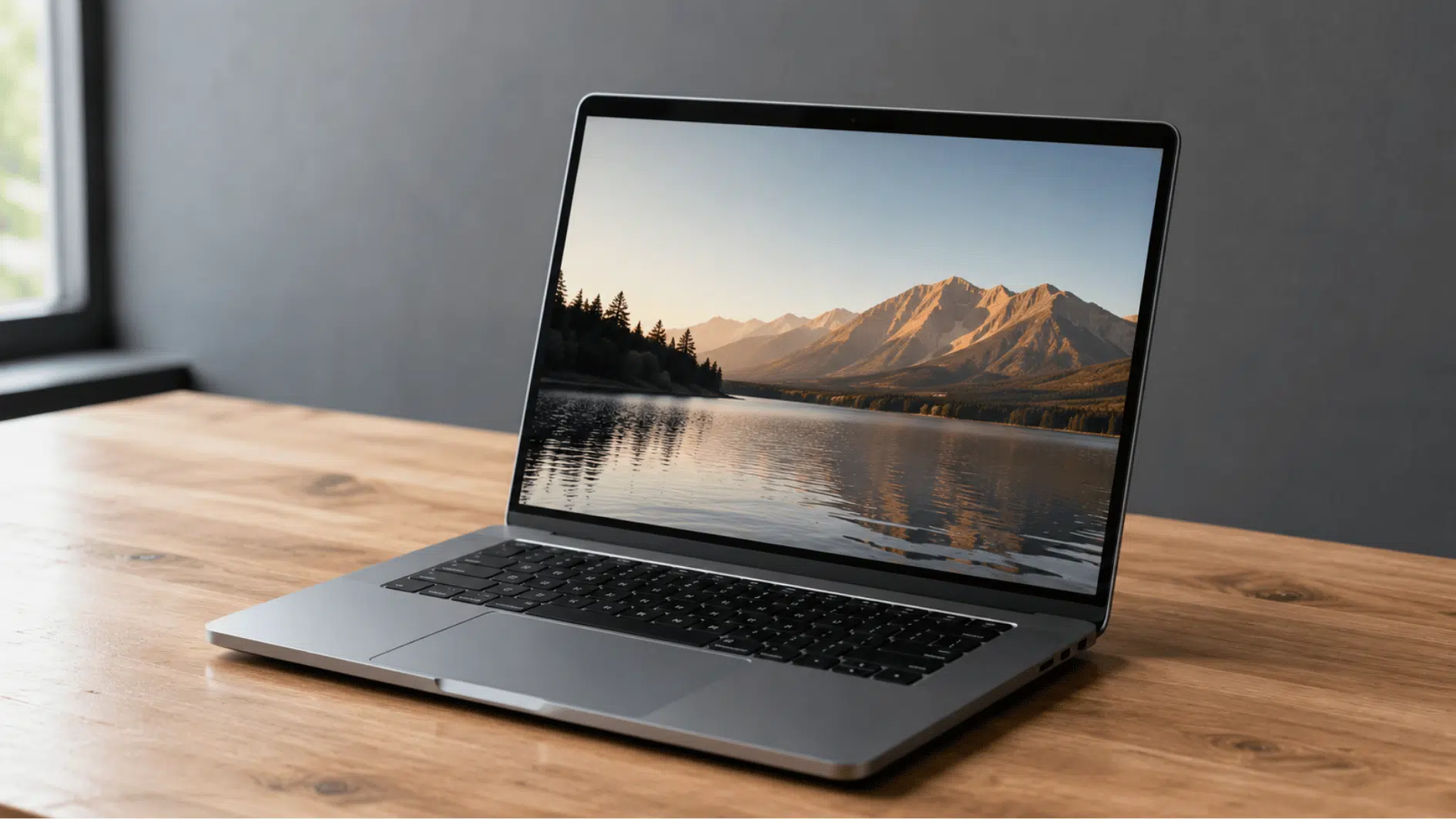
A laptop combines the screen, keyboard, touchpad, processor, memory, storage, and battery in one portable device. It can handle everyday work, studying, communication, entertainment, and even demanding creative tasks. Performance varies widely, making laptops suitable for both basic users and professionals.
Best for: Students, professionals, remote workers, and frequent travelers.
- Lightweight and convenient to carry between locations
- Built-in battery allows use without a constant power connection
- Available in budget, business, gaming, and creative models
- Includes essential components in one compact device
- Usually offers fewer repair and upgrade options than a desktop
3. Mini PC
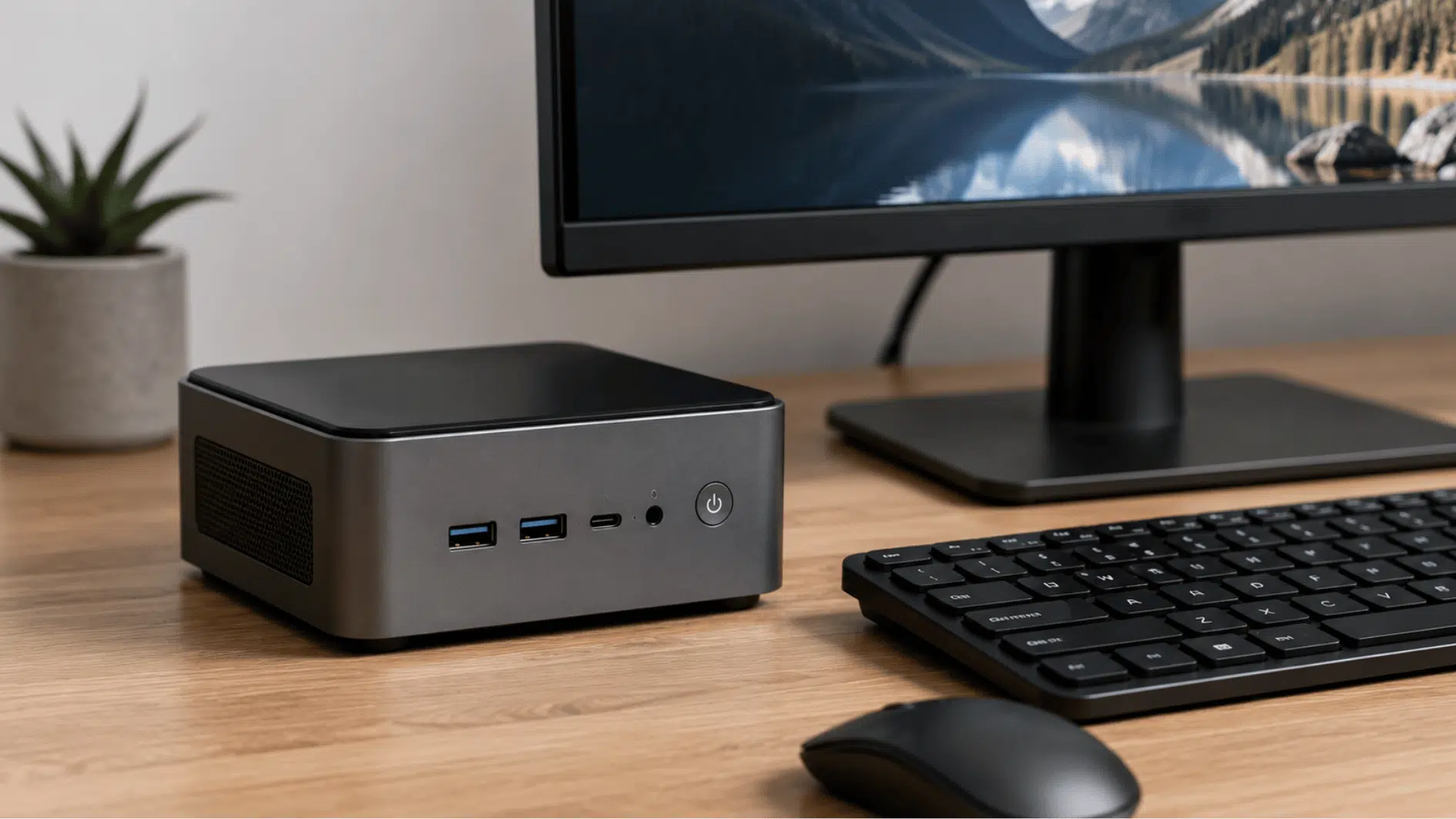
A mini PC provides desktop-style computing in a small, lightweight case that fits easily on a desk or behind a monitor. It works well for everyday productivity, internet browsing, media playback, and light business use. Some advanced models can also manage editing and moderate multitasking.
Best for: Home offices, media centers, reception areas, and compact workspaces.
- Takes up very little desk space
- Uses less electricity than many full-sized desktops
- Usually operates quietly because of lower power requirements
- Connects to a separate monitor, keyboard, and mouse
- Less suitable for high-end gaming or demanding professional software
4. All-in-One PC
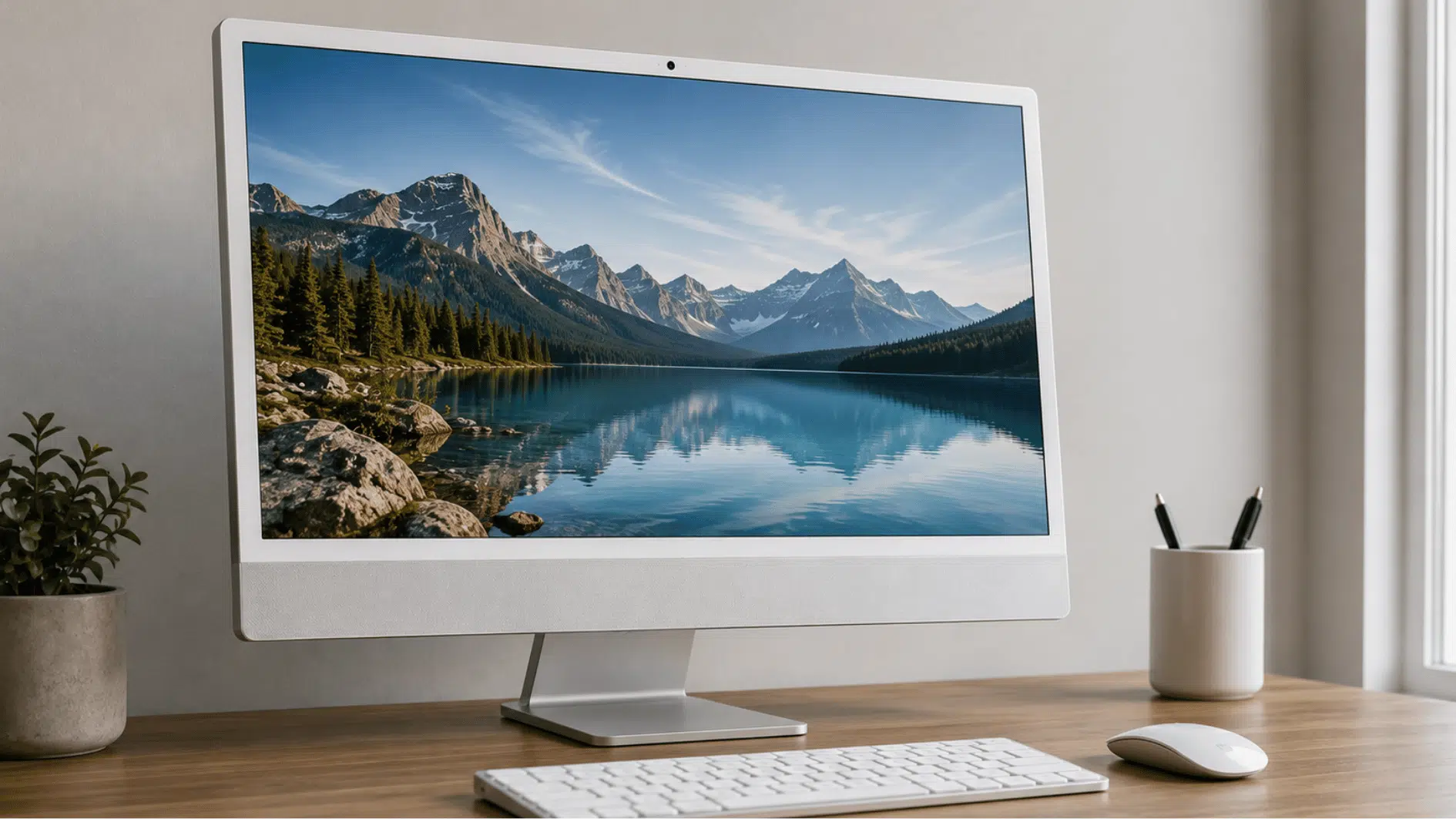
An all-in-one PC places the computer hardware inside or behind the monitor, removing the need for a separate tower. It creates a neat setup with fewer cables and is easy to install. Many models also include webcams, speakers, microphones, and touchscreen displays.
Best for: Homes, schools, offices, reception desks, and shared spaces.
- Saves desk space by combining the monitor and computer
- Requires fewer cables than a traditional desktop setup
- Simple to install and use for everyday computing
- Often includes built-in speakers, cameras, and microphones
- Internal parts can be difficult or expensive to upgrade and repair
5. Gaming PC
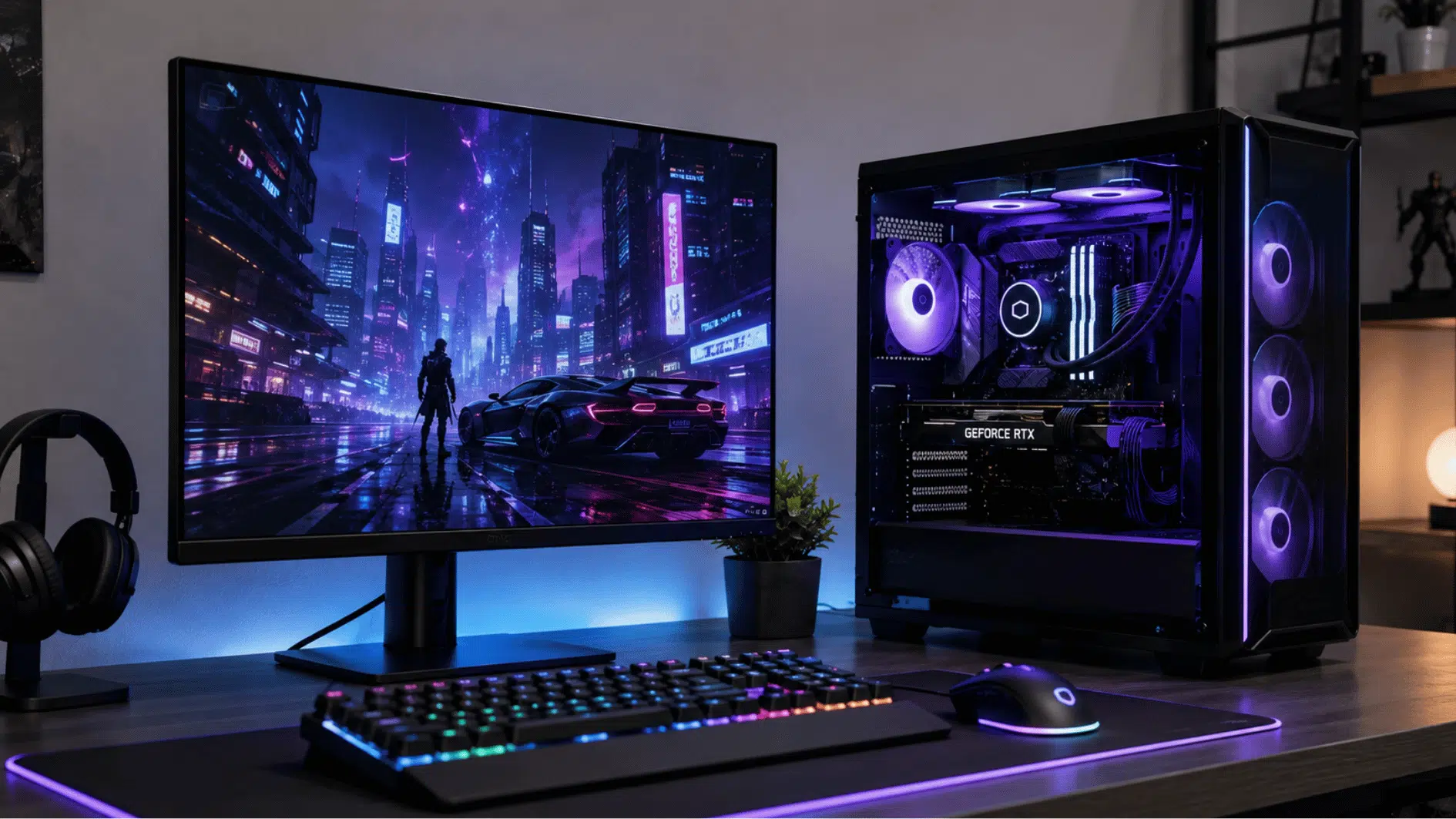
A gaming PC uses powerful hardware to run modern games at higher resolutions, smoother frame rates, and better visual settings. It usually includes a dedicated graphics card, fast processor, extra memory, and advanced cooling. Many gaming systems also support streaming, editing, and virtual reality.
Best for: Gamers, streamers, video editors, and creative professionals.
- Includes a dedicated graphics card for demanding visuals
- Delivers higher frame rates and smoother gameplay
- Supports gaming monitors, controllers, headsets, and VR equipment
- Can be upgraded as new games require stronger hardware
- Usually costs more and uses more electricity than a standard PC
6. Workstation PC
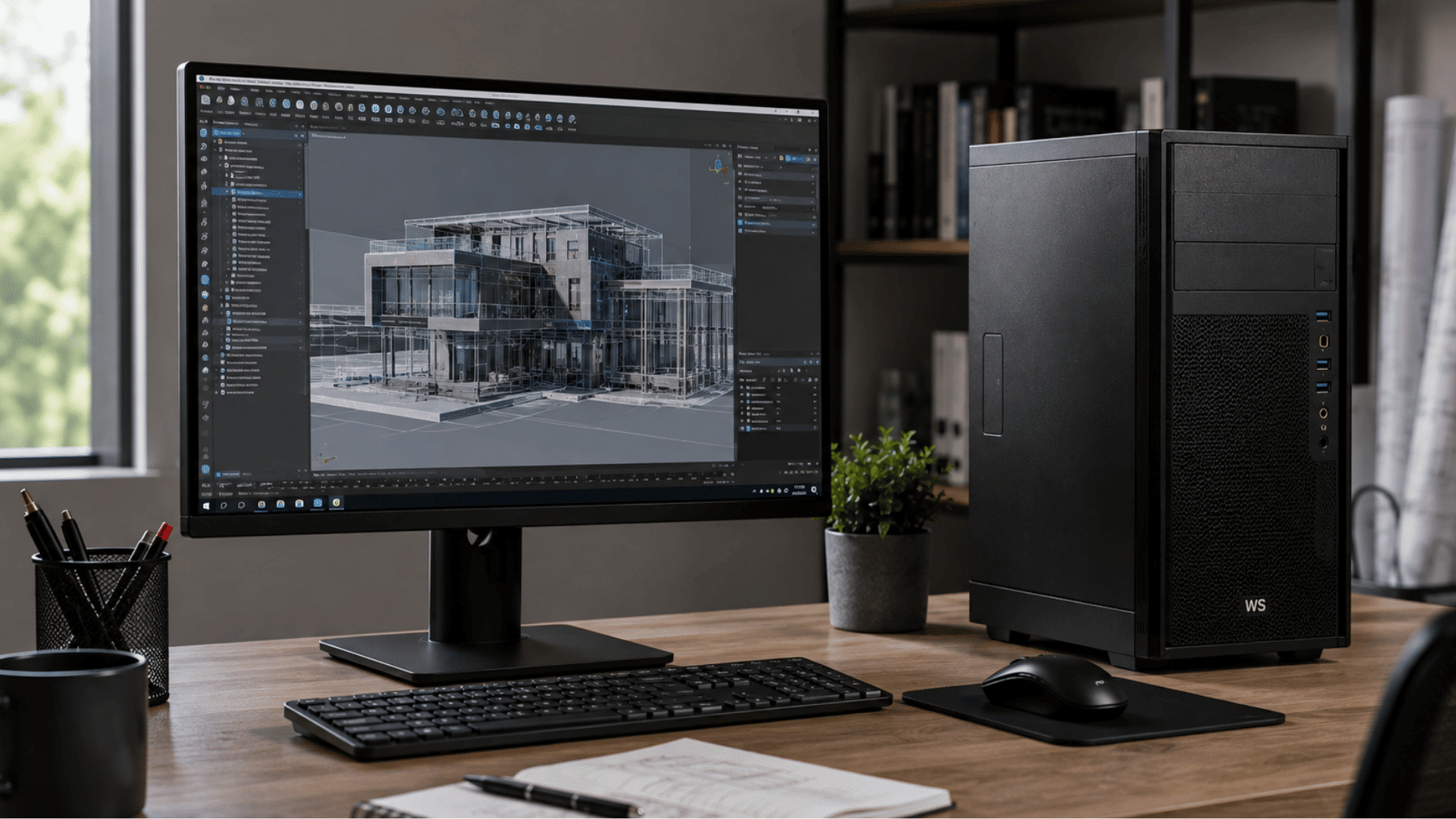
A workstation PC is designed for professional software that requires greater processing power, memory, reliability, and precision. It can handle complex projects such as 3D modeling, engineering simulations, scientific analysis, architecture, animation, and high-resolution video production without slowing down during extended workloads.
Best for: Engineers, architects, designers, researchers, editors, and data professionals.
- Handles large files, complex calculations, and demanding software
- Often includes professional-grade processors and graphics cards
- Supports greater amounts of RAM and storage
- Built for reliability during long periods of intensive use
- Costs considerably more than most home or office computers
What Is a PC Used For?
A PC is used for many everyday, educational, professional, and creative tasks. Students use PCs for online classes, research, assignments, presentations, and communication with teachers.
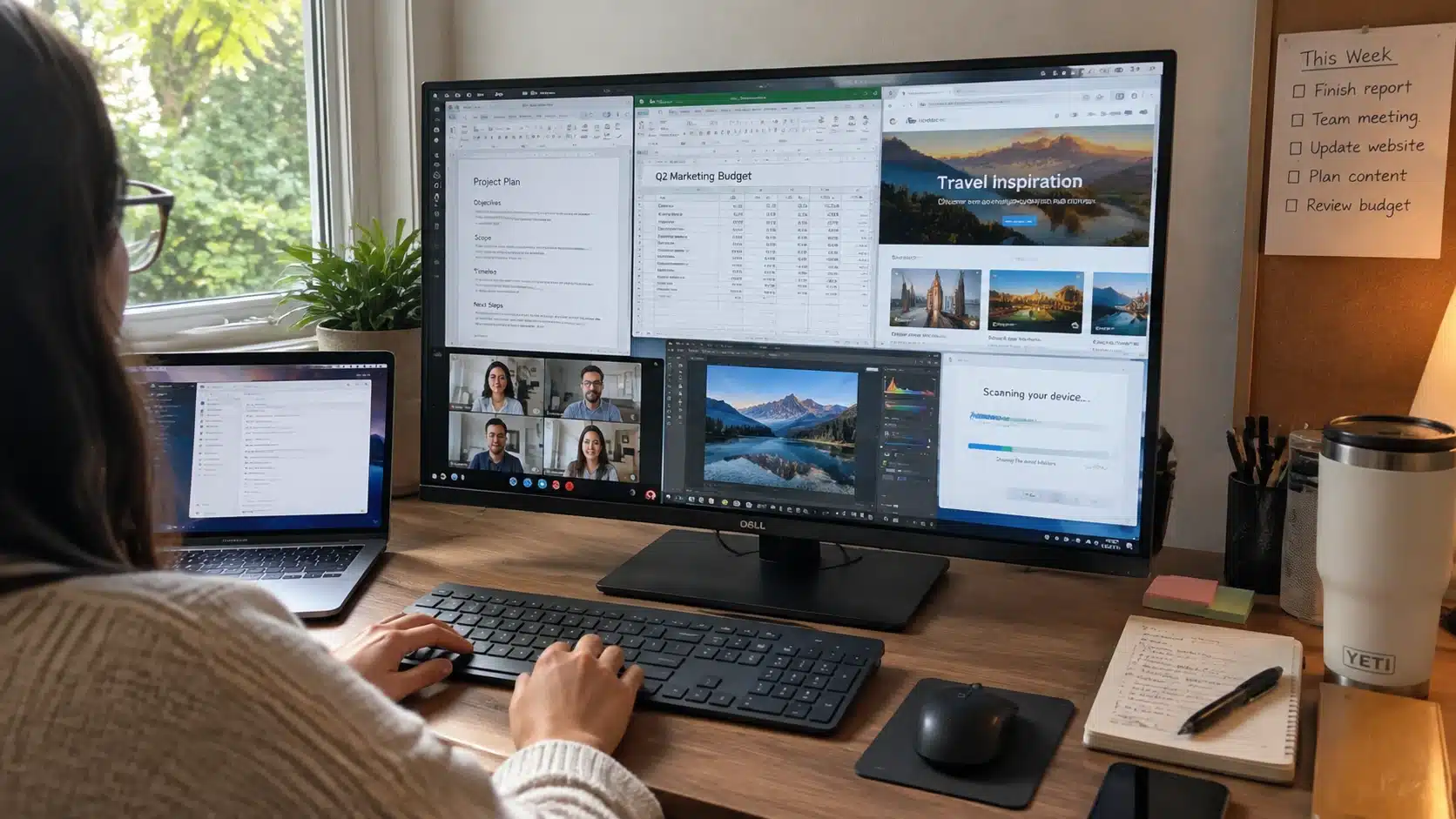
Office workers rely on them for writing documents, managing spreadsheets, joining video meetings, and handling business software. At home, a PC can be used for browsing the internet, shopping, banking, emailing, streaming videos, and staying connected with others.
More powerful systems support gaming, live streaming, photo editing, video production, graphic design, music creation, and programming. PCs are also useful for storing files, backing up photos, printing documents, and managing personal projects.
The exact use depends on the hardware and software installed, which means a basic PC may suit simple tasks, while a high-performance model can handle demanding work smoothly and efficiently for many years ahead.
How to Choose the Right PC
Choosing the right PC starts with understanding how you’ll use it. Instead of focusing on the most expensive specifications, look for a system that matches your daily tasks, budget, and future needs.
- Identify Your Needs: Choose a PC based on what you’ll use it for, such as web browsing, office work, gaming, content creation, or programming.
- Choose Between a Desktop and Laptop: A desktop offers stronger performance and easier upgrades, while a laptop provides portability. Mobile workers may also use an extra portable display when they need more screen space.
- Select the Right Processor: The CPU affects your PC’s overall speed. An entry or mid-range processor is enough for everyday tasks, while demanding work benefits from a more powerful chip.
- Pick Enough RAM and Storage: For most users, 16GB of RAM and an SSD provide fast performance and enough space for applications and files.
- Think About Future Upgrades: If you plan to keep your PC for several years, consider if you’ll be able to add more storage, memory, or other components later.
- Set a Budget: Decide how much you want to spend before shopping. Comparing features within your budget helps you find the best value without paying for hardware you won’t use.
How Much Does a PC Cost?
A PC typically costs between $300 and $5,000 or more, depending on its processor, graphics, memory, storage, brand, and intended workload.
| PC Category | Typical Price Range | Best For |
|---|---|---|
| Entry-Level PC | $300–$600 | Web browsing, email, streaming, schoolwork, and basic documents |
| Office PC | $600–$1,000 | Multitasking, spreadsheets, video meetings, business software, and everyday productivity |
| Gaming PC | $900–$2,500 | Modern gaming, streaming, content creation, and graphics-intensive applications |
| High-Performance PC | $2,000–$5,000+ | Professional editing, 3D rendering, engineering, data processing, and advanced gaming |
These ranges are general estimates. Custom components, premium graphics cards, larger storage drives, warranties, monitors, and accessories can considerably increase the final cost.
Final Thoughts
Understanding a PC does not require memorizing every technical term. Once you know how the processor, memory, storage, graphics, and operating system work together, comparing different devices becomes far less confusing.
You can also see why desktops, laptops, mini PCs, gaming systems, and workstations suit different users.
Knowing what is a PC helps you focus on practical needs instead of chasing the highest specifications. I recommend starting with your main tasks, preferred level of portability, upgrade plans, and available budget.
The right choice should support your routine smoothly without adding unnecessary cost or complexity. Use these basics when comparing your options, then check out my related computer guides for more buying and setup advice.
Frequently Asked Questions
Can a PC Work Without an Internet Connection?
Yes. You can use many programs, create documents, watch downloaded media, and play offline games without an internet connection.
How Long Does a PC Usually Last?
A well-maintained PC typically lasts 5 to 8 years, depending on its hardware, usage, and if components can be upgraded.
Do All PCs Come With Windows Installed?
No. While many PCs include Windows, some come with Linux, ChromeOS, or no operating system at all.
Do PCs Need Regular Maintenance?
Yes. Keeping your PC updated, removing unnecessary files, and cleaning dust from the hardware helps maintain performance and extend its lifespan.
Can You Build Your Own PC Instead of Buying One?
Yes. Building a PC lets you choose your own components, making it easier to customize performance, features, and budget.