







You’re deep into work on your MacBook when you glance at the battery icon and get nothing but a rough shape, no number, no real sense of how much time is left.
That vague read can turn into a scramble for a charger at the worst moment, right as a call starts or a deadline closes in.
macOS actually hides an exact number behind that icon by default.
Switching it on takes less than a minute once you know where to look, and it changes how you plan the rest of your work session.
Learning how to show battery percentage in MacBook settings means comparing a specific figure instead of eyeballing a shrinking outline every few minutes.
Here’s why that number matters, and exactly where the setting lives in macOS.
Why Show Battery Percentage on MacBook?
The battery icon shows your MacBook’s status visually, but a battery percentage gives you a clearer reference for comparing battery use over time.
This can be useful when you want to understand how quickly your charge changes during different types of work.
In more than ten years of walking readers through Mac settings, this is one of the first tweaks I point people toward, since it takes seconds to turn on and pays off every time you glance at the menu bar.
I have noticed this when switching between lighter tasks and heavier workloads.
Video calls, file editing, and multitasking can place different demands on a MacBook, and watching the battery level change can help you recognize those differences.
A percentage can also make unusual battery changes easier to notice.
If the charge drops much faster than expected during normal use, you have a useful starting point for checking open apps, connected devices, or whether optimized battery charging is quietly working against you.
If the charge drops much faster than expected during normal use, you have a useful starting point for checking open apps, connected devices, or other factors that may be affecting battery consumption.
How to Show Battery Percentage on MacBook Using Menu Bar Settings
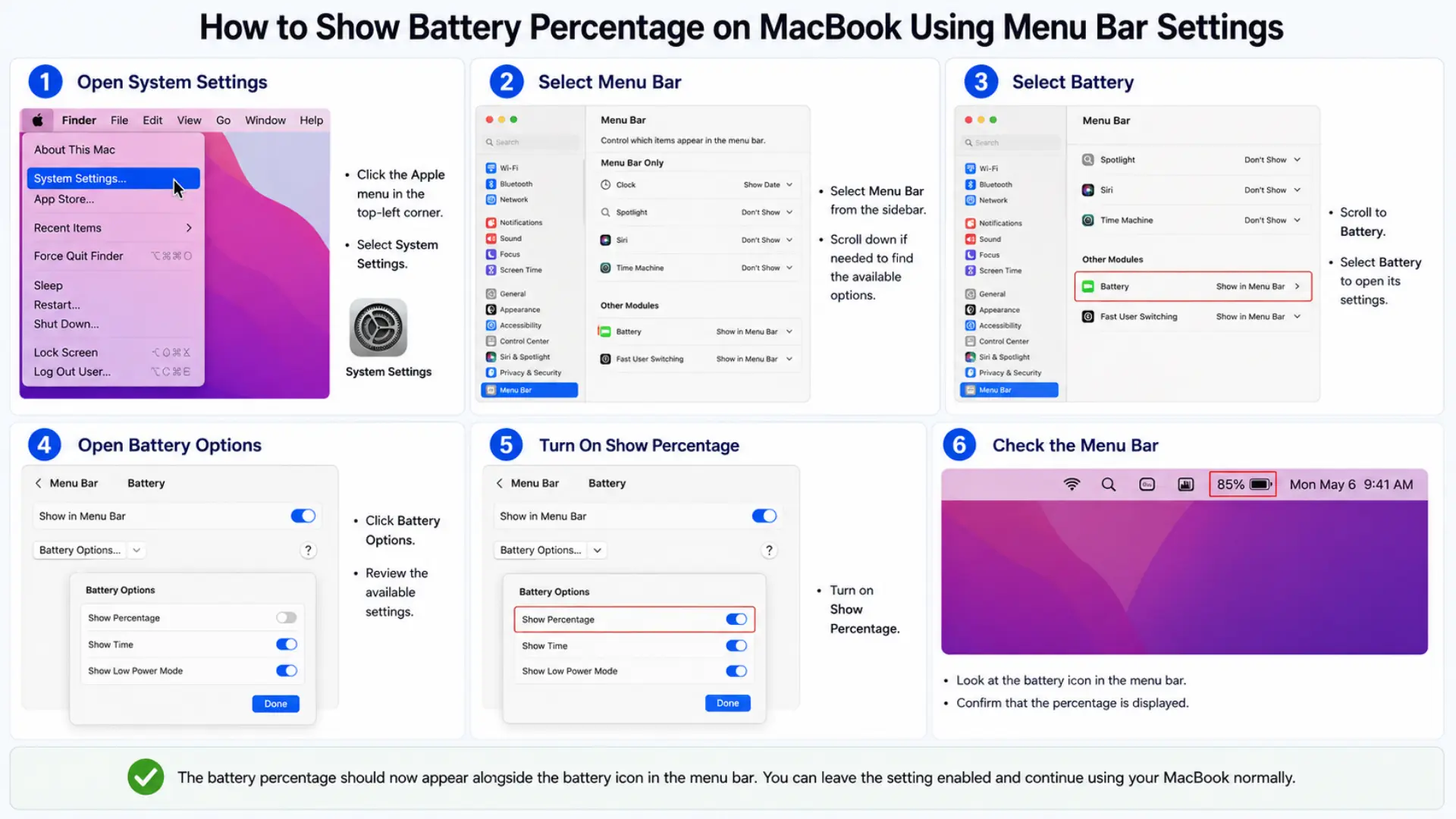
You can turn on the battery percentage in System Settings.
The Battery options include the control that determines whether the percentage appears with the battery information in your MacBook’s menu bar.
Step 1: Open System Settings
System Settings contains the controls for your MacBook’s features and appearance. The Apple menu gives you direct access to the settings needed to change how battery information is displayed.
- Click the Apple menu in the top-left corner.
- Select System Settings.
Step 2: Select Menu Bar
The Menu Bar section contains settings for items that can appear at the top of your MacBook screen. This is where you can access the Battery controls and adjust how its information is presented.
- Select Menu Bar from the sidebar.
- Scroll down if needed to find the available options.
Step 3: Select Battery
The Battery option contains the settings related to battery information shown in macOS. Selecting it takes you to the controls you need the change how your current battery status is displayed.
- Scroll to Battery.
- Select Battery to open its settings.
Step 4: Open Battery Options
Battery Options provides additional controls for the information associated with the battery indicator. Opening this menu lets you access the setting that controls the display of the numerical battery percentage.
- Click Battery Options.
- Review the available settings.
Step 5: Turn On Show Percentage
The Show Percentage setting controls the numerical value displayed with the battery information. Turning it on changes the battery indicator from a visual status alone to one that also includes the current percentage.
Turn on Show Percentage.
Step 6: Check the Menu Bar
After changing the setting, check the top of your MacBook screen to make sure the change has taken effect. The battery information should now include the numerical percentage you selected.
- Look at the battery icon in the menu bar.
- Confirm that the percentage is displayed.
The battery percentage should now appear alongside the battery icon in the menu bar. You can leave the setting enabled and continue using your MacBook normally.
These steps match Apple’s Mac battery guide, which covers the same Menu Bar and Battery Options path.
With the percentage visible, it also gets easier to notice if charging itself feels off. If your MacBook is topping up slower than it used to, this guide to fixing slow charging walks through the usual culprits.
How to Show Battery Percentage on MacBook Using Control Center
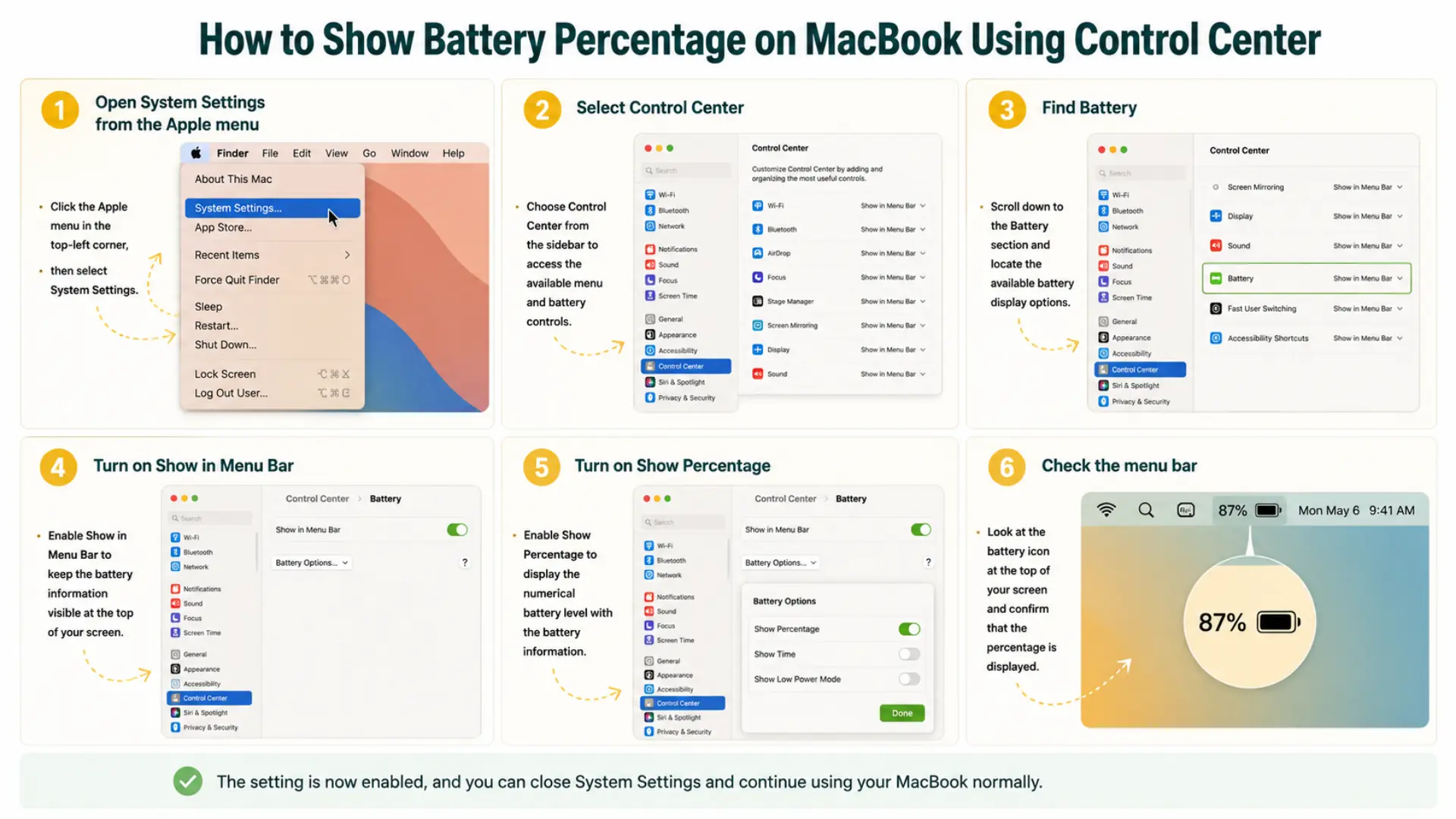
If your MacBook uses Control Center for battery settings, you can access the battery information there and enable the available display options.
- Open System Settings from the Apple menu: Click the Apple menu in the top-left corner, then select System Settings.
- Select Control Center: Choose Control Center from the sidebar to access the available menu and battery controls.
- Find Battery: Scroll down to the Battery section and locate the available battery display options.
- Turn on Show in Menu Bar: Enable Show in Menu Bar to keep the battery information visible at the top of your screen.
- Turn on Show Percentage: Enable Show Percentage to display the numerical battery level with the battery information.
- Check the menu bar: Look at the battery icon at the top of your screen and confirm that the percentage is displayed.
The setting is now enabled, and you can close System Settings and continue using your MacBook normally.
What If Battery Percentage is not Showing?
If the battery percentage does not appear after changing the setting, a few simple checks can help identify the issue. These checks cover the main reasons the percentage may not appear.
| Problem | What to Check |
|---|---|
| Show Percentage is missing | Check your macOS version |
| Battery icon is not visible | Check the battery menu bar setting |
| Percentage does not appear | Make sure Show in Menu Bar is enabled |
| Battery settings are in a different place | Check the Menu Bar and Control Center |
| Setting is enabled, but nothing changes | Restart the MacBook |
If the options look different, your macOS version may use another settings location.
And if the MacBook seems unresponsive well beyond a missing percentage, it’s worth ruling out a deeper power issue, like the ones covered in MacBook not turning on.
Wrapping Up
Checking a vague battery icon over and over during a long work session gets old fast, especially when a charger is nowhere nearby. A visible number fixes that instantly.
Once you learn how to show battery percentage on MacBook settings, you get a clear figure next to the icon instead of a shrinking outline, so you always know when to save your work or plug in.
If the option looks different on your Mac, check whether your settings live under the Menu Bar or Control Center, since macOS has moved this control around over the years.
Have you found the setting somewhere unexpected on your Mac? Let us know where it turned up for you.
Frequently Asked Questions
Does Showing Battery Percentage Drain MacBook Battery?
No, showing the battery percentage does not drain your MacBook’s battery in any meaningful way. The setting only changes how the existing battery status is displayed in the menu bar, so macOS is not running any extra background process to calculate it. Your Mac already tracks the charge level constantly, whether the percentage is visible or hidden.
Can You Show Battery Percentage on a MacBook Air?
Yes, every MacBook Air model running a supported version of macOS can display the battery percentage. Turn it on through the same Menu Bar or Control Center settings covered above, since the option works identically across MacBook Air and MacBook Pro. The exact menu location can shift slightly depending on which macOS version your MacBook Air is running.
Can You Show Battery Percentage on a MacBook Pro?
Yes, MacBook Pro models support the same battery percentage setting as every other current MacBook. Open System Settings, then enable Show Percentage under Menu Bar or Control Center, whichever section your macOS version uses. Once it is on, the number stays visible next to the battery icon across every user account on that MacBook Pro.
Why Does MacBook Battery Percentage Drop Quickly?
MacBook battery percentage drops fastest during demanding tasks like video calls, large file exports, gaming, or running several apps at once. High screen brightness, connected external displays, and background apps syncing data all pull extra power too. If the drop feels unusually fast for normal use, check Activity Monitor for a single app using far more energy than expected.