





Slow charging can test anyone’s patience, especially when a phone stays plugged in forever but the battery barely moves.
One day everything works fine, and the next day you start searching why your phone is charging slowly because the battery suddenly feels weaker than usual.
The good news is that learning how to fix slow charging is often much easier than people think. Sometimes the issue comes from a tiny mistake that goes unnoticed for weeks.
You’ll learn simple fixes, hidden charging problems, and a few easy habits that can help your device charge faster again without anything too technical or confusing.
Why is My Phone Charging Slowly?
Slow charging does not always mean your phone is damaged. In many cases, the problem starts because of small things people ignore every day.
Many users searching why is my phone charging slowly are usually dealing with charging habits, weak accessories, hidden battery drain, or heat-related issues.
Even something as simple as the wrong charging setup can affect speed without making it obvious right away.
Common Reasons Behind Slow Charging
- Damaged charging cable
- Weak or fake charger
- Dust inside the charging port
- Background apps using battery
- Phone overheating while charging
- Aging battery health
- Charging settings slowing power intake
- Using the phone during charging
Signs Your Charging Setup is the Problem
- Cable feels unusually hot
- Charger disconnects randomly
- Battery percentage increases very slowly
- Phone charges faster with another charger or cable
Step-by-Step Ways to Fix Slow Charging
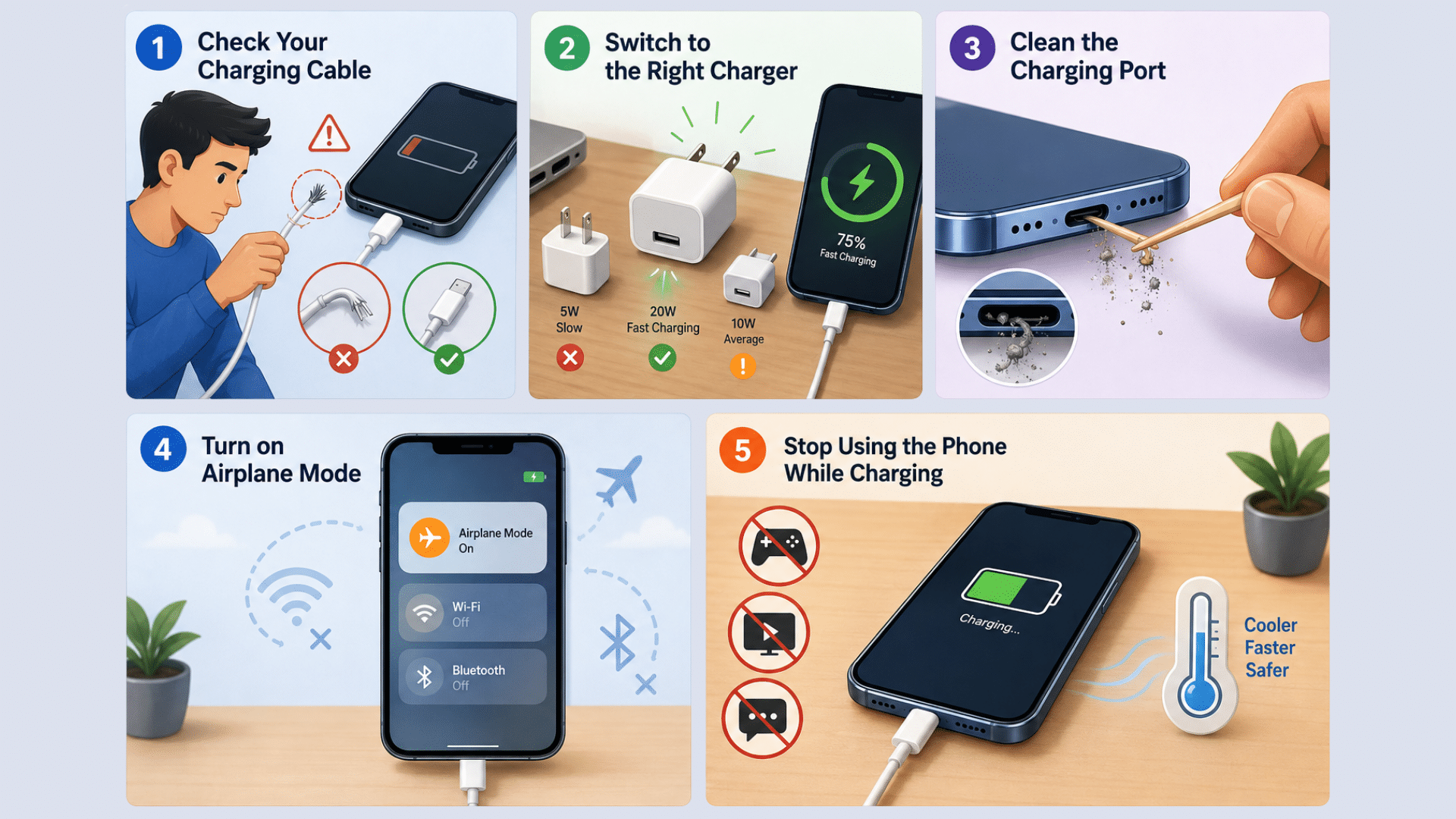
Most people searching how to fix slow charging assume the battery is damaged right away, but that is not always true. Trying a few simple fixes can help your device charge faster again without spending money on repairs.
Step 1: Check Your Charging Cable
Charging cables can wear out faster than most people realize. Even a small bend or loose connection may reduce charging speed without stopping charging completely.
What to do:
- Look for frayed wires, bends, or loose ends
- Feel if the cable gets unusually hot
- Try another certified cable for comparison
- Replace cheap or damaged cables if needed
Step 2: Switch to the Right Charger
A weak or incompatible charger can slow charging down even when the cable works perfectly fine. Many people notice faster charging immediately after changing their charger.
What to do:
- Use a wall charger instead of a laptop USB port
- Check if the charger supports fast charging
- Match the charger wattage with your phone
- Avoid fake or low-quality chargers
Step 3: Clean the Charging Port
Dust and lint can slowly build up inside the charging port and block the connection between the cable and the phone. This is more common than most users think.
What to do:
- Turn off the phone before cleaning
- Use a soft brush or wooden toothpick carefully
- Remove visible dust or lint gently
- Never use water or metal objects
Step 4: Turn on Airplane Mode
Background apps and wireless connections continue using battery power while the phone charges. Airplane Mode can temporarily reduce that battery drain.
What to do:
- Turn on Airplane Mode during charging
- Disconnect Wi-Fi and Bluetooth temporarily
- Close unused apps running in the background
- Use this trick when you need faster charging quickly
Step 5: Stop Using the Phone While Charging
Using the phone during charging forces the battery to work harder and creates extra heat at the same time. This can slow charging more than expected.
What to do:
- Avoid gaming or streaming while charging
- Keep the phone out of direct sunlight
- Remove thick phone cases if the device gets hot
- Let the phone rest until it reaches a better charge percentage
Device Settings That May Slow Charging
Sometimes the charger and cable are not the actual problem. Certain phone settings and background activities can quietly drain battery power while charging, making the process feel much slower.
If you keep wondering why your phone is charging slowly, these hidden software-related settings could be the reason.
Background Apps and Battery Usage
Apps running in the background can continue using battery power even while your phone is charging. Social media, streaming, and auto-updating apps are usually the biggest reason behind this issue.
| Problem | What to Check | Quick Fix |
|---|---|---|
| Background battery drain | Social media apps, video apps, automatic downloads | Close unused apps before charging |
| Too many apps open | Multiple apps running together | Clear recent apps regularly |
| Automatic app updates | Apps updating in the background | Pause updates while charging |
Screen Brightness and Refresh Rate
High brightness and smoother display settings may look great, but they also use extra battery power while charging.
| Problem | What to Check | Quick Fix |
|---|---|---|
| High brightness level | Brightness set close to maximum | Lower screen brightness |
| High refresh rate | 90Hz or 120Hz enabled | Switch to standard refresh rate |
| Screen staying active | Display not turning off quickly | Reduce screen timeout duration |
Software Updates and Charging Bugs
Software-related bugs can sometimes affect charging speed or battery performance without warning.
| Problem | What to Check | Quick Fix |
|---|---|---|
| Outdated software | Pending system updates | Update the phone software |
| Charging bug after update | Slow charging after a recent update | Restart the phone after updating |
| Battery optimization issues | Incorrect battery settings | Reset or optimize battery settings |
Hidden Reasons Your Phone Charges Slowly
Sometimes, slow charging continues even after trying the usual fixes. In those cases, the real issue may come from hidden factors that are harder to notice at first.
- Overheating Problems: Modern phones slow down charging automatically when internal temperatures rise too high. This can happen after long video calls, extended camera use, or leaving the phone inside a warm car for too long.
- Battery Health Getting Worse: Batteries lose efficiency naturally as they age. If your phone suddenly struggles to hold a charge throughout the day or the battery percentage behaves strangely, battery wear could be affecting charging performance.
- Fake Accessories Causing Trouble: Some third-party accessories fail to deliver stable power consistently. Even if they appear to work normally, unstable power flow can quietly reduce charging speed and affect long-term battery performance.
When Slow Charging Starts Looking Serious
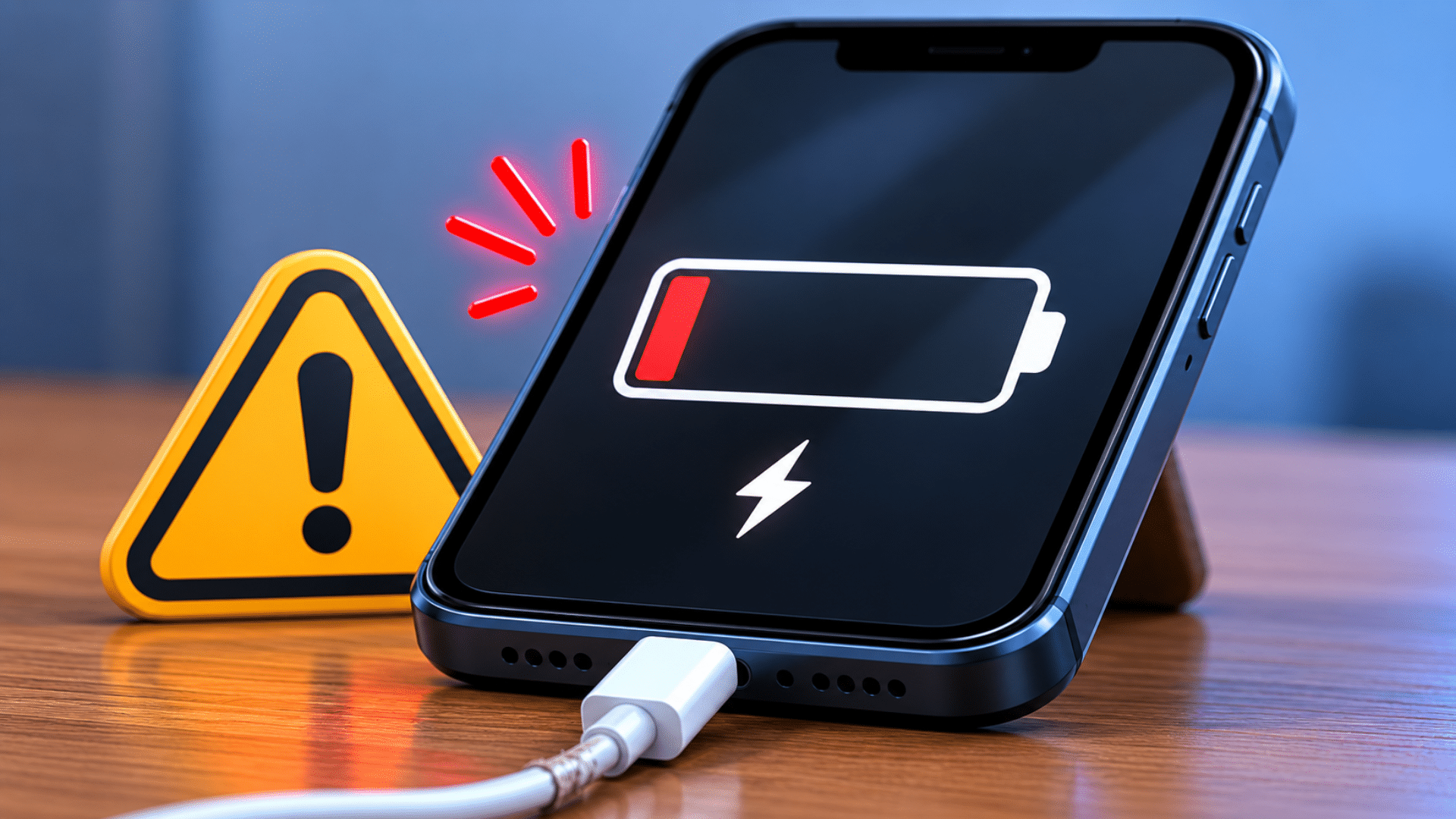
Certain warning signs may point to deeper battery or hardware problems that should not be ignored.
If your phone only charges at certain angles, stops charging randomly, overheats often, or shows unstable battery percentages, internal damage may be developing.
Moisture warnings and sudden fast charging failure can also signal charging system issues inside the device.
A battery that drains quickly even after reaching full charge may no longer hold power properly. If these problems continue regularly, professional repair or battery replacement may eventually become necessary.
Easy Habits That Help Your Phone Charge Faster
Sometimes, faster charging is less about fixing major problems and more about improving small daily habits. A few simple changes can help your phone charge more efficiently and reduce unnecessary battery stress over time.
- Charge your phone using a wall outlet instead of random USB ports
- Keep the phone in a cool and shaded place while charging
- Remove thick phone cases if the device feels warm
- Turn on battery saver mode when the battery is very low
- Disconnect the charger once the battery is fully charged
- Avoid using low-quality or worn-out charging accessories
- Do not rely on power banks too often for regular charging
- Avoid running heavy apps or large file transfers while charging
- Do not charge the phone in very hot places like cars or direct sunlight
- Reduce unnecessary syncing, notifications, and background activity while charging
Conclusion
Slow charging can happen for many reasons, including damaged cables, weak chargers, background settings, overheating, or aging battery health.
The good thing is that most problems are easier to fix than they seem. Small changes like using the right charger, cleaning the charging port, or reducing background activity can improve charging speed surprisingly fast.
Paying attention to warning signs also helps prevent bigger battery problems later. Good charging habits not only help your phone charge faster but can also keep the battery working better for a longer time.
A little extra care today can save both battery life and frustration in the future.
Frequently Asked Questions
Can a Phone Case Affect Wireless Charging?
Yes, very thick cases or metal parts can block wireless charging and make it slower.
Should I Drain My Battery to 0% Before Charging?
No, it is better to charge before the battery fully dies. Regularly draining it to 0% can stress the battery.
Can Dust Outside the Charging Port Affect Charging?
Yes, dirt around the cable connector or charging area can sometimes interrupt proper power flow.