








You pressed the power button on your MacBook, and nothing happened at all. No chime, no fan, no light.
So now you’re staring at a black screen, wondering why your MacBook won’t turn on and hoping it’s not dead for good.
Take a breath, because most of the time it isn’t. In real solved cases, the fix took only minutes and cost nothing at all.
Below, you’ll work through the fixes in order, starting with the ones that work most often. You’ll also see how to turn on the MacBook Air the right way.
Is Your MacBook Really Dead if It Won’t Turn On?
No, in most cases it isn’t. A MacBook that won’t turn on is usually stuck, drained, or not getting power, and true hardware failure is far less common than people fear.
To find out which problem you have, press the power button and listen for a fan or chime. Then check if the Caps Lock light turns on, and tap the brightness key a few times.
Any sound or light means your Mac is actually running, and the display is what needs attention. A fully silent, dark machine points to a power or charging problem instead.
How to Fix a MacBook That Won’t Turn On
Most MacBooks that refuse to start are brought back with one of the fixes below. If you are wondering why my MacBook is not turning on, these steps can help you quickly identify the issue.
Work through them in order, since they’re ranked by how often they solve the problem. Stop as soon as your Mac powers up.
1. Check the Power and Charging Setup
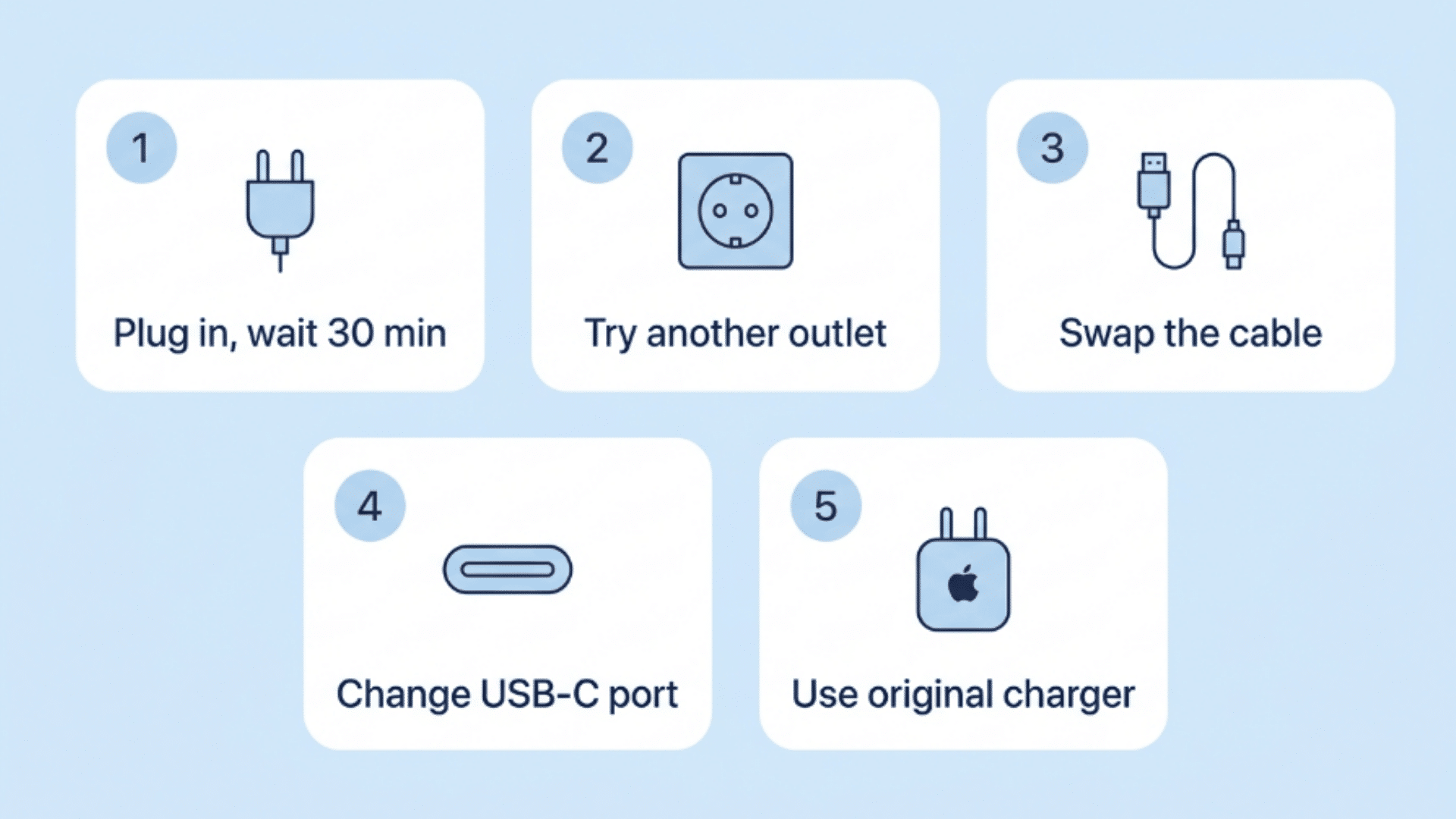
A fully drained battery is the most common reason a MacBook won’t turn on. Once the charge drops too low, your Mac can look completely dead even after you plug it in.
Steps to fix:
- Plug in the charger and wait 30 minutes: A deeply drained battery needs time to show any sign of life, so don’t expect an instant response.
- Try a different wall outlet: The socket itself may be dead, so test one you know works, and avoid power strips for now.
- Inspect the cable and swap it if you can: Look for frayed ends, bent pins, or a loose fit, since damaged cables are a very common cause.
- Switch to another USB-C port on your Mac: A single faulty port can block charging, and most MacBooks have at least two.
- Use the original Apple charger if possible: Many cheap third-party chargers fail to deliver enough wattage to wake a drained MacBook.
My tip: Charge your Mac with the lid closed and check the charging light after a few minutes. Half the “dead” MacBooks I’ve come across were only drained flat.
2. Force-Restart Your MacBook
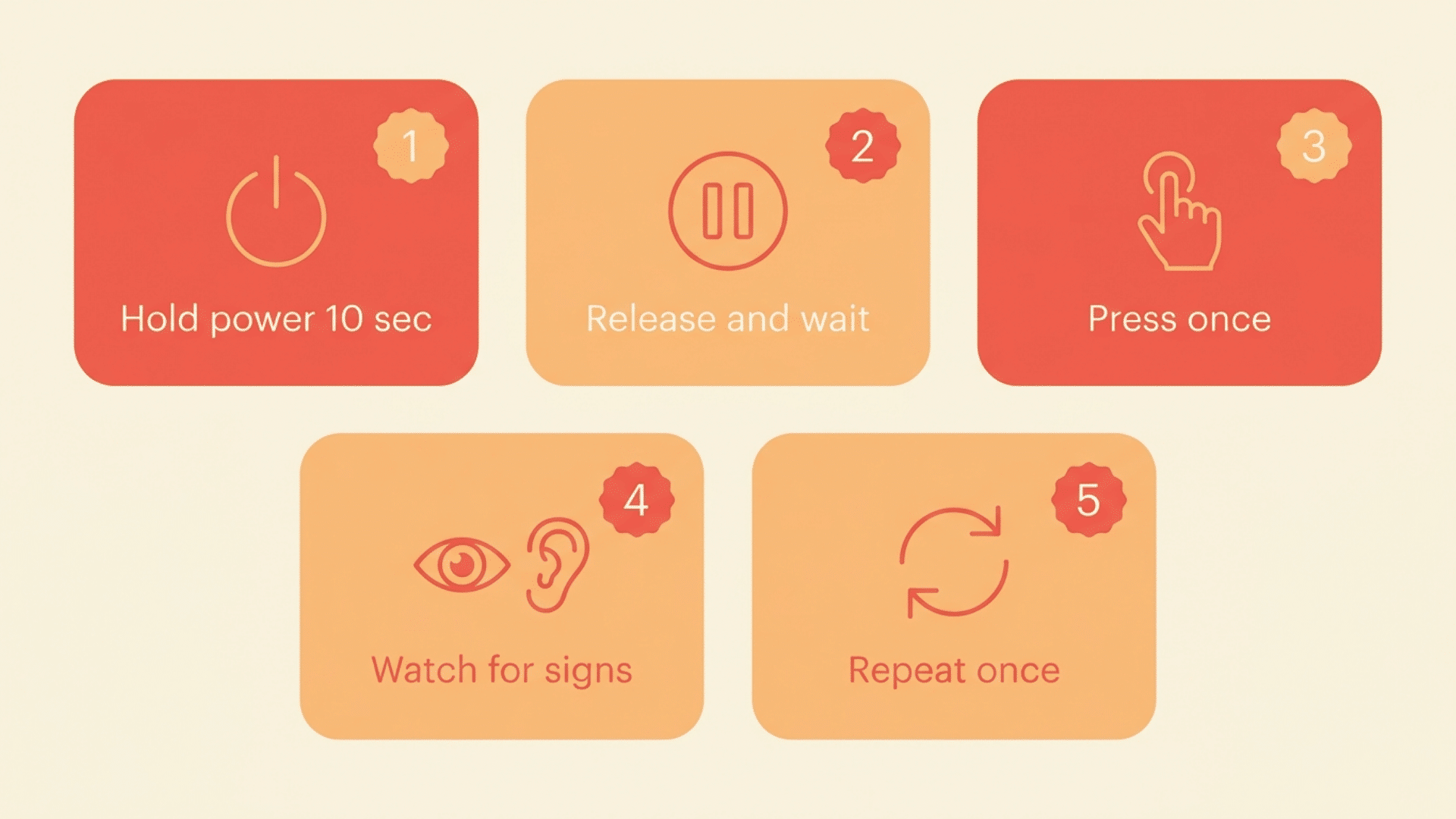
Sometimes your Mac is technically on but frozen with a black screen, so it looks dead when it isn’t. A force restart clears that stuck state and works on both Apple silicon and Intel models.
This is also the first step on Apple’s official support page for a Mac that won’t turn on.
Here’s how to do it:
- Press and hold the power button for 10 seconds: On newer MacBooks, this is the Touch ID key in the top-right corner of the keyboard.
- Release the button and wait a few seconds: This gives the system a moment to fully shut down before you try again.
- Press the power button once to start up: Press it one time and wait, since pressing repeatedly can interrupt the boot process.
- Watch and listen for signs of life: An Apple logo, a chime, or fan noise means the frozen state is cleared.
- Repeat the process once if nothing happens: A second attempt sometimes works when the first one fails, especially after a crash.
Tip: Keep the charger plugged in while you do this, because a force restart on a low battery can fail halfway and leave you thinking the fix didn’t work.
3. How to Turn On MacBook Air the Right Way
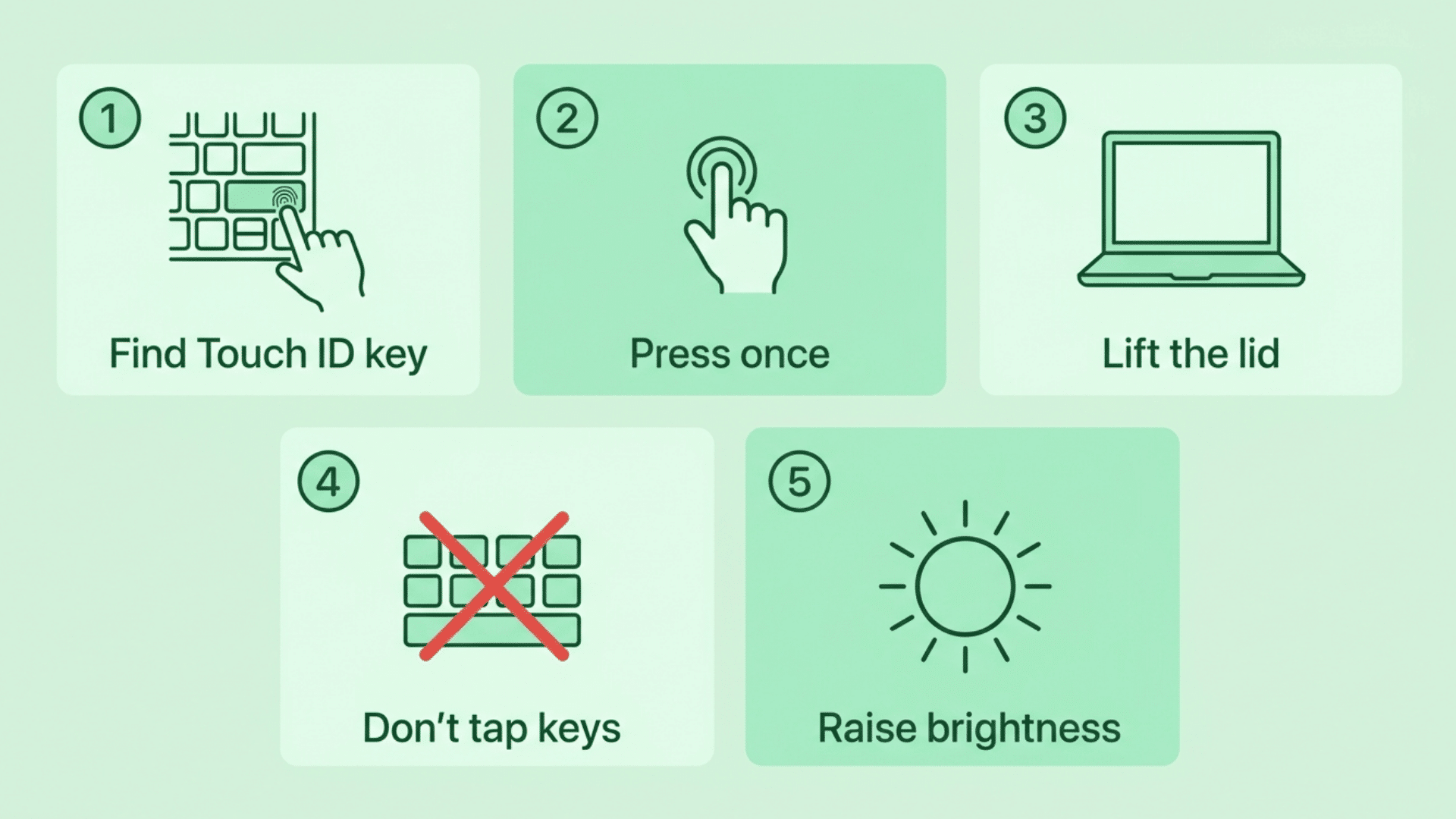
This sounds basic, but the MacBook Air’s power button confuses many people because it has no power symbol on it. Newer Airs also behave differently since they can start on their own.
Follow these steps :
- Find the Touch ID key at the top right of the keyboard: That blank key doubles as the power button on every modern MacBook Air.
- Press it once and wait a few seconds: A short single press is enough, and holding it too long can trigger other startup options.
- Open the lid and wait: Apple silicon MacBook Airs turn on automatically when you lift the lid or connect the charger.
- Avoid tapping keys while it boots: Random key presses during startup can interrupt the process and leave you at a black screen.
- Raise the brightness once you press power: Tap the brightness up key a few times, since a screen set to zero looks exactly like a Mac that won’t start.
Tip: If your Air starts every time you open the lid but not from the keyboard, clean the Touch ID key gently, because dust or grime under that one key can stop it from registering presses.
4. Disconnect All Accessories
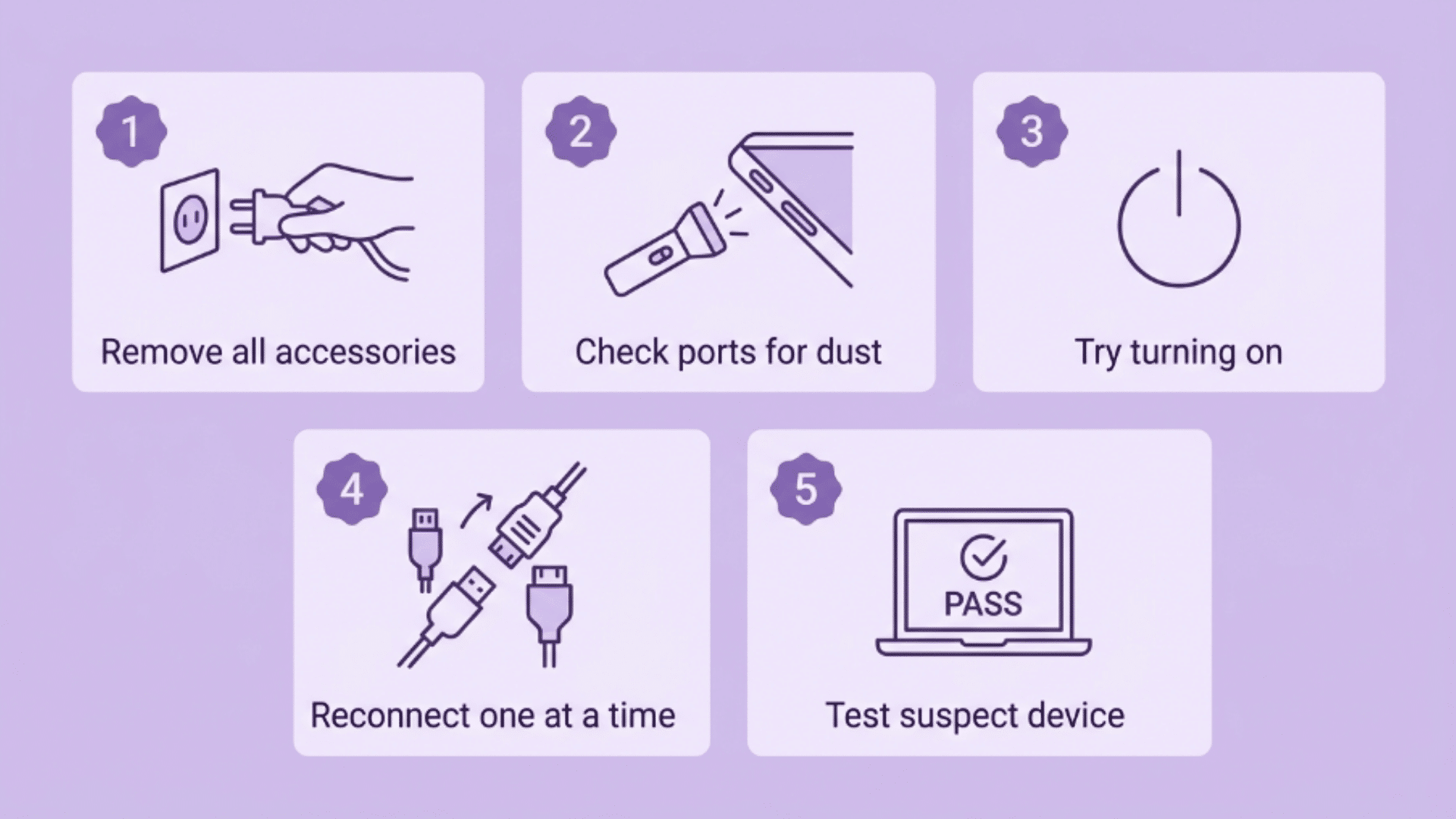
A faulty accessory can stop a MacBook from starting up at all. Hubs, external drives, and even a bad dongle can stall the boot process and keep the screen black.
Try this:
- Unplug everything except the charger: Remove hubs, drives, external displays, SD cards, and any dongles connected to your Mac.
- Check the ports for debris: Look inside each USB-C port with a flashlight, as lint or dust can cause connection issues.
- Try turning on your Mac again: With everything removed, press the power button once and wait for the startup chime or logo.
- Reconnect accessories one at a time: If your Mac starts now, plug items back in one by one to find the guilty accessory.
- Test the suspect accessory on another device: This confirms if the hub or drive is truly faulty before you replace it.
My tip: Cheap multiport hubs are the most common troublemaker I’ve come across, so test without the hub before blaming your MacBook.
5. Reset the SMC (Intel MacBooks Only)
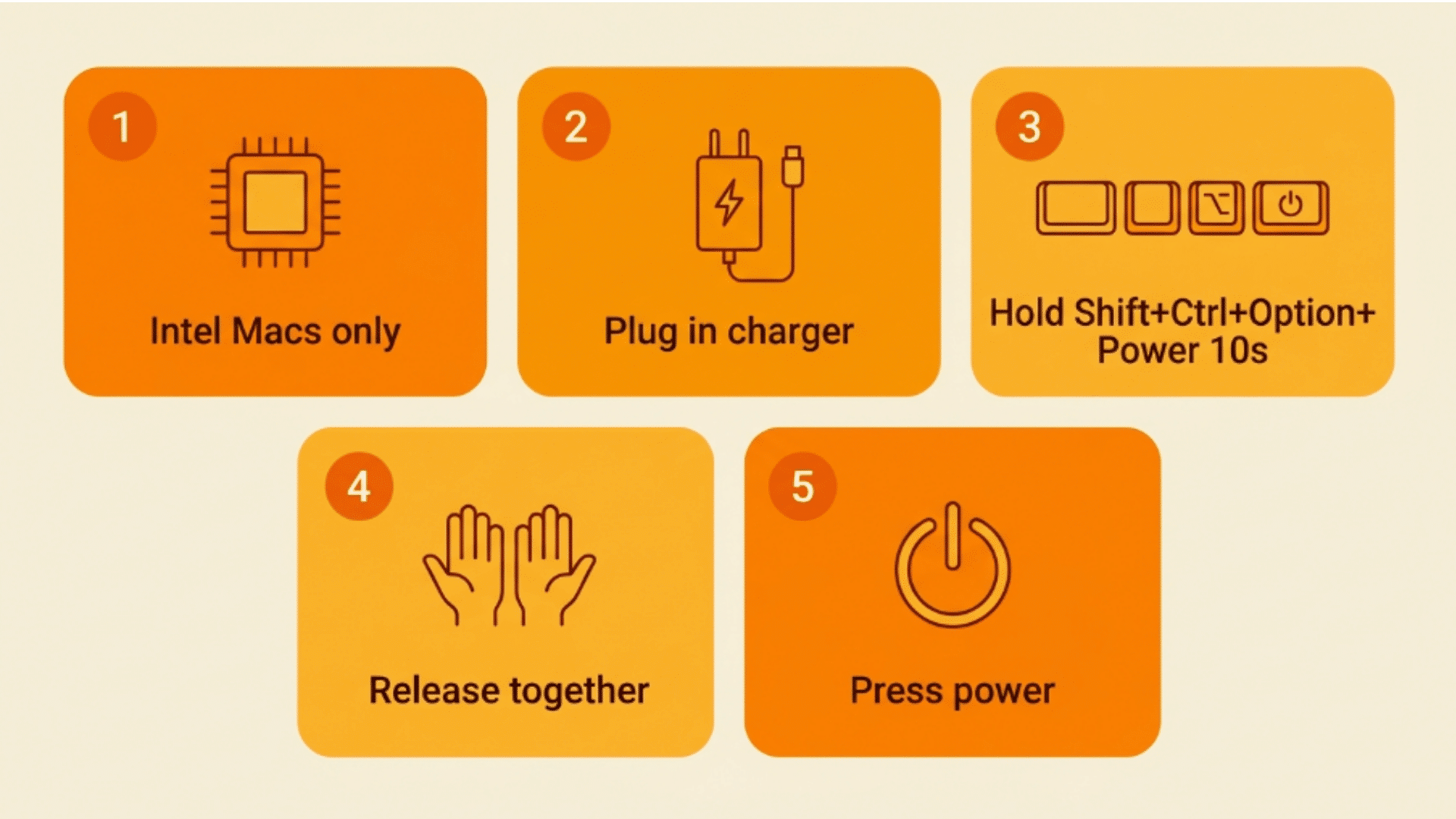
The SMC controls power, charging, and fans on Intel MacBooks, and when it glitches, your Mac may refuse to start. Apple silicon Macs don’t have this step, since the 10-second force restart does the same job.
Here’s the process:
- Confirm your MacBook has an Intel chip: This fix only applies to models from 2020 and earlier that run on Intel processors.
- Shut down and plug in the charger: The reset works best with your Mac connected to power.
- Hold Shift + Control + Option on the left side, plus the power button: Keep all four pressed together for 10 seconds.
- Release all keys at the same time: Letting go together matters, since a staggered release can cancel the reset.
- Press the power button to start your Mac: A successful reset often brings a dead Intel MacBook straight back to life.
My tip: If the first SMC reset does nothing, unplug the charger, wait a full minute, and run it again. The second pass has worked surprisingly often on older Airs I’ve dealt with.
6. Check if It’s a Display Problem
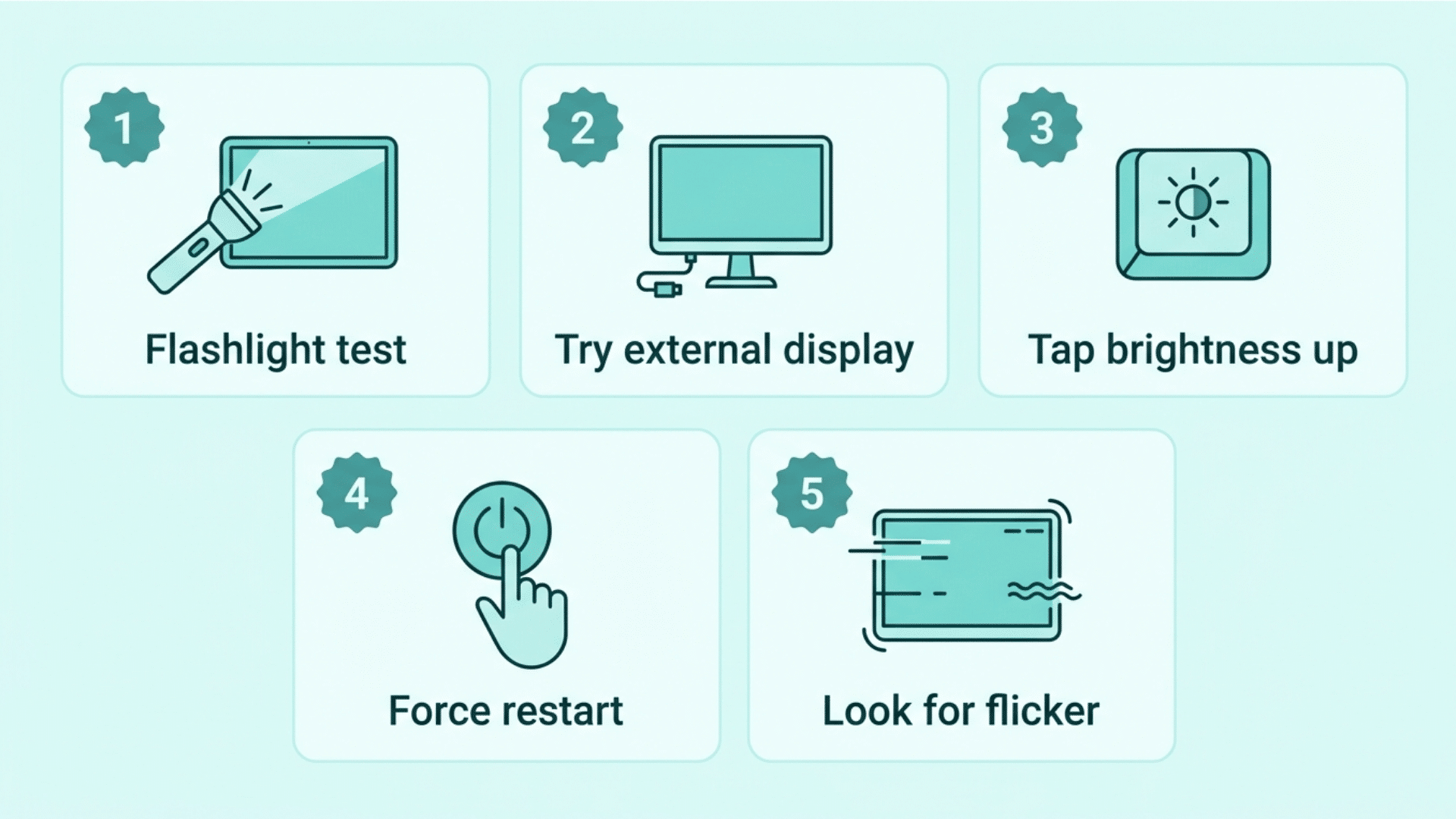
If you heard a fan or chime earlier, your Mac is running, and the screen is the real issue. This changes everything, because the fixes for a display problem are completely different.
Run these checks:
- Shine a flashlight at the screen: A faint, ghost-like image means the display works, but the backlight has failed.
- Connect your Mac to an external monitor or TV: If the display appears on it, your Mac is healthy and only the built-in screen needs repair.
- Tap the brightness up key several times: Rule out a screen that’s turned all the way down before assuming damage.
- Force restart with the display connected: Hold the power button for 10 seconds, then start again, as a stuck graphics process can also cause a black screen.
- Look for flicker or lines at startup: Brief flashes or colored lines indicate a loose display cable, which a repair shop can reseat.
Tip: The flashlight test takes five seconds and instantly tells you if it’s a backlight failure, so always try it before booking a repair.
7. Boot Into Safe Mode
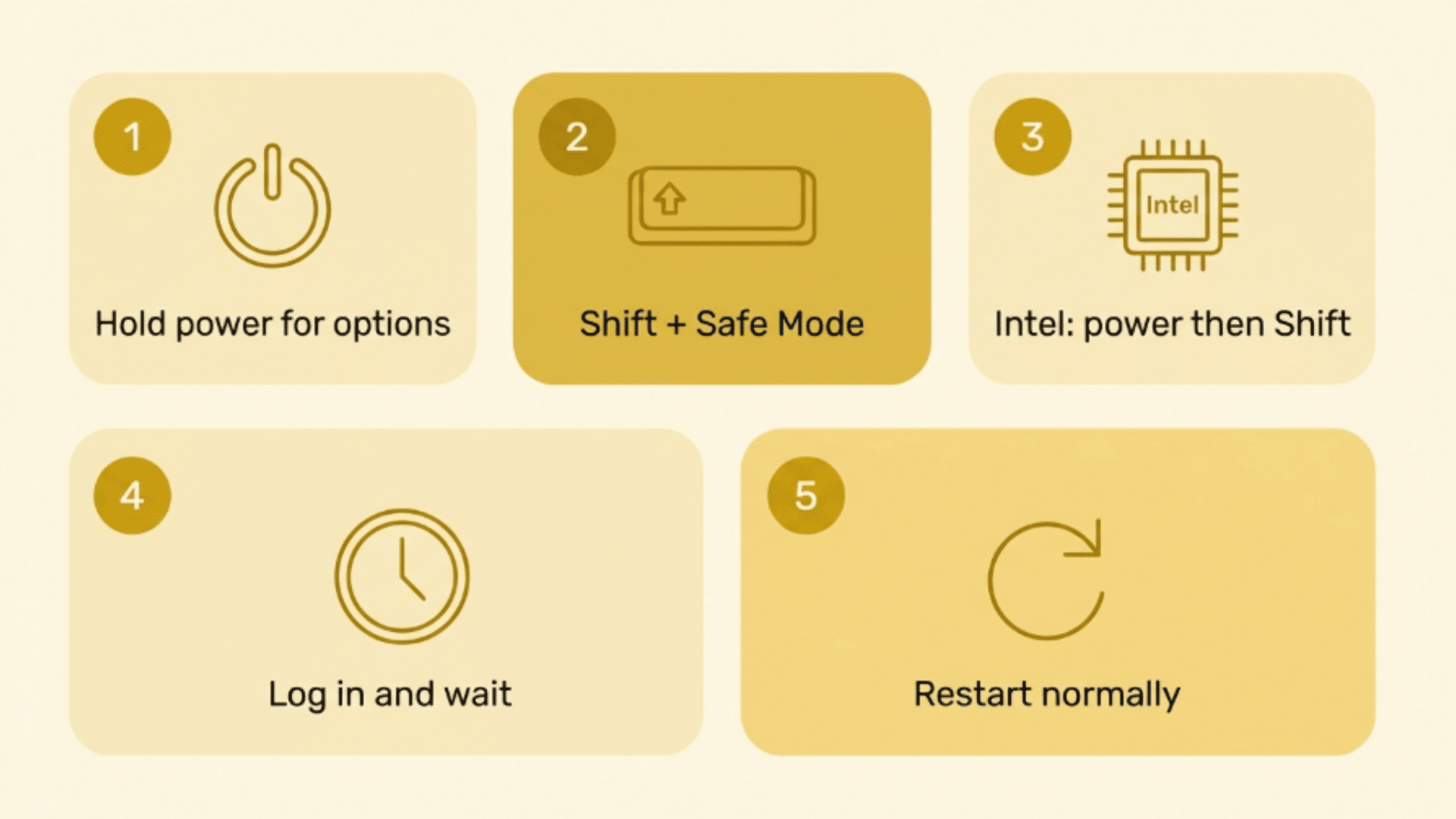
A bad startup item or a corrupted system file can stop your Mac from starting normally. Safe Mode loads only the basics, which helps your Mac get past whatever is blocking it.
Do it like this:
- For Apple silicon, hold the power button until options appear: Keep holding past the logo until you see the startup options screen.
- Select your startup disk, then hold Shift and click Continue in Safe Mode: Your Mac will boot with only essential software running.
- For Intel Macs, press the power button and immediately hold Shift. Keep holding until the login window appears on screen.
- Log in and let the Mac settle for a minute: Safe Mode can look slower and slightly different, which is normal.
- Restart normally afterward: A clean restart from Safe Mode often resolves the issue permanently.
Tip: If your Mac starts fine in Safe Mode but not normally, a recently installed app is the usual suspect, so remove whatever you added last.
8. Revive the Firmware Using Another Mac
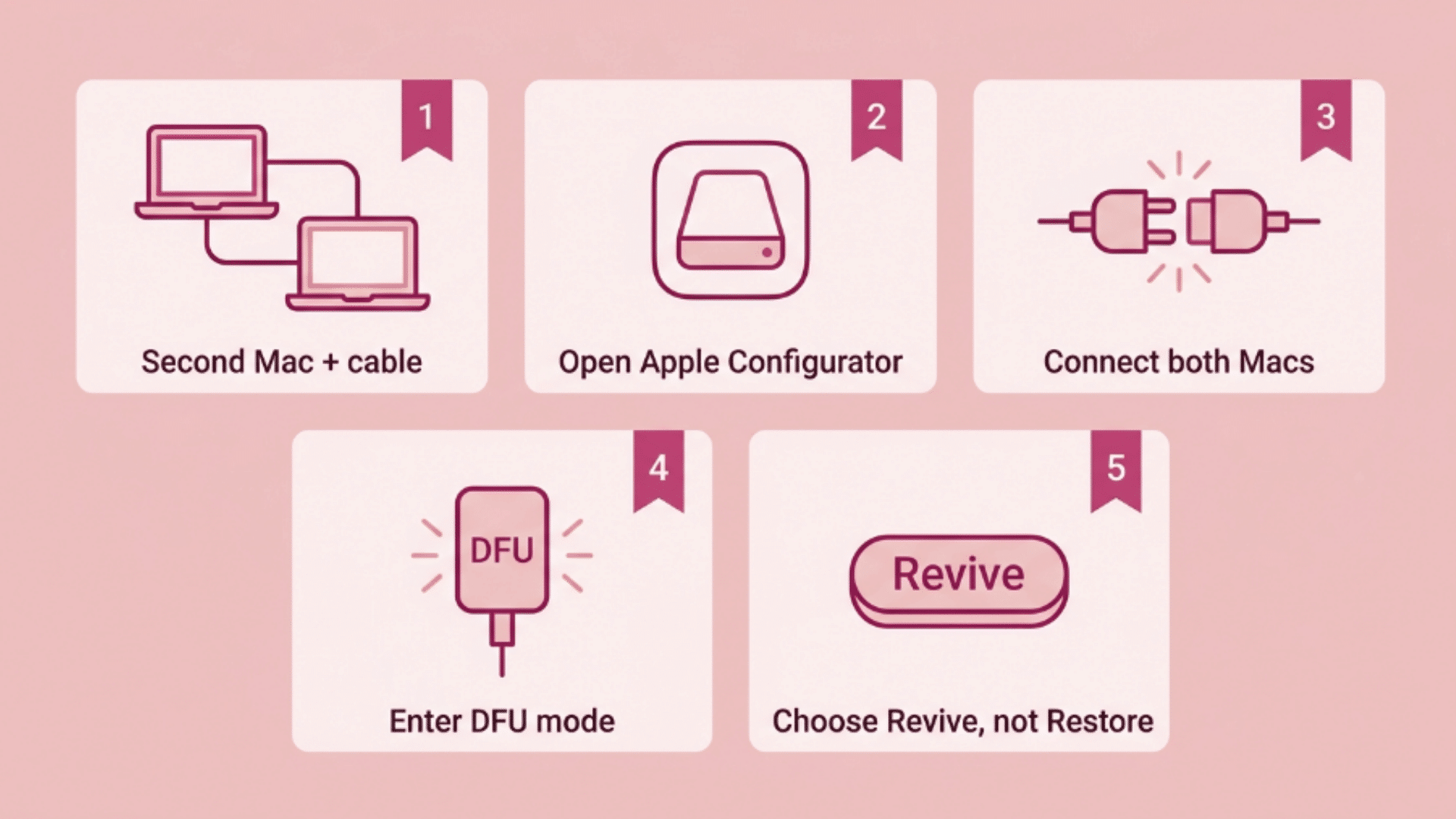
A MacBook that died during a macOS update may have damaged the firmware. A DFU revive rewrites it, bringing your Mac back without erasing your files.
What you’ll need to do:
- Get a second Mac and a USB-C-to-USB-C cable: The revive process runs on the working Mac, and a charge-only cable won’t work.
- Install or open Apple Configurator on the working Mac: It’s a free Apple app available on the Mac App Store.
- Connect both Macs with the cable. On MacBooks, use the DFU port, which is the one nearest the screen on the left side.
- Put the dead Mac into DFU mode: The button steps vary by model, so follow Apple’s instructions for your exact MacBook.
- Choose Revive Device in Apple Configurator: Pick Revive, not Restore, since Restore erases everything on the Mac.
Tip: Double-check that you clicked Revive and not Restore before confirming, because that single click is the difference between keeping and losing your data.
9. Get the Hardware Checked
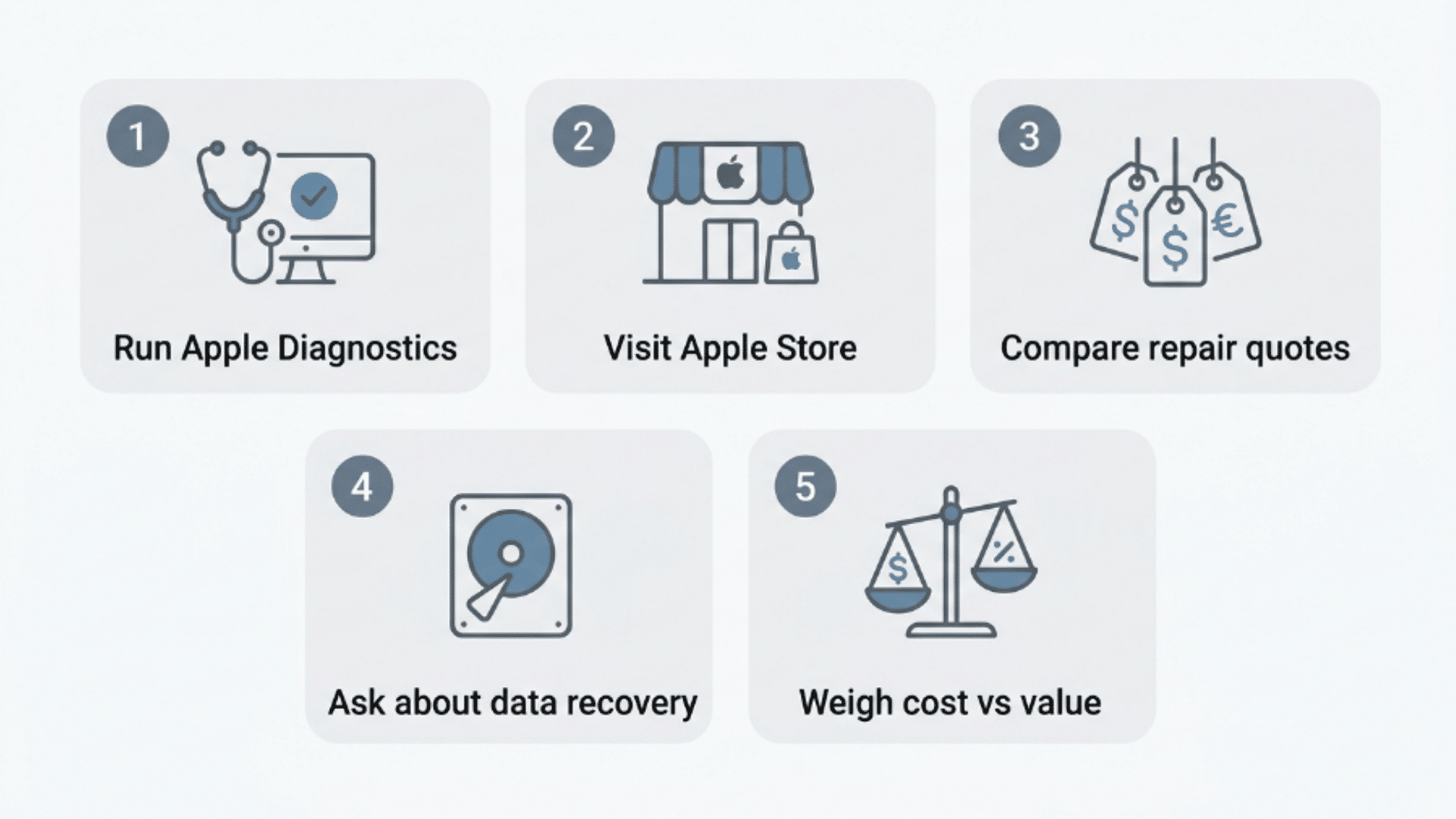
If nothing above worked, the problem is likely physical, such as a failed logic board, a dead battery, or liquid damage. At this stage, opening the Mac yourself usually does more harm than good.
One more thing before you grab a screwdriver. If your Mac is under warranty or AppleCare+, book service first, since opening it yourself can void coverage.
Your next moves:
- Run Apple Diagnostics if the Mac shows any life: Error codes from the built-in test help the technician find the fault faster.
- Book a visit to an Apple Store or authorized service center: Diagnosis is often free, and you’ll get a repair quote before committing.
- Compare the quote with an independent repair shop: Board-level repairs at independent shops often cost far less than a full board replacement.
- Ask about data recovery before any repair: A good shop can usually pull your files from the drive even when the Mac won’t start.
- Weigh the repair cost against the Mac’s value: On older MacBooks, a costly logic board repair may exceed the machine’s value.
Tip: Mention any liquid contact honestly when you hand the Mac in, because hiding it wastes diagnostic time and liquid damage shows up the moment they open the case.
How to Keep Your MacBook From Dying Again
Most sudden shutdowns give a warning first. The table below shows the common signs, what each one may mean, and what to do about it.
| Warning Sign | What It May Mean | What to Do |
|---|---|---|
| MacBook shuts down with battery remaining | The battery may be worn out or reporting the wrong charge level | Check Battery Health in System Settings and arrange service if a warning appears |
| MacBook turns off while charging | The charger, cable, port, or power adapter may be faulty | Try a compatible charger, inspect the cable, and clean the charging port carefully |
| MacBook becomes very hot before shutting down | Blocked airflow or a demanding app may be causing overheating | Use it on a hard surface, clear the vents, and check Activity Monitor |
| Shutdowns started after an update | A software or firmware issue may be affecting power management | Install the latest macOS update and restart the MacBook |
| MacBook shuts down during heavy tasks | The system may be overheating or struggling with a hardware issue | Close demanding apps, monitor temperature, and run Apple Diagnostics |
| Battery drains unusually fast | The battery may be aging or background apps may be using too much power | Review battery usage, close unnecessary apps, and check battery condition |
| MacBook will not turn on after reaching 0% | The battery may be deeply discharged | Connect the correct charger and leave it plugged in before trying again |
| Shutdowns continue without a clear pattern | A battery, sensor, memory, or logic board fault may be present | Run Apple Diagnostics and contact Apple Support or a repair technician |
| Important files are at risk | Repeated shutdowns may lead to data loss | Back up with Time Machine or another trusted backup method |
Real Cases Where a “Dead” MacBook Came Back to Life
These solved cases from the official Apple Support Community mirror the fixes above. Solutions vary by model, but they show how often a “dead” Mac turns out to be fixable:
My MacBook Air M1 wasn’t turning on, I tried charging it for half an hour, still no luck. Then I went to Apple Support website and followed some steps where I had to press the Power button for 10 seconds and then press it again once. It worked and my Mac turned on. Why did this happen, and should I be worried about it?
The Mac was frozen in a stuck power state that charging couldn’t clear. Apple’s 10 second power button hold, the same as Fix 2, turned it back on instantly.
I have a MacBook Air M1 chip and my Mac has been dead for almost a month now. I put it on charge but I don’t think it’s charging. It’s only showing a screen with the red battery symbol with the lightning bolt. Does anyone know how to fix this?
A battery left at zero for weeks gets so drained the Mac can’t boot, since all incoming power feeds the battery first. The fix was leaving it plugged in for several hours, exactly why Fix 1 says be patient.
I used my MacBook Air yesterday and it ran out of battery. When I plugged it in it did not recognise the charger and the symbol “plug to charge” was showing whilst already plugged in (I tried multiple chargers). And then the keypad stopped working and the screen has not turned back on since
The Air fell into a deep sleep state after draining flat, so it ignored every charger. A long uninterrupted charge followed by the 10 second power hold brought it back.
My MacBook is dead and won’t charge…. Anything I can do? Can’t check for updates or anything because won’t turn on
With the cable, outlet, and charger all confirmed working, the block was inside the Mac itself. A hardware reset using a key combo plus the power button cleared it and the Mac started right up.
My macbook ran out of battery and switched off, but even after plugging it in and letting it charge for 10 minutes, it still showed the dead battery icon and wouldn’t switch back on. Help!
Ten minutes simply isn’t enough after a full drain, since a deeply discharged battery needs time before the Mac responds. Extended charging on a known-good charger solved it.
I own a MacBook Pro 16″ 2019 that suddenly shut down one day. I was using it for a few hours previously, and it was working perfectly fine. Then, I closed my computer and went to grab something for a few minutes. When I came back, my MacBook Pro wouldn’t turn on.
A Mac that dies suddenly while healthy usually has a stuck power controller rather than dead hardware. An SMC reset, Fix 5 for Intel models like this 2019 Pro, is the standard cure.
Signs It’s Time to Get Your MacBook Checked
If none of the fixes work, the problem may go beyond a simple power issue. These signs can help you understand when your MacBook needs professional attention:
- No response after charging and resets: If your MacBook shows no signs of power after trying different chargers, outlets, and restart methods, the issue may be hardware-related.
- Possible battery failure: A worn-out or damaged battery can prevent the MacBook from powering on, even when connected to a charger.
- Logic board problems: Sudden shutdowns, liquid damage, or power failures can indicate a damaged logic board that needs repair.
- Failed startup after updates: If the Mac stopped working after a macOS update and recovery methods fail, the firmware or system files may need attention.
- Get a professional diagnosis: Apple Support or an authorized repair center can run diagnostics to identify the exact cause before any repair.
- Protect your data first: If your Mac shows any signs of life, try backing up important files before sending it for repair.
Note: If you still wonder why is my MacBook not turning on, the cause may be a deeper hardware or system issue that needs professional diagnosis.
It’s a Wrap
Seeing your MacBook stop responding can be frustrating, especially when you need it right away. Knowing what to check next makes the situation far easier to handle.
If you’re still asking why is my MacBook not turning on after all nine fixes, the cause likely runs deeper than a power glitch, and a professional diagnosis is the sensible next step.
For most people though, the answer is simple. Knowing how to turn on MacBook Air properly, or giving a drained battery time on the charger, often solves it without a repair bill.
So take it step by step. A little patience often saves you time, money, and a lot of unnecessary worry
Frequently Asked Questions
Can a MacBook Turn On Without Pressing the Power Button?
Some newer MacBook models can start automatically when the lid is opened or a charger is connected.
How Do You Know If a MacBook Needs a New Battery?
Battery health warnings, sudden shutdowns, and charging problems can point to battery wear.
Can a MacBook Stop Working Because of Storage Problems?
A full or damaged storage drive can prevent normal startup, especially if the system cannot load properly.
Can a MacBook Be Fixed Without Losing Data?
Many startup issues can be repaired without deleting files, but backups are still recommended.