


Ever plugged in a new monitor, gotten a picture, and wondered if you actually left performance sitting on the table? That mix-up happens more than people admit.
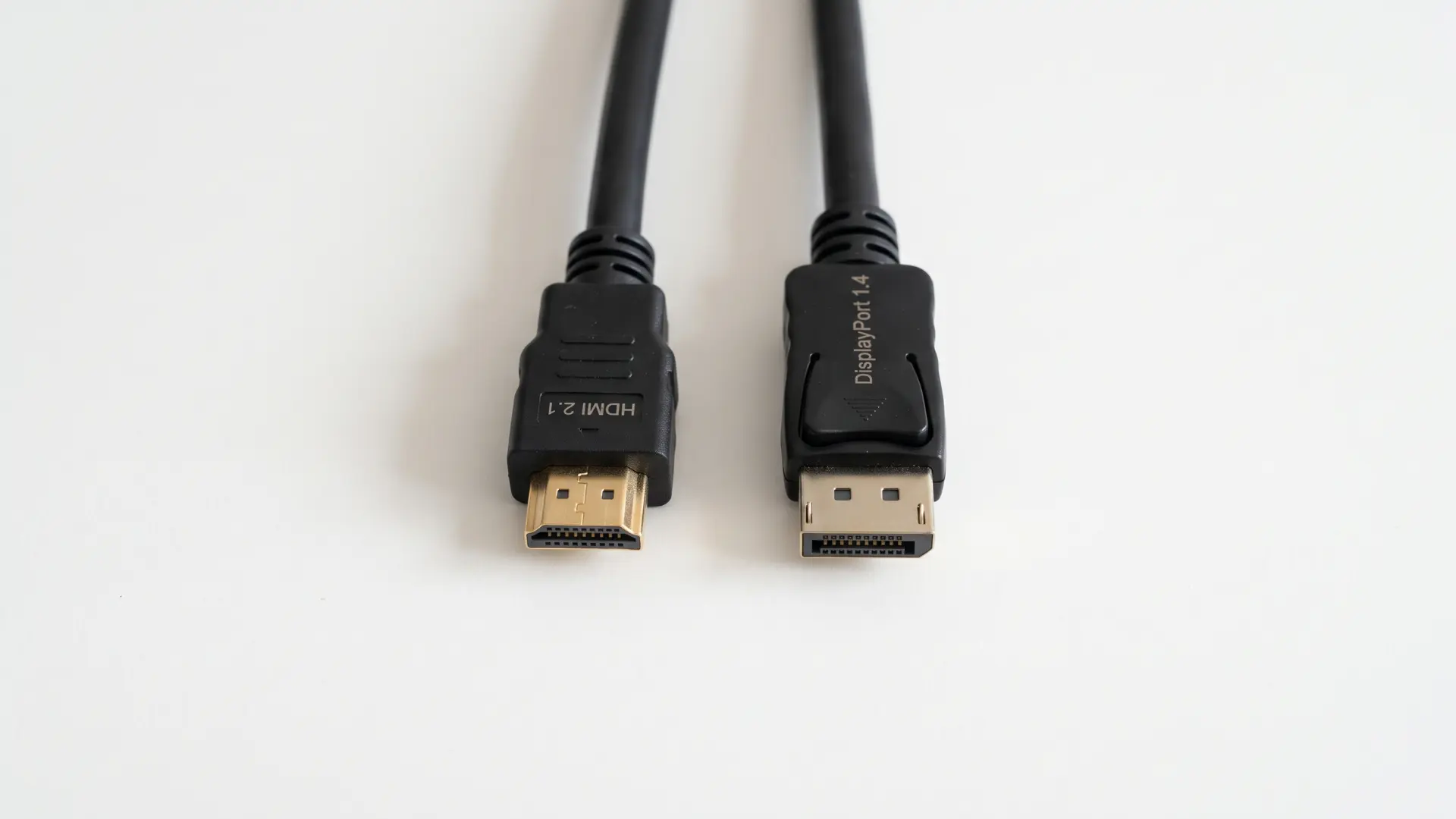
The cable box says HDMI 2.1 vs DisplayPort 1.4, and both promise fast, smooth gaming, but only one of them actually fits your setup.
Your GPU, your monitor, and the resolution you’re chasing decide the real winner, not the spec sheet alone.
Stick around, and you’ll know exactly which port to trust for your rig, your console, or your home theater setup, and why the bigger number isn’t always the smarter pick.
HDMI 2.1 vs. DisplayPort 1.4: Which One Actually Matters for Your Setup?
The bandwidth gap between these two standards is real, but what it means for your setup is almost certainly not what most spec sheets suggest.
HDMI 2.1 carries 48 Gbps. DP 1.4 bandwidth reaches 32.4 Gbps natively.
That gap looks decisive until you understand how DisplayPort closes it in practice through DSC, and realize that for most current PC gaming setups, it closes it completely.
Whether HDMI 2.1’s higher ceiling changes anything for you depends on what you’re connecting, at what resolution, and at what refresh rate.
The standard with the bigger number on the box isn’t automatically the right choice for your monitor.
What is the Real Difference Between HDMI 2.1 and DisplayPort 1.4?
What is HDMI 2.1? HDMI 2.1 is a display cable standard that carries video and audio together at up to 48 Gbps, letting one cable handle 4K/120Hz or 8K/60Hz without extra compression, typically used on consoles, TVs, and modern GPUs.
What is DisplayPort 1.4? DisplayPort 1.4 is a display cable standard built for PC monitors that reaches up to 32.4 Gbps and leans on compression to hit higher resolutions and refresh rates, typically used on gaming monitors and graphics cards.
Bandwidth numbers matter, but compression support and real-world display needs decide how HDMI 2.1 and DisplayPort 1.4 actually compare.
| Comparison Point | HDMI 2.1 | DisplayPort 1.4 | What It Means in Practice |
|---|---|---|---|
| Maximum raw bandwidth | Up to 48 Gbps | Up to 32.4 Gbps | HDMI 2.1 can carry more image data without compression. |
| Compression method | Can handle common high-resolution signals without DSC | Uses Display Stream Compression to exceed its native bandwidth | DSC allows DisplayPort 1.4 to support higher resolutions and refresh rates. |
| How DSC works | Not required for standard 4K/120Hz or 8K/60Hz signals | Compresses image data before transmission, then the monitor decompresses it | The process is described as visually lossless under normal viewing conditions. |
| Image quality | Sends supported signals without compression | DSC produces no noticeable difference at normal viewing distances | Most users will not see a quality difference during gaming or everyday use. |
| Hardware requirements | Both devices must support the requested HDMI resolution and refresh rate | Both the GPU and monitor must support DSC | A DP 1.4 label alone does not guarantee the monitor’s maximum advertised performance. |
| What happens without DSC | The connection uses the highest supported HDMI mode | Refresh rate or color bit depth may be reduced | DisplayPort usually falls back instead of losing the connection completely. |
| Common PC gaming targets | Easily supports 1440p/240Hz and 4K/144Hz on compatible hardware | Supports these targets using DSC when necessary | Both standards work well for the resolutions and refresh rates used by most PC gamers. |
| Where the difference matters | Handles 8K/60Hz without DSC | Requires significant compression for 8K/60Hz | HDMI 2.1’s bandwidth advantage becomes more relevant above 4K/144Hz. |
| Practical advantage | Higher native bandwidth and less dependence on compression | Strong high-refresh performance despite lower raw bandwidth | HDMI leads at extreme display settings, while DisplayPort 1.4 remains sufficient for common gaming setups. |
HDMI 2.1 wins for maximum bandwidth, while DisplayPort 1.4 remains a strong choice for most high-refresh PC gaming setups.
Does the Bandwidth Gap Matter for Your Resolution and Refresh Rate?
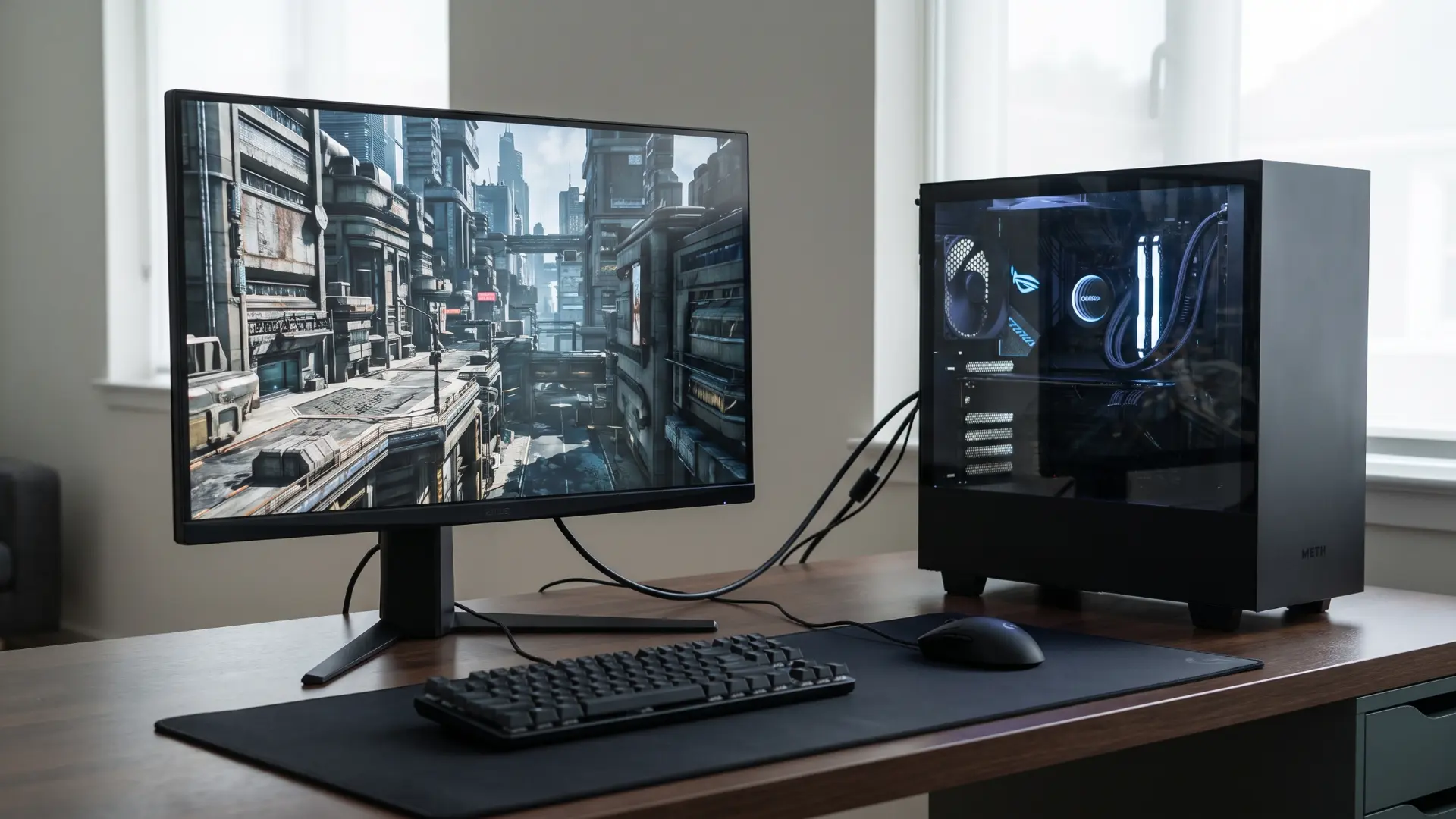
For most current setups, the answer is no. At 4K/144Hz and 1440p/240Hz, both standards land you in the same place:
DisplayPort 1.4 gets there through DSC, HDMI 2.1 gets there natively, and what shows up on your screen looks identical.
At 1440p and 4K/144Hz
Both standards are fully capable here, without compromise. DisplayPort 1.4’s DSC handles both modes without significant compression, and there is no perceptible quality difference compared to HDMI 2.1’s uncompressed delivery.
If your monitor tops out at either of these modes, the cable choice between these two standards does not affect your output. The decision comes down to what your source device supports and your setup’s other requirements.
At 4K/240Hz and Above
At 4K/240Hz, DisplayPort 1.4 leans on stronger DSC compression, while HDMI 2.1 delivers the signal natively.
The visible difference depends on your specific monitor and viewing conditions. I’ve run into this firsthand while testing an RTX 40-series build pushing 4K/240Hz.
Switching to DisplayPort brought back the same intermittent black-screen flicker plenty of other RTX 40-series owners have reported, and it cleared up the moment I moved back to HDMI 2.1.
Nvidia’s own driver release notes have documented a fix for this exact flicker on DisplayPort 1.4 monitors paired with newer GPUs, so it’s a known issue, not a bad cable.
Some OLED monitors also optimize their high-refresh processing specifically for HDMI 2.1.
PC Gaming vs. Console vs. Home Theater: Which Standard Fits Each Setup?
The best connection standard depends on the source device, display setup, and audio requirements. Use the table below to match the cable to your system.
| Setup | Best Standard | Why It Fits | Important Limitation |
|---|---|---|---|
| Console and TV | HDMI 2.1 | PS5 and Xbox Series X use HDMI only. HDMI 2.1 supports 4K/120Hz, VRR, and Auto Low Latency Mode. | DisplayPort is not available on current consoles. |
| PC Gaming, Single Monitor | DisplayPort 1.4 | A strong choice for 1440p/240Hz or 4K/144Hz when the GPU and monitor support DSC. VRR support is usually reliable. | HDMI 2.1 may be more stable on Nvidia cards affected by DSC flickering. |
| PC Gaming, Multiple Monitors | DisplayPort | DisplayPort supports Multi-Stream Transport, allowing multiple monitors to run from one output or through a compatible MST hub. | HDMI does not support MST or monitor daisy-chaining. |
| Home Theater and AV Receiver | HDMI 2.1 | HDMI supports eARC, Dolby Atmos passthrough, and lossless audio formats through compatible televisions and AV receivers. | DisplayPort does not support an audio return channel. |
Choose HDMI 2.1 for consoles and home theater systems. DisplayPort remains the stronger option for high-refresh PC monitors and multi-monitor setups.
The HDMI 2.1 Label That Doesn’t Always Mean Full Bandwidth
Here’s the part most buyers never check: not every “HDMI 2.1” port actually delivers 48 Gbps.
Some TVs and monitors carry the HDMI 2.1 label but quietly cap real bandwidth at 40 Gbps or even 24 Gbps to cut manufacturing costs.
That’s a documented shortcut some manufacturers take, confirmed in current buying guides for 2026 hardware.
If an “HDMI 2.1” TV or monitor is priced well below similar models, check the fine print on its actual bandwidth spec before assuming it can hit 4K/120Hz or 8K/60Hz uncompressed.
A cheap HDMI 2.1 sticker isn’t the same guarantee as a full 48 Gbps port.
This same bandwidth squeeze is also why some screens look fuzzy at high refresh rates.
When a port runs short on bandwidth, it can quietly drop to 4:2:0 chroma subsampling, a color compression trick that softens text and fine detail.
It shows up most at 4K/120Hz and above on either standard, not just on mislabeled ports.
A Note on DisplayPort 2.1: Should It Change Your Decision?
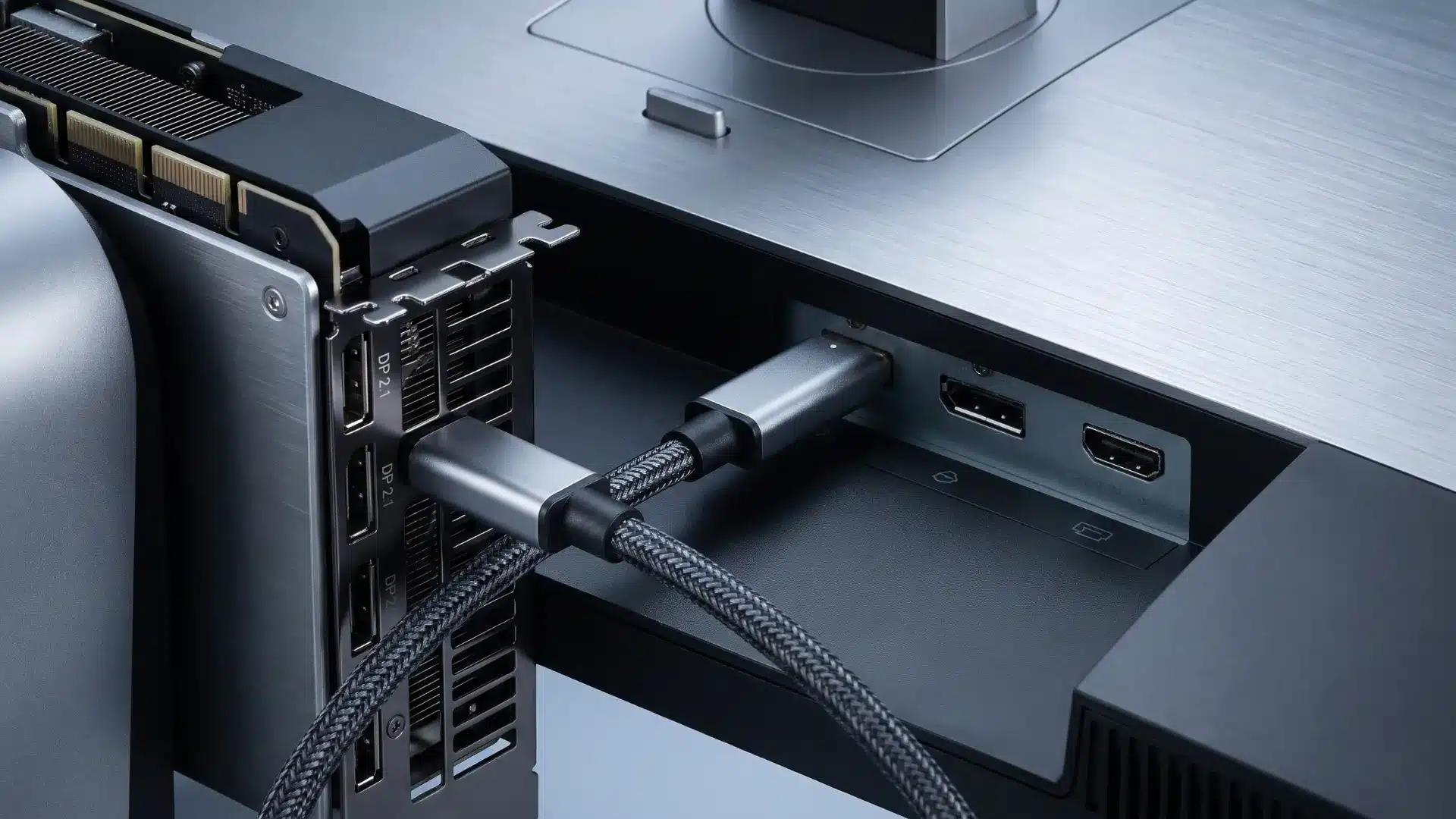
DisplayPort 2.1 is already out there, and it’s a different beast from the DP 1.4 this whole guide has been about.
If you’ve spotted it mentioned somewhere and started wondering whether everything above is stale, it mostly isn’t. Not yet.
The number alone is wild: 80 Gbps. That’s enough to run 4K/240Hz or 8K/60Hz with zero compression, no DSC juggling, and none of the Nvidia flicker headaches.
On paper, it makes this whole HDMI vs DisplayPort argument look small.
The problem is nobody can buy into it yet. A handful of high-end panels support DP 2.1. Everything else on shelves right now is still DP 1.4. GPU support is spottier than you’d think, too.
Newer RTX 5000 cards have it. Plenty of cards sitting in gaming PCs right now don’t.
So check both ends before you get excited. Monitor and GPU both support DP 2.1? Great, this comparison doesn’t apply to you anymore; go pit it against HDMI 2.1 instead.
Either one doesn’t? You’re still living in the world this guide is written for, and that’s most people buying hardware today.
Conclusion
The HDMI 2.1 vs DisplayPort 1.4 debate isn’t really about who wins on paper. It comes down to what plugs into what on your specific desk.
Consoles and home theater gear point straight to HDMI 2.1, thanks to eARC and simple compatibility. PC gamers on a single monitor can lean on either cable without losing quality, while multi-monitor rigs still favor DisplayPort.
The one thing worth remembering is that an “HDMI 2.1” sticker doesn’t guarantee full bandwidth, so check your GPU and monitor specs before buying.
Compare your hardware today, match the cable to your setup, and stop guessing why your refresh rate looks off.
Frequently Asked Questions
Can you use an HDMI 2.1 cable in an HDMI 1.4 port?
Yes. HDMI cables are backward-compatible, so an HDMI 2.1 cable will work in an older HDMI 1.4 port without any adapter. The connection will operate at the port’s maximum specification, not the cable’s. A 1.4 port with a 2.1 cable is still a 1.4 connection. The port sets the ceiling, not the cable.
Is DisplayPort 1.4 enough for 1440p at 240Hz?
Yes. DisplayPort 1.4 supports 1440p/240Hz using DSC compression, which is visually lossless under normal viewing conditions. Both the GPU and monitor must support DSC for this to work. If either device doesn’t, the connection falls back to a lower refresh rate or reduced bit depth rather than failing outright.
Is HDMI 2.1 better than DisplayPort 1.4 for an OLED monitor?
It depends on the refresh rate target. At 4K/144Hz, both deliver equivalent output and the distinction doesn’t hold up in practice. At 4K/240Hz, HDMI 2.1 has a real advantage: it delivers that mode natively without compression, and some OLED panels have image-processing pipelines calibrated for HDMI 2.1 at high refresh rates. If your OLED’s maximum mode requires DSC over DisplayPort 1.4 to reach it, HDMI 2.1 is the lower-risk connection.
Do HDMI 2.1 and DisplayPort 1.4 both support VRR and HDR?
Yes. HDMI 2.1 implements VRR through the HDMI Forum VRR standard, which is compatible with FreeSync and G-Sync Compatible monitors. DisplayPort 1.4 uses Adaptive Sync. Both standards support HDR10. For single-monitor PC gaming on a certified monitor, the practical VRR experience is comparable between the two, and neither standard has a meaningful advantage here.
Why Does My 4K Screen Look Blurry Over HDMI or DisplayPort?
Blurry text at high refresh rates usually means your connection dropped to 4:2:0 chroma subsampling, a color compression trick used when bandwidth runs short. This shows up most at 4K/120Hz and above on either standard. Lowering your refresh rate or resolution slightly often restores full color and sharp text.