







Have you ever picked up a pair of AirPods and thought, wait, which ones are these? You’re not alone.
Apple has released so many versions over the years that even longtime fans mix them up sometimes. The stems look similar, the cases feel about the same size, and the differences can be sneaky small.
But knowing how to tell what AirPods I have doesn’t take long, and there’s no guesswork involved once you know where to look. A few quick checks and it’s settled for good.
Curious how it works? I have laid out everything step by step right below.
Why Do You Need to Know Your AirPods Model Number?
Knowing your AirPods model number makes it easier to understand exactly which earbuds you own. Since different AirPods generations can look almost identical, the model number helps you find the right features, accessories, and support options.
It tells you details like your AirPods generation, charging case type, and available features such as Noise Cancellation or Spatial Audio.
You also need this information when buying replacement parts, checking compatibility with your devices, or troubleshooting issues. A quick model check can save time and prevent mistakes when managing your AirPods.
AirPods Model Number Lookup Table
AirPods model numbers help you quickly match your earbuds with the correct generation, case type, and features. Since several models look similar, checking the model number avoids confusion when identifying your device.
Use the table below to find your AirPods model and learn ‘what airpods do i have’:
| AirPods Model | Model Numbers | Year Introduced | Main Identification Detail |
|---|---|---|---|
| AirPods 1 | A1523, A1722 | 2016 | Long stems without silicone ear tips |
| AirPods 2 | A2031, A2032 | 2019 | Nearly identical in appearance to AirPods 1 |
| AirPods Pro 1 | A2083, A2084 | 2019 | Short stems with removable silicone ear tips |
| AirPods Max with Lightning | A2096 | 2020 | Over-ear design with a Lightning connector |
| AirPods 3 | A2564, A2565 | 2021 | Short stems without silicone ear tips |
| AirPods Pro 2 with Lightning Case | A2931, A2698, A2699 | 2022 | Case includes a speaker and lanyard loop |
| AirPods Pro 2 with USB-C Case | A3047, A3048, A3049 | 2023 | The charging case uses a USB-C port |
| AirPods 4 | A3050, A3053, A3054 | 2024 | Short open-fit earbuds with a USB-C case |
| AirPods 4 with Active Noise Cancellation | A3055, A3056, A3057 | 2024 | The charging case includes an external speaker |
| AirPods Max with USB-C | A3184 | 2024 | Over-ear headphones with a USB-C connector |
| AirPods Pro 3 | A3063, A3064, A3065 | 2025 | Use the model number for accurate confirmation |
| AirPods Max 2 | A3454 | 2026 | Check Settings or the area behind the left ear cushion |
If your number matches more than one row, check the left and right earbud numbers separately.
Knowing how to tell what AirPods you have means checking both sides, not just one. Both numbers should point to the same generation once confirmed.
Here’s How to Tell What AirPods You Have
There are five ways to find your AirPods model number. Through an iPhone, an iPad, a Mac, the earbuds themselves, or the original box.
Use whichever method works with what you have in front of you right now.
1. Check the Model Number on an iPhone or iPad
No extra apps or tools needed here. Your iPhone or iPad already has the answer saved from the moment you paired your AirPods. This is the fastest method if your phone is nearby.
- Connect the AirPods to your iPhone or iPad.
- Open Settings and tap Bluetooth.
- Find your AirPods in the connected device list.
- Tap the information button beside the AirPods name.
- Look for the model name and model number.
Depending on the software version, you may also find the AirPods name directly near the top of the Settings app while they are connected.
Either way, the model number shows up in seconds without needing any extra tools or apps.
2. Check the Model Number on a Mac
If your AirPods are already connected to a Mac, you can find the model number without checking the earbuds or case. This method is quick and useful when your iPhone is not nearby.
Follow these steps to view the details from your Mac settings:
- Connect the AirPods to your Mac.
- Open System Settings.
- Select Bluetooth.
- Find the AirPods in the device list.
- Open the device information to view available details.
This method comes in handy if your AirPods are already paired with a Mac and you don’t have an iPhone nearby. The information displayed is the same, so you won’t miss anything by checking here instead.
3. Find the Number on AirPods or AirPods Pro
You can also find the model number printed directly on your AirPods or AirPods Pro earbuds. The small text may be hard to notice, but it is located in an easy-to-check spot.
Steps to Follow:
- Pick up either earbud and flip it so you’re looking at the underside of the head.
- Look for small gray text printed in that area; that’s your model number.
- Confirm it starts with the letter A followed by four numbers (e.g., A1234).
- If the text is hard to read, bring the earbud close to your eyes or use your phone’s camera zoom to get a clearer view.
4. Find the Number on AirPods Max
AirPods Max stores the model information in a different location because of its over-ear design. You can check it by removing the magnetic ear cushion and looking inside the left side.
Follow these steps to locate the model number on your headphones:
- Locate the left ear cushion on your AirPods Max.
- Gently pull it off; it’s magnetic, so no tools needed.
- Look for the model number printed inside.
- Snap the cushion back on when done.
5. Check the Original Packaging
If you still have the box your AirPods came in, it can be one of the easiest places to find the model number. The barcode label includes important product details, including the model information.
Steps to follow:
- Locate your original AirPods box.
- Flip it over and look near the barcode label.
- Find the model number printed clearly on the label.
Tip: Boxes can get separated over time, so treat this as a backup option rather than your first stop.
Model Number vs. Serial Number
A model number and serial number may look similar, but they serve different purposes when identifying your AirPods. The model number tells you the AirPods version, while the serial number identifies your specific pair.
| Detail | Model Number | Serial Number |
|---|---|---|
| Purpose | Identifies the AirPods model or generation | Identifies an individual product or component |
| Typical Format | Begins with the letter A | Uses a longer combination of letters and numbers |
| Best Use | Finding which AirPods model you own | Checking service, support, or coverage details |
| Component Differences | Left and right earbuds may have different numbers | Each earbud and case may have separate serial details |
If you’re identifying your AirPods generation, stick with the model number and the lookup table above.
Save the serial number for moments when Apple support asks for it directly, such as checking repair eligibility or confirming your AirPods aren’t counterfeit.
Identify Your AirPods by Physical Appearance
Identifying your AirPods by their physical design can help when you cannot access the model number or settings. Small differences in the stems, ear tips, charging case, and overall shape can reveal which AirPods version you have.
Look for these design features to quickly identify your AirPods model:
1. Standard AirPods
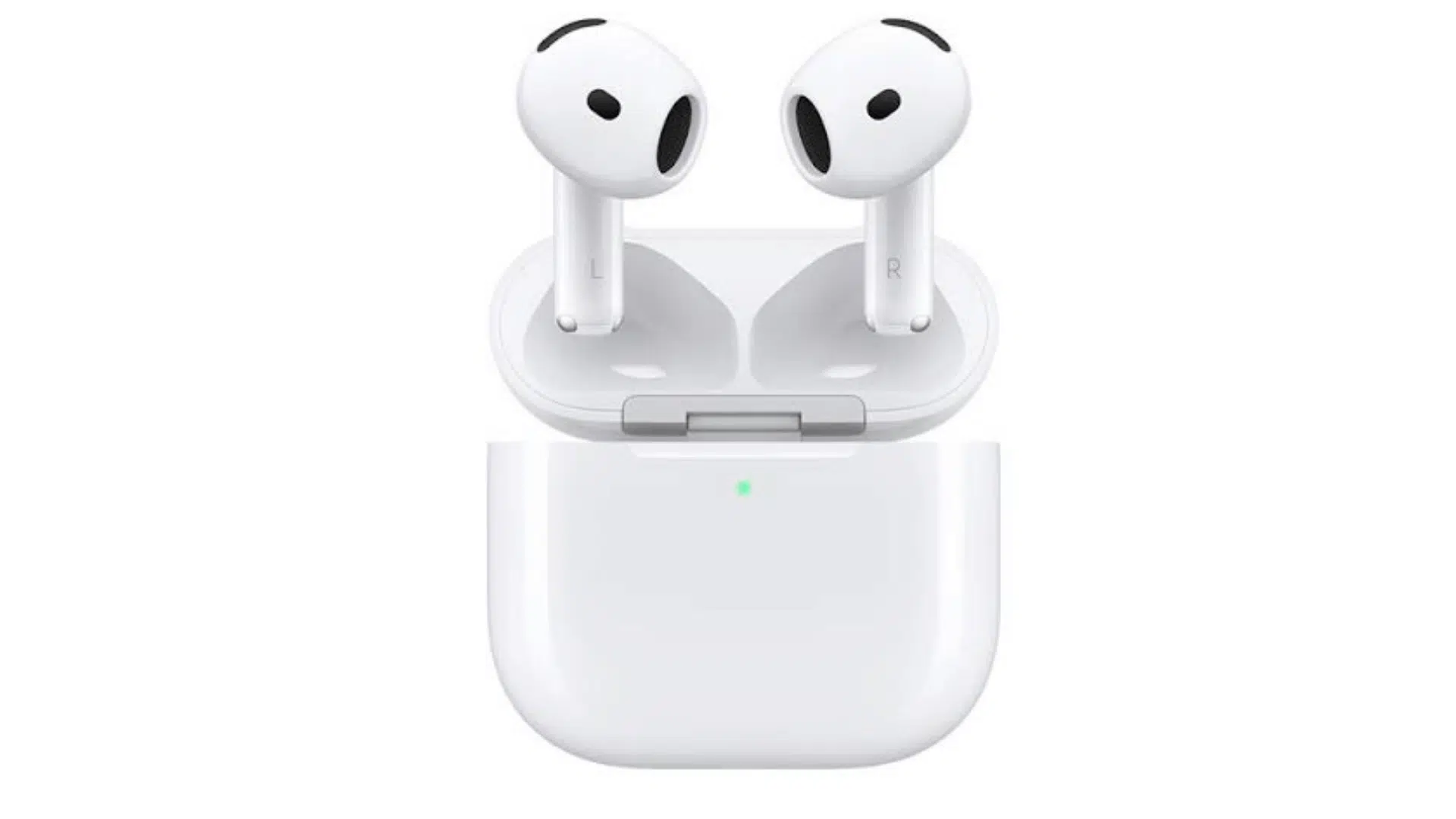
Image Source: Apple
Standard AirPods have changed shape with every generation, and the stem is the fastest tell. Each redesign trimmed the stem down and reshaped the earbud head.
Here’s how to tell the three looks apart:
- AirPods 1 and 2: Theyhave the longest stems. They extend noticeably below the ear. The earbud head is small and rounded, and there are no silicone tips. These two generations look nearly identical.
- AirPods 3: They wereintroduced with a shorter stem and a wider earbud head. The overall shape is closer to AirPods Pro, but without the silicone ear tips.
- AirPods 4: It shortened the stem further and widened the head again. The standard AirPods 4 and the ANC version look almost identical from the outside.
Quick rule: Long stem, no tips = AirPods 1 or 2. Short stem, no tips = AirPods 3 or 4. Check the model number to confirm which.
2. AirPods Pro
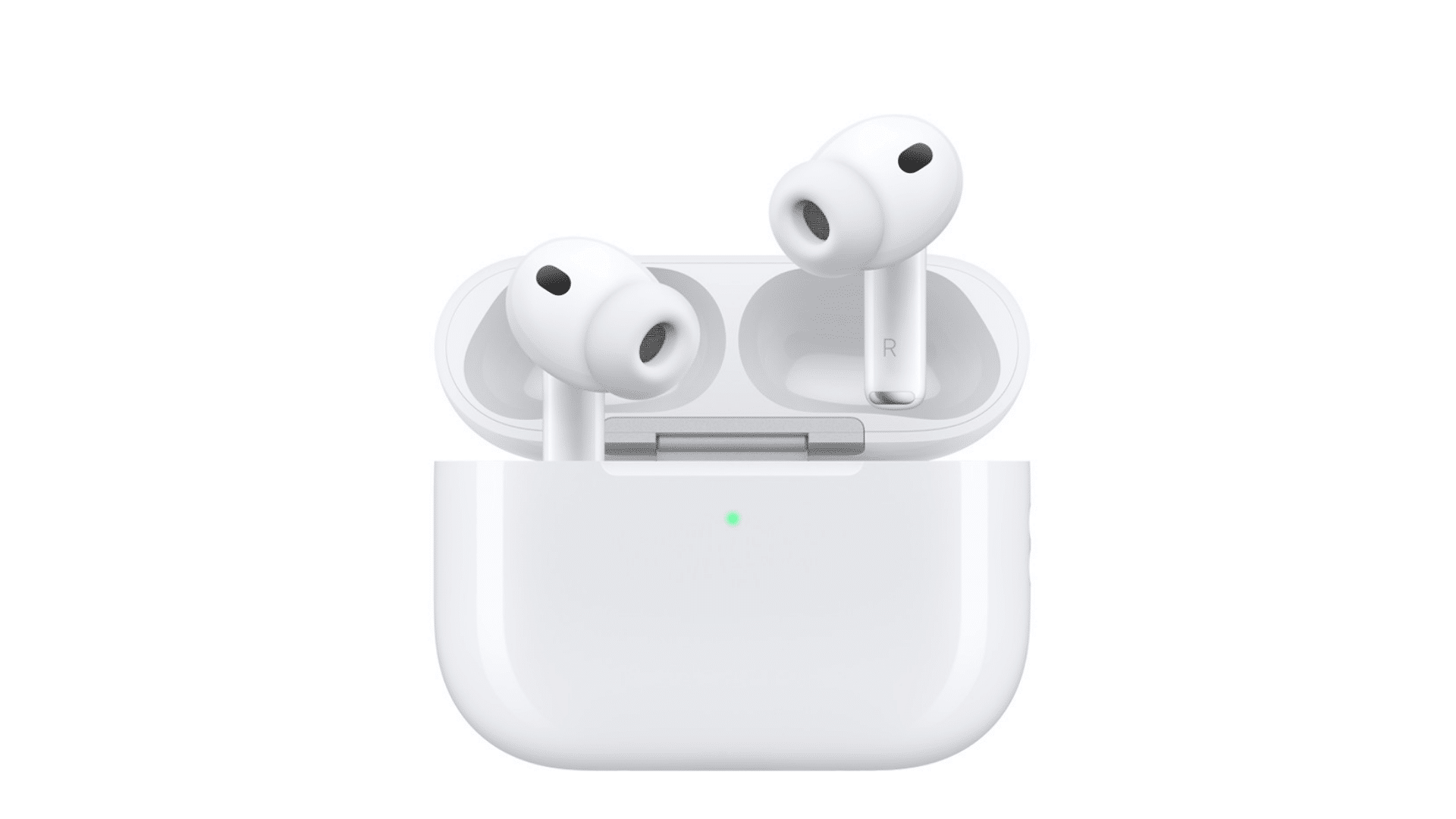
Image Source: Apple
One detail immediately separates Pro from standard AirPods: the silicone ear tips. Every AirPods Pro model has removable silicone tips that press into the ear canal.
If your earbuds came with small, medium, and large tip sizes in the box, you have a Pro model.
- AirPods Pro 1: They have a short stem and a compact in-ear design. The case is wider and squatter than standard AirPods cases. There is no speaker on the outside of the case and no lanyard loop.
- AirPods Pro 2: It looks nearly identical to the first generation at a glance. The difference is in the case. AirPods Pro 2 cases have a small speaker grille on the side and a loop at the top for a lanyard.
- AirPods Pro 3: They were released in 2025 and share the same overall silhouette as Pro 2. Use the model number to confirm if the case details aren’t immediately clear.
Quick rule: Silicone ear tips = Pro model. No speaker or lanyard loop on the case = Pro 1. Speaker and loop on the case = Pro 2 or later.
3. AirPods Max
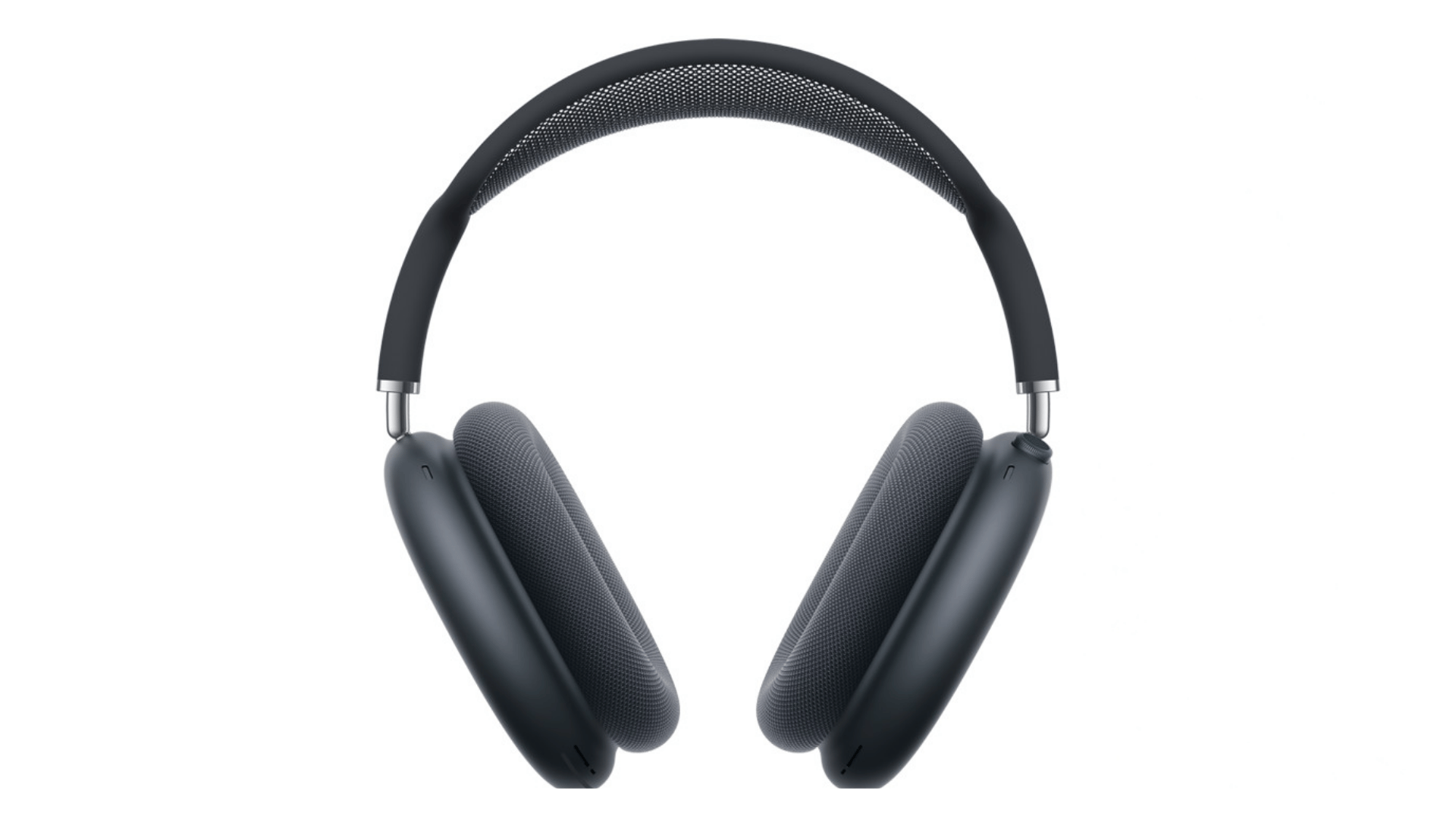
Image Source:Apple
AirPods Max are impossible to mistake for any other AirPods model. They are over-ear headphones with large cushioned ear cups, a stainless steel headband wrapped in mesh fabric, and a Digital Crown on the right ear cup.
There are two versions, and they look almost identical from every angle except one.
- AirPods Max with Lightning: It was released in 2020 and has a Lightning port on the bottom of the right ear cup. This is the same narrow rectangular connector used on older iPhones.
- AirPods Max with USB-C: It was released in 2024 and replaced that port with USB-C. If the port looks like a small oval rather than a narrow rectangle, you have the newer version.
Quick rule: Flip the right ear cup and check the port. Narrow rectangle = Lightning. Small oval = USB-C. That’s the only meaningful visual difference between the two.
Identifying Your AirPods Charging Case
Your AirPods charging case can reveal important details about which model you own. Differences in case size, charging port, speaker placement, and design features can help separate similar-looking AirPods versions.
Check these charging case features to identify your AirPods model correctly:
| Case Model | Compatible AirPods | Charging Port | Status Light | Main Features |
|---|---|---|---|---|
| A1602 | AirPods 1 and 2 | Lightning | Inside | Standard wired charging case |
| A1938 | AirPods 1 and 2 | Lightning | Front | Wireless charging support |
| A2190 | AirPods Pro 1 | Lightning | Front | Wide case designed for AirPods Pro |
| A2566 | AirPods 3 | Lightning | Front | MagSafe charging support |
| A2897 | AirPods 3 | Lightning | Front | Lightning charging case |
| A2700 | AirPods Pro 2 | Lightning | Front | Speaker and lanyard loop |
| A2968 | AirPods Pro 2 | USB-C | Front | Speaker, lanyard loop, and MagSafe support |
| A3058 | AirPods 4 | USB-C | Front | Standard AirPods 4 charging case |
| A3059 | AirPods 4 with Active Noise Cancellation | USB-C | Front | Wireless charging and external speaker |
| A3122 | AirPods Pro 3 | USB-C | Front | MagSafe support, speaker, and lanyard loop |
Why the AirPods and Case Numbers May Not Match?
It is normal if the model numbers on your AirPods and charging case are different. Each pair of AirPods and its case has its own identification details because they are separate hardware pieces.
The case model number usually identifies the charging case, while the AirPods model number shows the earbuds inside. This can happen if you replaced a lost earbud, bought a replacement case, or mixed parts from different sets.
As long as your AirPods connect properly and work with your devices, different numbers do not always mean there is a problem.
Final Thoughts
And that’s really all there is to it. Whether you check Settings, flip over an earbud, or peek inside the box, you’ve now got five solid ways to tell what AirPods I have.
Once the model number is confirmed, everything gets easier: finding the right replacement parts, checking compatibility, or just knowing what features you’re working with.
Keep this guide handy for next time too, because between generations and lookalike cases, it’s easy to forget which is which. A quick check now can save you a headache later.
Frequently Asked Questions
Does the AirPods Model Number Affect Find My Tracking Accuracy?
No. Find My uses Bluetooth and network signals. Every AirPods generation tracks the same way once paired to an Apple ID.
Can You Rename My AirPods without Affecting Their Model Number?
Yes. Renaming only changes the display name. The model number stays printed on the hardware permanently.
Do International AirPods Use Different Model Numbers Than US Versions?
Sometimes. Regional variants may have slightly different suffixes for certification, but features and compatibility stay the same across regions.
Does Pairing AirPods with Multiple Apple IDs Change Their Model Details?
No. Model and serial numbers are tied to the hardware itself. Switching Apple IDs only affects settings and personalization.