




Switching to a Windows laptop after years on an iPhone can feel normal until messages become part of your daily workflow. Suddenly, replying from your computer is not as simple as it was on a Mac.
Apple does not offer a native iMessage on PC app. Apple’s iMessage documentation lists iPhone, iPad, Mac, Apple Watch, and Apple Vision Pro as supported devices.
Windows users still have a few practical ways to access messages. Microsoft Phone Link handles basic messaging through an iPhone, while Mac-based tools can provide broader iMessage access on Windows.
I’d start by deciding how much message access actually matters. This isn’t a decision unique to messaging, either; it comes up any time you’re pairing Alexa with iPhone or bringing other outside hardware into Apple’s ecosystem, and usage habits usually decide the right setup more than the spec sheet.
For my choice, the biggest factors would be group chats, photos, message history, and whether a Mac is available.
Can You Use iMessage on a PC?
Apple does not make a Windows version of its Messages app. That means a PC cannot sign directly into iMessage and work like a Mac, iPhone, or iPad.
Instead, the available methods rely on another device.
Microsoft Phone Link connects a Windows PC to an iPhone over Bluetooth and gives you basic messaging access. Mac-based tools such as BlueBubbles use a Mac that is already signed into Messages and pass those conversations to another device.
The important difference is how much access each method provides. Phone Link is useful for simple replies, while a Mac-based setup is better suited to people who need media, group conversations, and broader message access.
How to Use iMessage on Windows With Phone Link
For many Windows users, Phone Link is the easiest place to start. It connects an iPhone to the PC rather than recreating Apple’s Messages app inside Windows.
Microsoft provides its own Phone Link requirements and setup instructions, which are worth checking before pairing your devices.
1. Open Phone Link on Your Windows PC
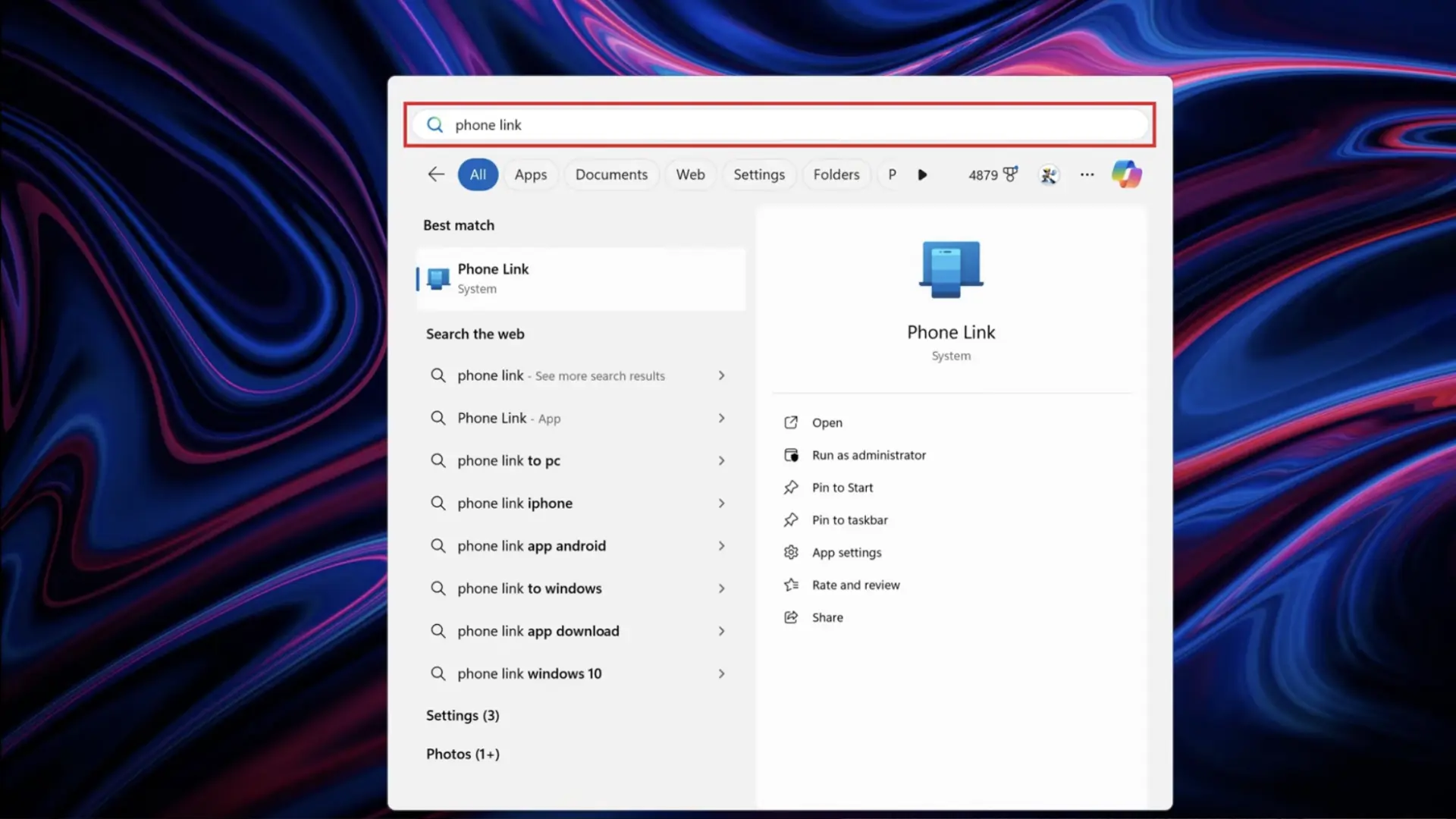
Start on your Windows home screen and click the Start menu. Search for Phone Link, then open the app from the results.
Phone Link is Microsoft’s tool for connecting an iPhone to a Windows PC, so you can handle supported messages, calls, and notifications without constantly switching devices. It’s one of several under-the-radar Windows features that most people never open until they actually need cross-device messaging.
Once the app opens, move to the device selection screen to begin pairing your iPhone with the computer.
2. Select iPhone in Phone Link
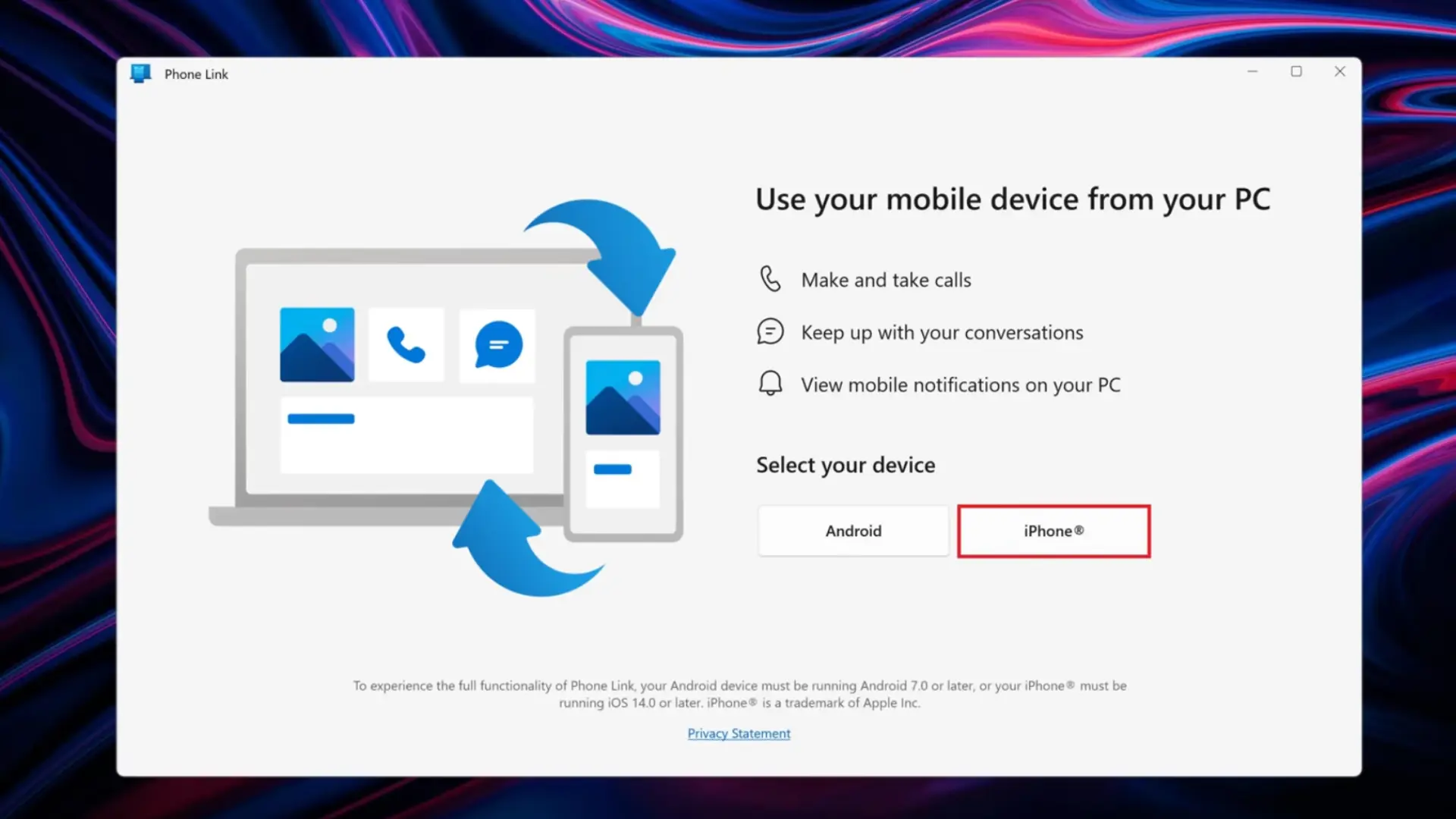
In Phone Link, find the Select Your Device section and choose iPhone. The app then displays a QR code that starts the Bluetooth pairing process.
Keep your iPhone nearby and make sure Bluetooth is available before moving forward. This QR code connects the two devices, allowing Phone Link to request access to the calls, messages, and notifications needed for the Windows connection.
3. Scan the QR Code and Pair the Devices
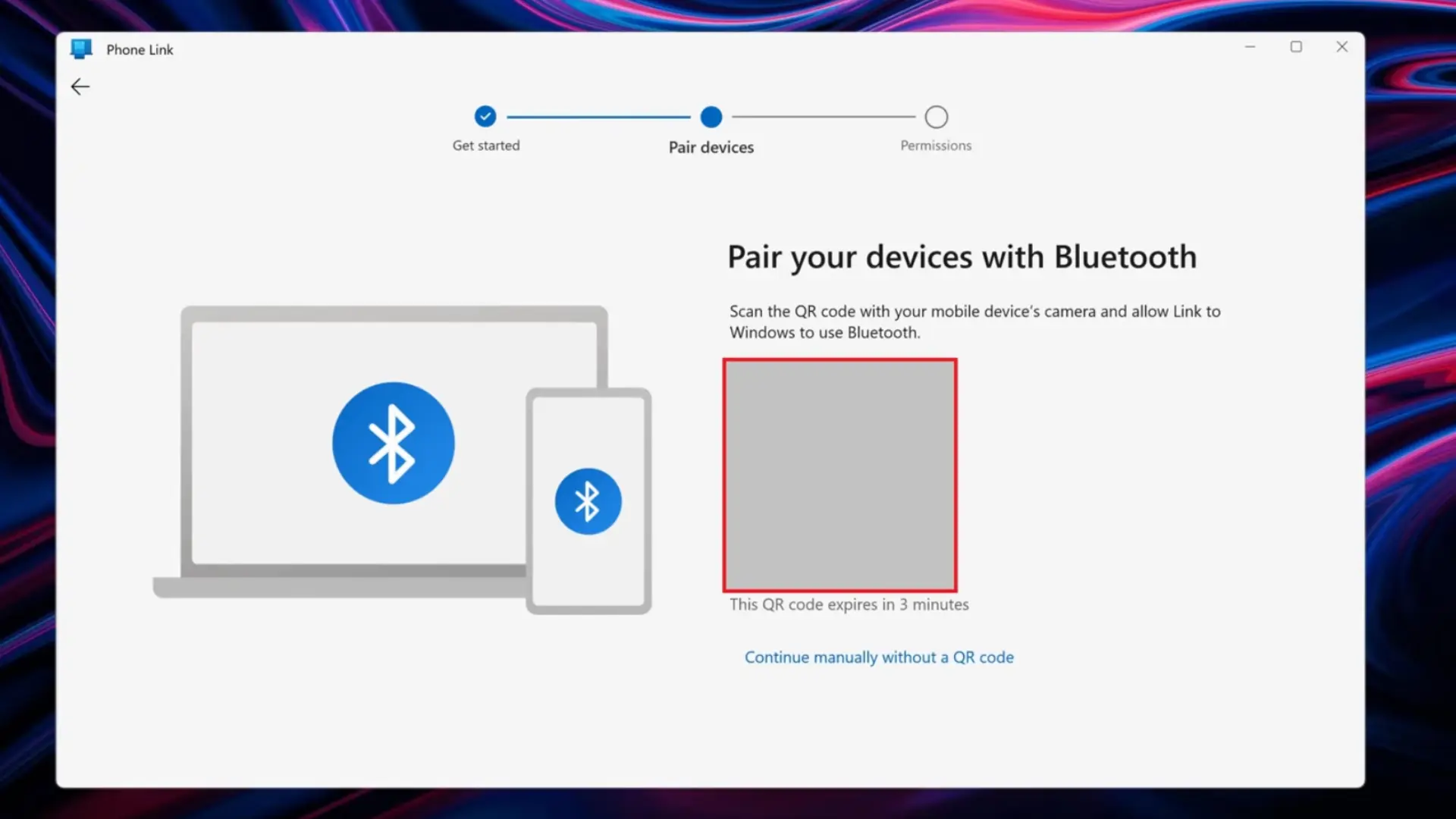
Open the Camera app on your iPhone and scan the QR code displayed in Phone Link. Tap Open, then select Continue when the Pair Devices screen appears. Allow Link to Windows to use Bluetooth.
A six-digit pairing code will appear on your iPhone and PC. Confirm that both codes match, then tap Pair on your iPhone and click Pair on the computer.
4. Allow iPhone Notifications on Windows
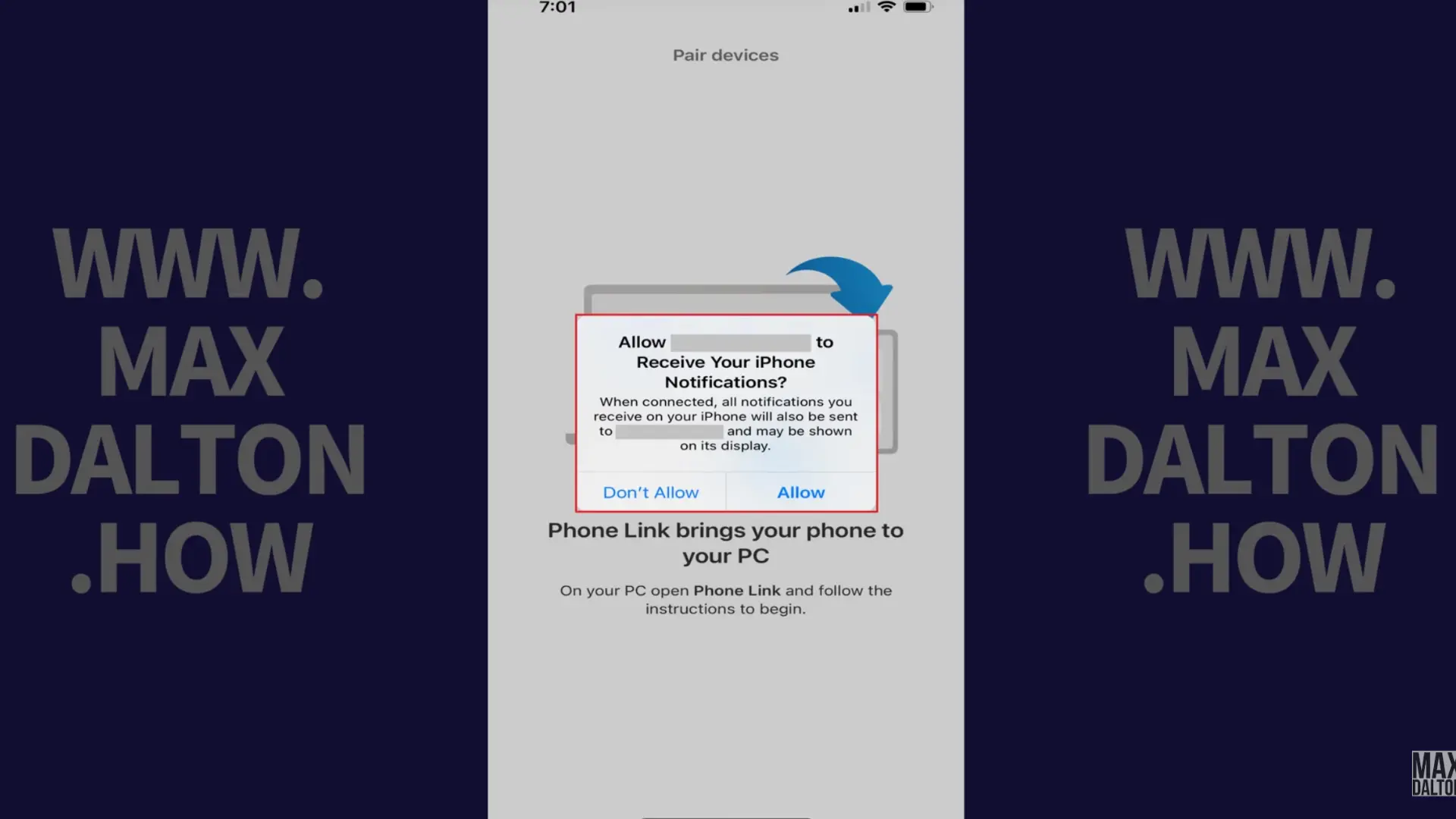
After the Bluetooth pairing is confirmed, your iPhone asks whether the Windows computer can receive notifications. Tap Allow to grant that permission. This step lets supported iPhone alerts appear on your PC through Phone Link.
Once permission is granted, return to the Phone Link window on your Windows computer. The app will continue the setup and explain that additional syncing permission is still needed.
5. Turn On Show Notifications in Bluetooth Settings
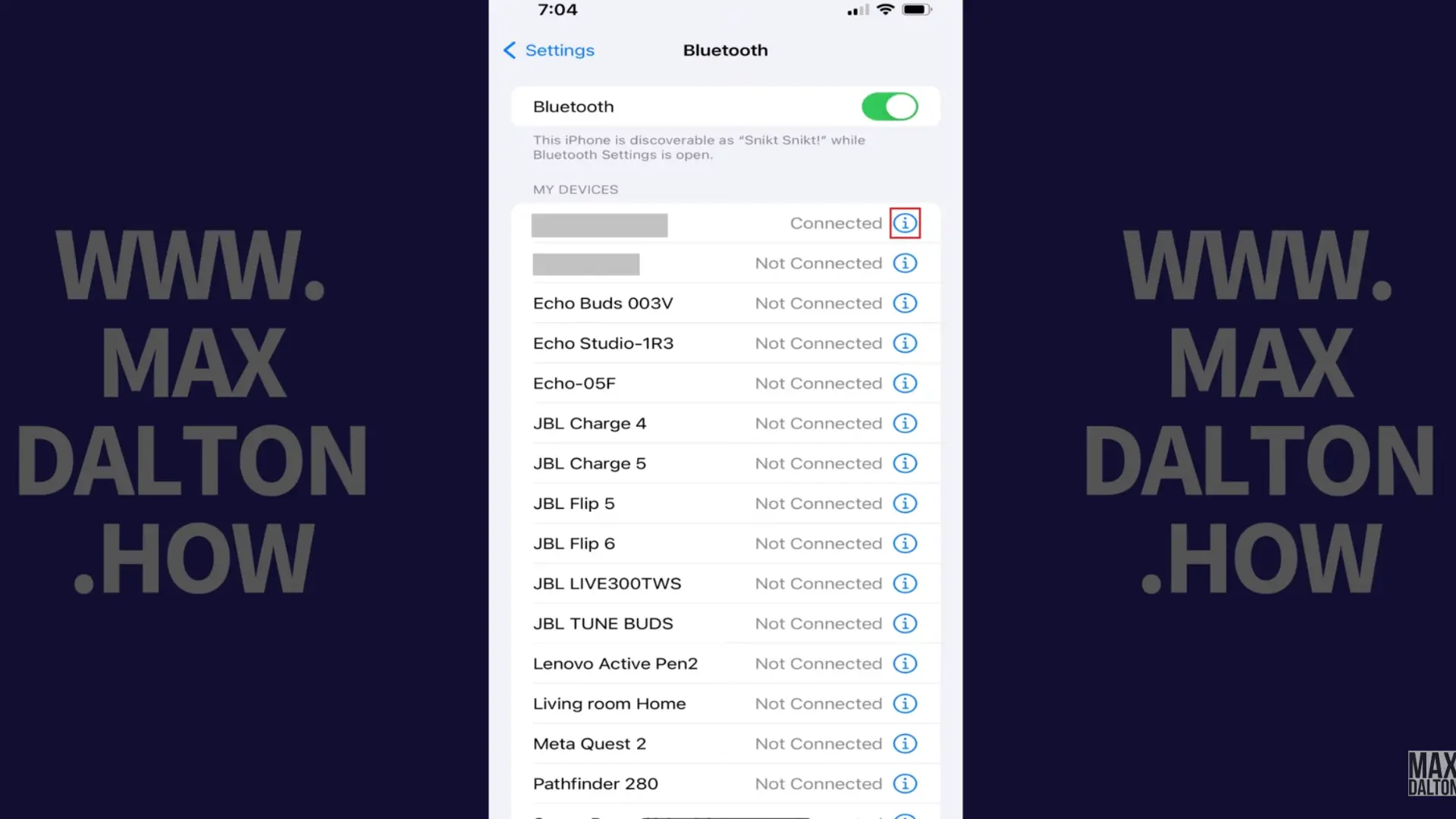
Open Settings on your iPhone, tap Bluetooth, and find the name of your Windows computer in the connected-device list. Tap the i icon beside the computer, then turn on Show Notifications.
Return to Phone Link on the PC. The app should now confirm that your iPhone is fully paired. Click Continue to move to the Phone Link welcome screen and finish the connection process.
6. Start Using Messages, Calls, and Notifications
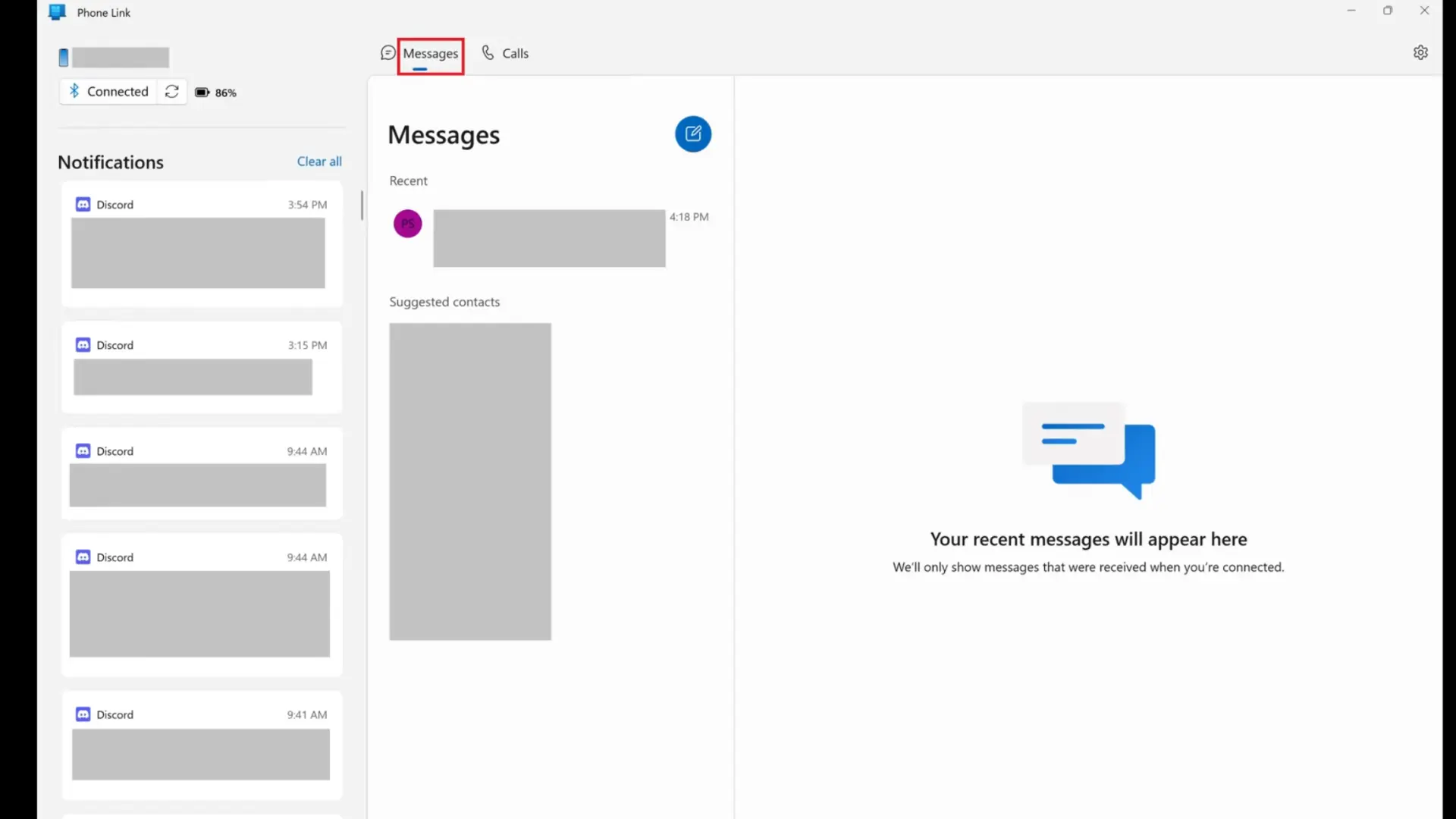
On the Phone Link welcome screen, choose whether you want the app to open automatically when you sign in to Windows, then click Get Started.
After a few seconds, Phone Link begins showing supported information from your iPhone, including notifications, messages, and phone calls. As new activity arrives on the iPhone, alerts can appear on the PC, where you can view and respond through Phone Link.
What Can and Can’t Phone Link Do With iPhone Messages?
Phone Link gives Windows users useful message access, but it is not a full copy of Apple’s Messages app.
Here’s a clearer look at what to expect.
| Feature | Phone Link With iPhone |
|---|---|
| Send basic text messages | Yes |
| Receive new messages | Yes |
| Reply from your PC | Yes |
| Receive message notifications | Yes |
| Sync contacts | Yes |
| View complete old message history | Limited |
| Send photos and videos | Limited |
| Use full group iMessage support | Limited |
| Use iMessage effects and apps | No |
| Get complete Apple Messages syncing | No |
For someone who mainly sends short replies during work, those limits may not matter much.
The problems become more noticeable when conversations depend on photos, long message history, or active group chats. In those cases, Phone Link can feel more like a companion to your iPhone than a replacement for the Messages app.
Can You Use iMessage on Windows 10?
Yes, Phone Link currently supports compatible PCs running Windows 10 with the October 2022 update or later.
Microsoft recommends keeping Windows updated and requires Bluetooth Low Energy support for the iPhone connection.
You can check the current requirements on Microsoft’s official Phone Link requirements page.
Windows 11 is therefore no longer a strict requirement. The available Phone Link features depend more on your PC hardware, Windows version, iPhone software, and Bluetooth connection.
If your Windows 10 PC does not meet those requirements, a Mac-based method may be another option.
Can You Use iMessage on a PC Without an iPhone?
Phone Link cannot work as a standalone iMessage client. It depends on a paired iPhone to handle the connection.
A Mac-based setup works differently. If a Mac is already signed into Messages, software such as BlueBubbles can use that computer as the server while your Windows PC acts as the client.
So there are two separate situations:
- No Mac, but you have an iPhone: Phone Link is the simplest option.
- You have a Mac: A Mac relay can provide broader message access on Windows.
- No iPhone and no Mac: There is no normal official route into iMessage from Windows alone.
- Be careful with services claiming they can provide full iMessage access without any Apple hardware, especially if they ask for Apple Account credentials.
Can You Use iMessage on a PC Through iCloud?
Signing into iCloud on Windows does not give you an iMessage inbox.
According to Apple’s iCloud for Windows documentation, the Windows app provides access to supported iCloud information and services such as files, photos, passwords, bookmarks, calendars, and contacts.
Messages is handled differently.
Apple’s Messages in iCloud documentation explains message syncing across supported Apple devices such as iPhone, iPad, and Mac.
So installing iCloud for Windows does not turn your PC into a Messages client or replace Phone Link.
Can You Use iMessage in a Web Browser?
Apple does not provide an official browser version of iMessage similar to WhatsApp Web.
Some third-party setups can still place your messages inside a browser. BlueBubbles, for example, can provide browser-based access when it is connected to a Mac running its server software.
That is an important distinction. The browser is only the interface. The Mac is still doing the work behind it.
Remote desktop software can also let you control a Mac and open its Messages app from another computer. Again, that is remote access to another machine rather than iMessage running directly inside Windows.
Avoid websites that imitate an Apple Messages login and ask for your Apple Account password without clearly explaining how the service works.
Other Ways to Access iMessage From a Windows PC
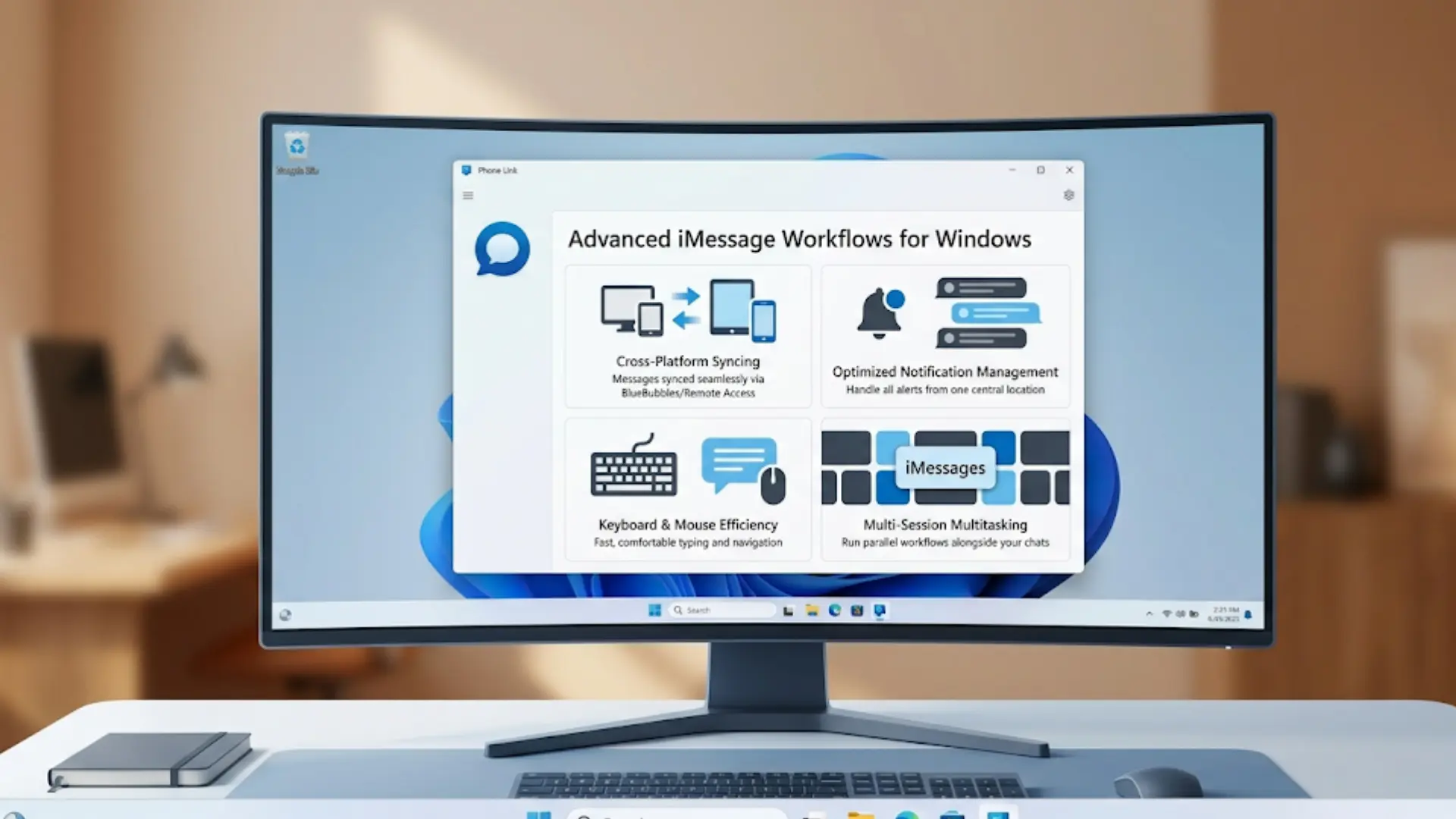
Phone Link works well for light use, but it is not the only route. People who need more complete messaging features usually rely on a Mac.
1. BlueBubbles
BlueBubbles is an open-source system that uses a Mac as an iMessage server.
The basic setup requires:
- A Mac signed into Messages
- BlueBubbles server software running on that Mac
- The Mac staying powered on and connected
- A BlueBubbles client or browser connection on your Windows PC
The main advantage is access to far more of the normal Messages experience than Phone Link provides. That can make BlueBubbles useful for group conversations, message history, and media-heavy chats.
The downside is simple: you already need a Mac, and that Mac becomes part of your messaging setup.
2. Remote Access to a Mac
Another option is remotely controlling a Mac that already has access to Messages.
Chrome Remote Desktop can provide remote access to applications and files on another Mac, Windows, or Linux computer.
With that setup, the Messages app continues running on the Mac. Your Windows PC simply controls that Mac remotely.
The PC is not running iMessage itself.
This method can make sense when a Mac already stays powered on, but it is less convenient for everyday messaging than a dedicated client.
3. iPhone Mirroring or Remote-Control Tools
Some third-party apps provide screen sharing or remote-control features between phones and computers.
Support varies widely between apps, and iOS restrictions can limit how much control they provide.
These tools make more sense as a fallback when you only need occasional access. They are less suited to someone who wants Messages sitting open on a Windows desktop all day.
Phone Link vs BlueBubbles and Remote Mac Access
The best method becomes clearer once you compare the hardware, setup, and message access involved.
| Method | iPhone Needed | Mac Needed | Setup | Best For |
|---|---|---|---|---|
| Microsoft Phone Link | Yes | No | Easy | Basic texting |
| BlueBubbles | Not for PC pairing | Yes | More involved | Broader iMessage access |
| Remote Mac access | No direct PC pairing | Yes | Moderate | Using the actual Mac Messages app |
| Phone mirroring tools | Yes | No | Varies | Occasional remote phone access |
Phone Link makes the most sense when convenience matters more than complete message features. BlueBubbles is stronger when a Mac is already available, and iMessage is used heavily throughout the day. Remote Mac access works, but it can feel excessive if the only goal is sending a few messages.
Is It Safe to Use Third-Party iMessage Apps on PC?
Third-party messaging tools deserve extra care because private conversations and Apple Account access may be involved.
A few checks can reduce unnecessary risk:
- Protect Your Password: Avoid unknown services that ask you to hand over your Apple Account password directly.
- Check Data Handling: Find out where messages, login details, and connection data are processed.
- Use Trusted Sources: Get software from the project’s official site or verified repository.
- Enable Two-Factor Authentication: Keep additional protection active on your Apple Account.
- Review Connected Devices: Remove computers and sessions you no longer use.
An app offering unusually easy access to iMessage without explaining how it connects to Apple hardware should raise questions.
Which iMessage on PC Method Should You Use?
Your choice depends more on your messaging habits than on which tool has the longest feature list.
Use Phone Link if: You have Windows 11 and mainly need quick text replies while working at your computer.
Use BlueBubbles if: You already own a Mac and want access to group chats, media, and more of your message history.
Use remote Mac access if: You need the actual Messages app occasionally and already keep a Mac running.
Skip unknown third-party services if: Their setup requires handing Apple Account credentials to a service that does not clearly explain how those credentials are protected.
If I only needed occasional texting, I’d start with Phone Link because the setup is simple and does not require another computer.
Conclusion
GettingiMessage on PC means accepting a few limits because Windows does not have Apple’s native Messages app.
For basic iMessage access on Windows, Phone Link is the practical starting point. It handles simple messages without requiring a Mac, though its feature set is much smaller than Apple’s Messages app.
People who rely on group chats, media, and message history may get more value from BlueBubbles or remote Mac access.
I’d choose based on the conversations I actually have each day rather than chasing the method with the most features. Start with the simplest setup that covers those needs, then move to a Mac-based option if the limits become frustrating.
Frequently Asked Questions
How do I get my iMessage on my computer?
Windows does not have Apple’s Messages app. On Windows 11, pair your iPhone with Microsoft Phone Link for basic messaging or use a Mac-based service for broader access.
Can I use iMessage on a browser?
Apple does not provide an official iMessage website. BlueBubbles can provide browser access, but it still needs a Mac running its server software.
Can you access iPhone text messages on PC?
Yes. Phone Link can display and send basic messages through a connected iPhone, though message history, media, and group conversations have more restrictions.
Why does iMessage not work on laptops?
iMessage is part of Apple’s software ecosystem. Windows laptops lack Apple’s Messages app, so they need an iPhone connection, a Mac relay, or remote access.