

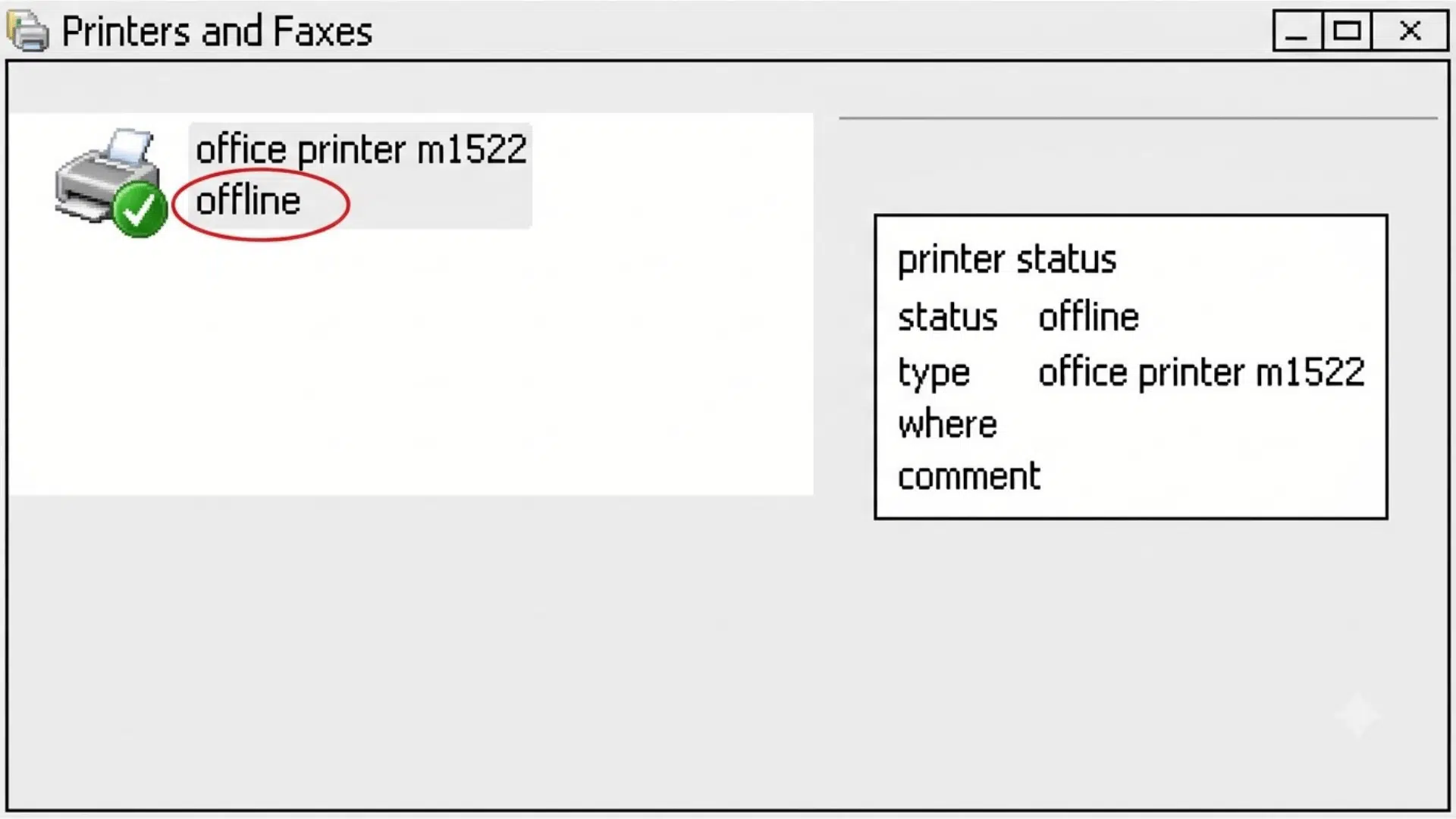





Your printer is on, lights are blinking, and everything looks fine. But your computer says it is offline. That disconnect is more common than you think, and I understand how frustrating it feels.
The truth is, a why is my printer offline situation rarely means something is broken. Most people assume the worst, grab the manual, or start googling for hours.
But in most cases, the fix takes just a few minutes.
You do not need to be tech-savvy to sort this out. Anyone can work through it with the right steps in front of them. Start from the top, follow each step in order, and stop as soon as printing resumes. It is usually faster than you expect.
Why Does My Printer Say Offline When It Is Turned On?
A printer shows as offline when your computer, phone, or tablet cannot communicate with it. The printer may still be powered on and connected to Wi-Fi.
Incorrect settings, a stuck print queue, or a changed network address can all trigger a false offline status with no actual hardware fault.
So why is my printer offline even when everything looks fine? The printer is not necessarily broken. Your device simply stopped receiving a response from it.
That communication gap can come from a paused print queue, a changed network address, or an incorrect setting running silently in the background.
The printer stays powered on and connected, but your computer treats it as unreachable. Knowing this upfront saves you from assuming the worst and points you toward the right fix faster.
Common Reasons Your Printer Shows Offline
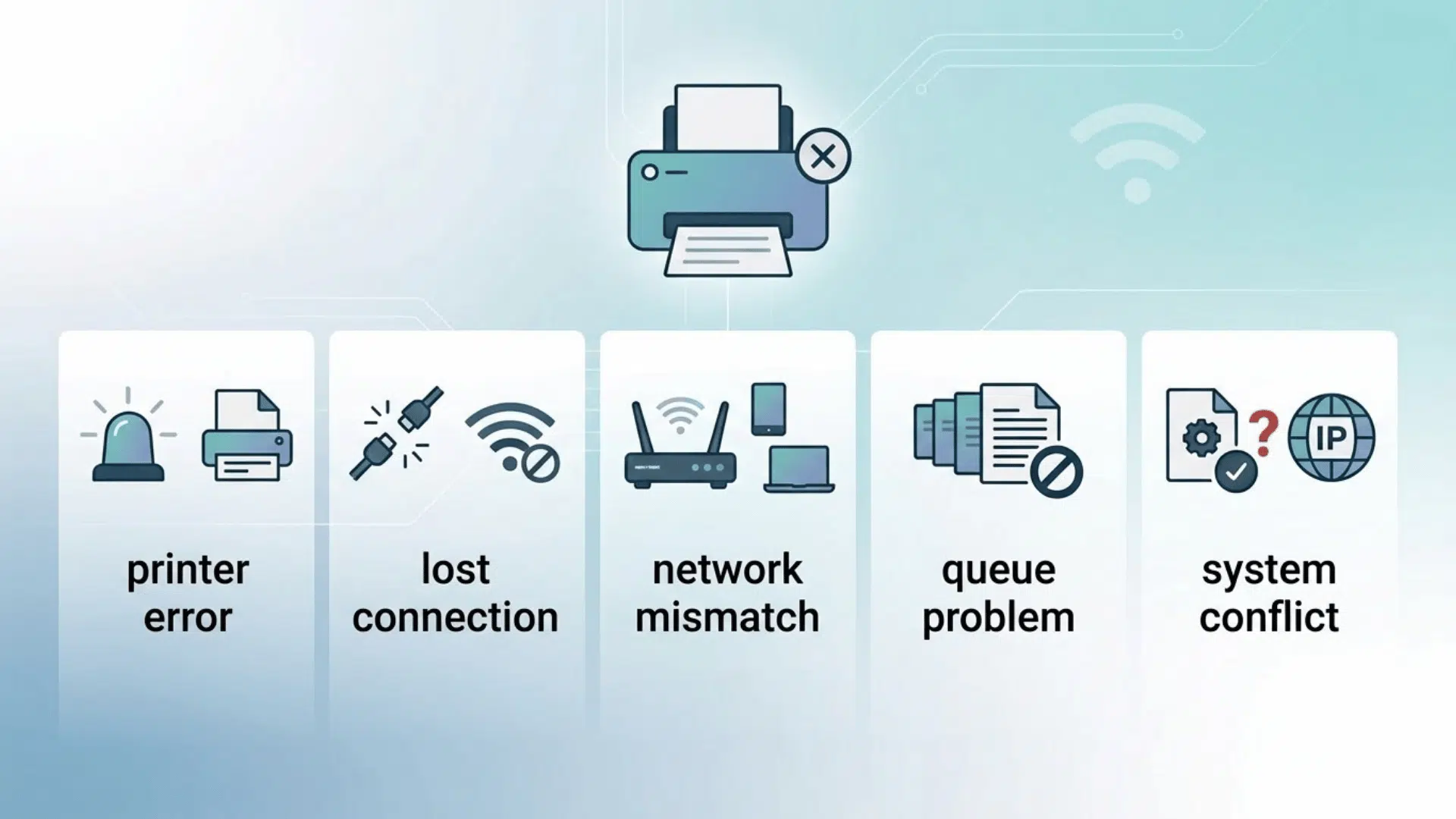
A printer goes offline for more reasons than most people expect. Pinning down the right category early saves a lot of time.
The cause can sit with the printer itself, the device you are printing from, the software managing the connection, or the network linking everything together.
1. The Printer Has a Physical or Hardware Issue
The most obvious place to start is the printer itself. It may not be fully powered on, or it could be stuck in a deep sleep mode that delays its response entirely.
Beyond power, check for paper jams, an empty tray, an open cover, or low and incorrectly installed ink or toner.
Many printers will not attempt any connection until an onboard error is cleared first. An unresolved hardware alert on the printer screen is enough to keep it showing offline on every connected device until it is fixed.
2. The Connection Between Devices Is Broken
A loose USB cable, a damaged Ethernet cord, or a weak Wi-Fi signal can instantly cut communication between the printer and your device. Reviewing the available device cable options can help confirm that the port and cable match before assuming either component has failed.
A cable that looks fine can still have a poor contact point inside the port. For wireless printers, a changed Wi-Fi password, a replaced router, or a printer placed too far from the router can all drop the connection without any obvious alert.
A temporary network interruption or a printer connected through an unreliable USB hub can produce the same result just as quietly.
3. The Printer and Device Are Not on the Same Network
Your printer and computer both need to be on the exact same network to communicate. This is easier to miss than it sounds.
If the router name or password changed recently, confirm that the printer is using the saved Wi-Fi password currently assigned to the network rather than an older credential.
Guest Wi-Fi networks, mesh systems, Wi-Fi extenders, and separate network bands can all place two devices on connections that appear similar but block communication entirely.
In workplace environments, printers and computers are sometimes assigned to different internal networks by default. Even at home, a 2.4 GHz printer and a 5 GHz laptop can end up on separate bands without any obvious warning sign showing on either device.
4. The Print Queue or Software Has an Error
A paused or stuck print queue is one of the most common and most overlooked causes of an offline status. A failed job, a large document, a corrupted file, or a queue paused by mistake can all block new print jobs entirely.
Windows may also be set to treat the printer as offline even when the physical connection is working fine through a setting called Use Printer Offline.
On top of that, duplicate printer entries, old installations, PDF printers, and similarly named office or home printers can all cause the wrong printer to be selected without the user noticing.
5. The Driver, Firmware, or IP Address Is Outdated
Software and network mismatches are a frequent cause of repeat offline issues. An outdated or damaged driver can break communication even when everything else looks correct.
Old firmware creates similar problems. It can cause network, driver, or compatibility issues that are difficult to trace back to a single source.
A VPN or strict firewall setting may block access to local network devices entirely, including your printer.
On the network side, a router restart or network change can assign the printer a new IP address. The computer keeps trying to reach the old one.
The First Things to Check When Your Printer Goes Offline
Most printer offline issues get fixed right here. These are the basic checks that cost nothing, require no technical knowledge, and take under five minutes to complete.
Work through them in order and stop the moment printing resumes.
- Confirm the printer is fully turned on
- Wake the printer from sleep mode
- Check the printer screen for paper, ink, toner, cover, or jam errors
- Restart the printer and the device you are printing from
- Unplug the printer from the wall for about 30 seconds before reconnecting it
- Check USB, Ethernet, and power cables at both ends
- Confirm the printer and your device are on the exact same Wi-Fi network
- Print an internal status or network page
- Try printing from a second device
If one of these checkpoints to a clear cause, you already know where to focus next.
If everything here passes but the printer is still showing offline, the issue sits deeper in your system settings or software, and the steps in the next section will take you there directly.
How to Fix a Printer That Shows Offline
Getting a printer back online comes down to working through the right steps on the right device.
The fix looks slightly different depending on whether you are on Windows, Mac, a phone, a tablet, or a Chromebook, but the logic behind it is always the same.
1. How to Fix a Printer Offline on Windows
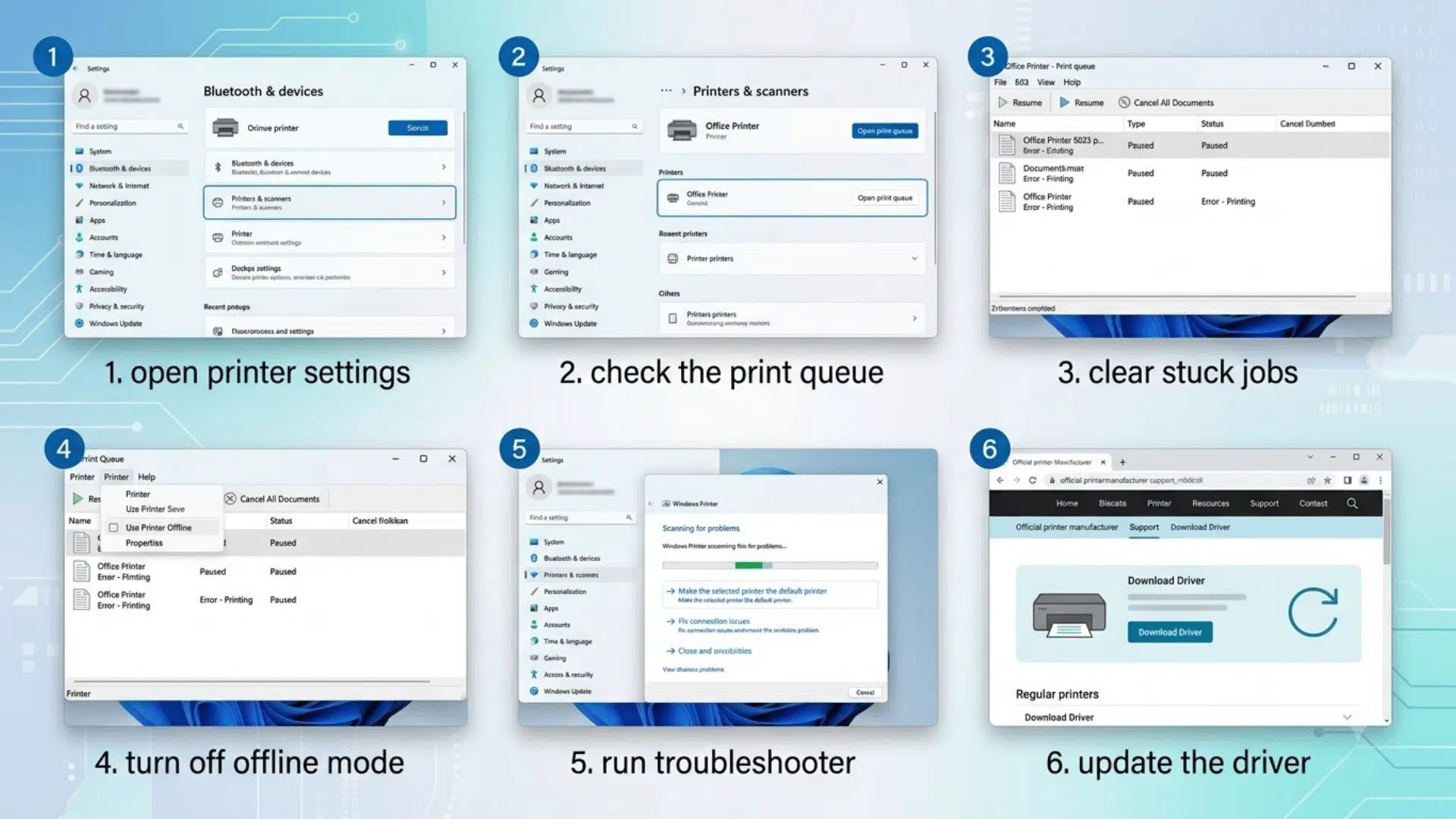
Windows manages printers through a queue and spooler system that can silently pause, mismatch, or hold onto outdated settings without showing an obvious error.
If your printer is showing offline on a Windows computer, work through these steps in order.
- Open Settings, select Bluetooth and devices, then open Printers and scanners
- Select the correct printer and open its print queue to check for paused or stuck jobs
- Resume printing if the queue is paused and cancel any failed or stuck print jobs
- Turn off Use Printer Offline if it is enabled under the Printer menu
- Run the Windows printer troubleshooter from Settings and apply any suggested fixes
- Update the printer driver from the manufacturer’s official website and restart the computer
2. How to Fix a Printer Offline on Mac
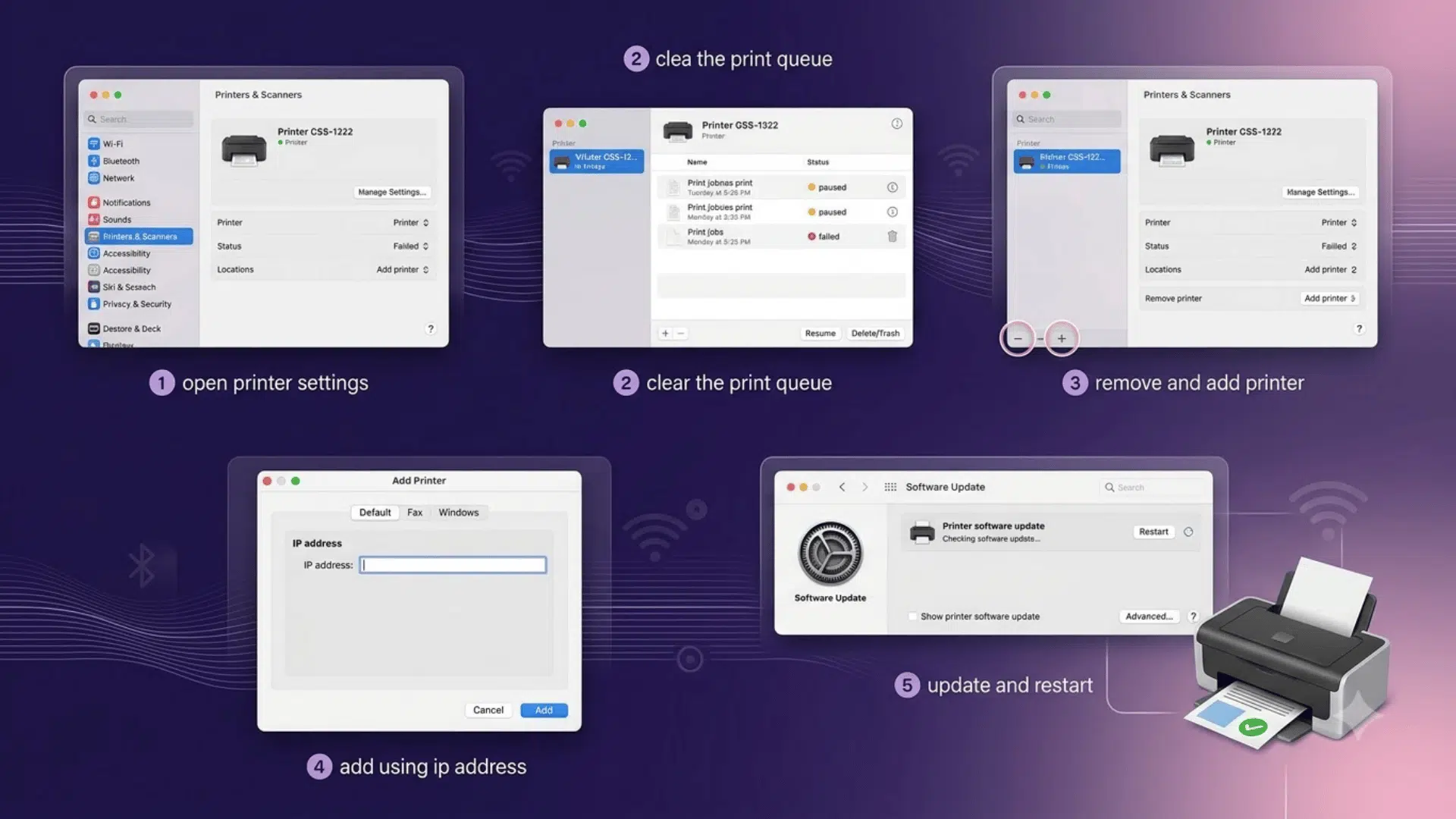
Mac handles printing through its own queue system and can lose track of a printer after a network change, a macOS update, or a failed print job.
For 16-inch MacBook Pro users, repeated USB-C or device-recognition trouble may indicate broader Mac connection failures rather than a print-queue error alone.
These steps cover the most effective fixes without touching anything that cannot be easily undone.
- Open System Settings, select Printers and Scanners, and choose the affected printer
- Open its print queue, resume paused printing, and delete any failed or stuck jobs
- Remove the printer and add it again through the same Printers and Scanners menu
- Add the printer by its IP address manually if automatic detection fails to find it
- Update macOS and the printer software, then restart both devices and test printing
Warning: Resetting the Mac printing system removes all saved printers, queues, and printer settings across every printer on that Mac. Only use this as a final step when everything else has failed.
3. How to Fix a Printer Offline on a Phone
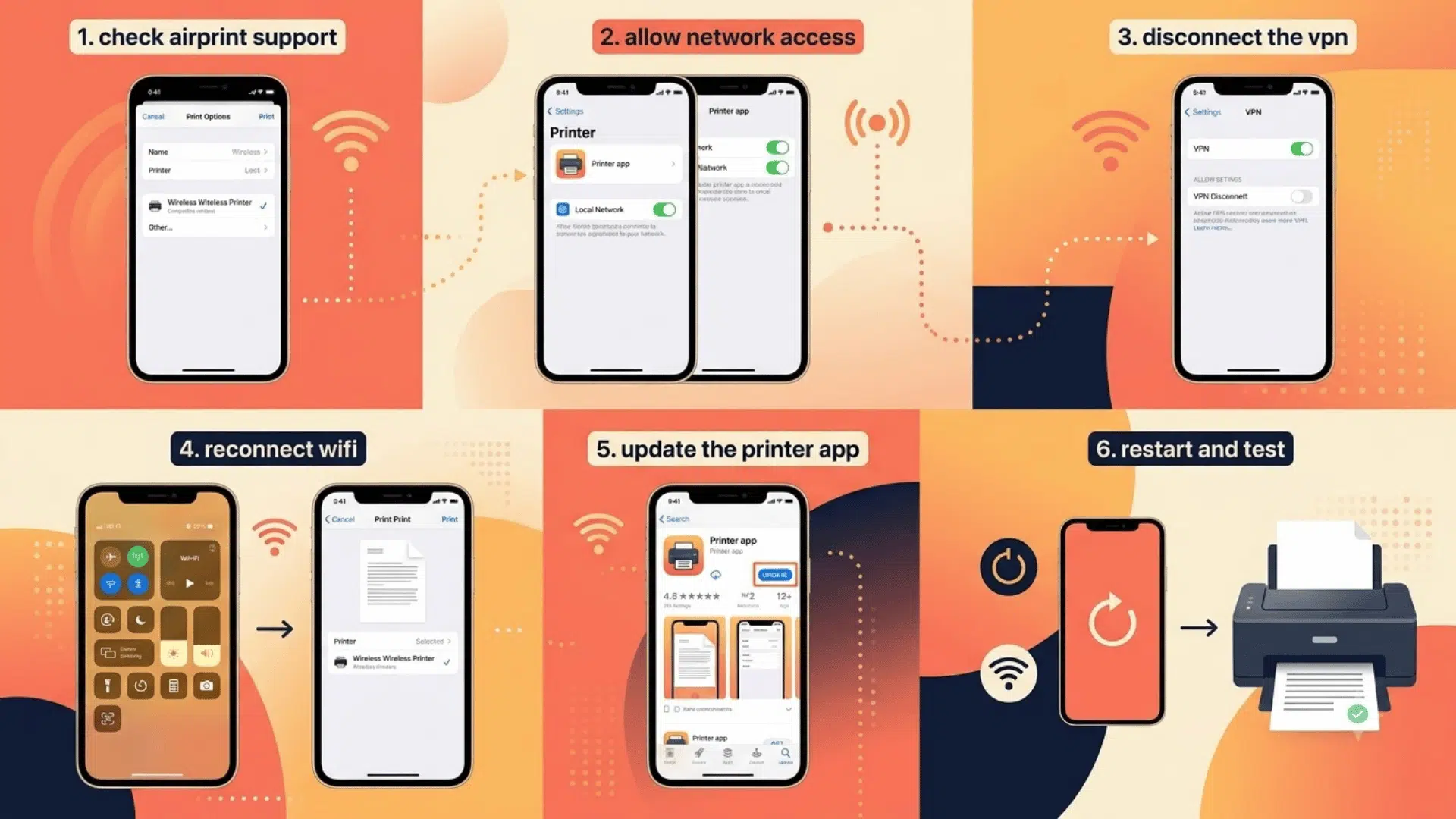
A phone losing its printer connection usually comes down to a network mismatch, a permission setting, or an outdated app.
The steps differ slightly between iPhone and Android, but the starting point is the same on both.
On an iPhone:
- Confirm the printer supports AirPrint
- Allow local network access for the printer app
- Disconnect any active VPN temporarily and test printing again
- Restart Wi-Fi on the phone, reopen the document, and select the correct printer
- Update the manufacturer’s printer app from the App Store
- Restart both the phone and printer, then attempt printing again
On an Android Phone:
- Confirm the printer and phone are on the same Wi-Fi network
- Turn on the Android default printing service through Settings
- Open the manufacturer’s printer app and check for any connection alerts
- Remove the outdated printer entry and add the printer again from scratch
- Clear the printer app cache from Settings if the saved connection is not responding
4. How to Fix a Printer Offline on a Chromebook
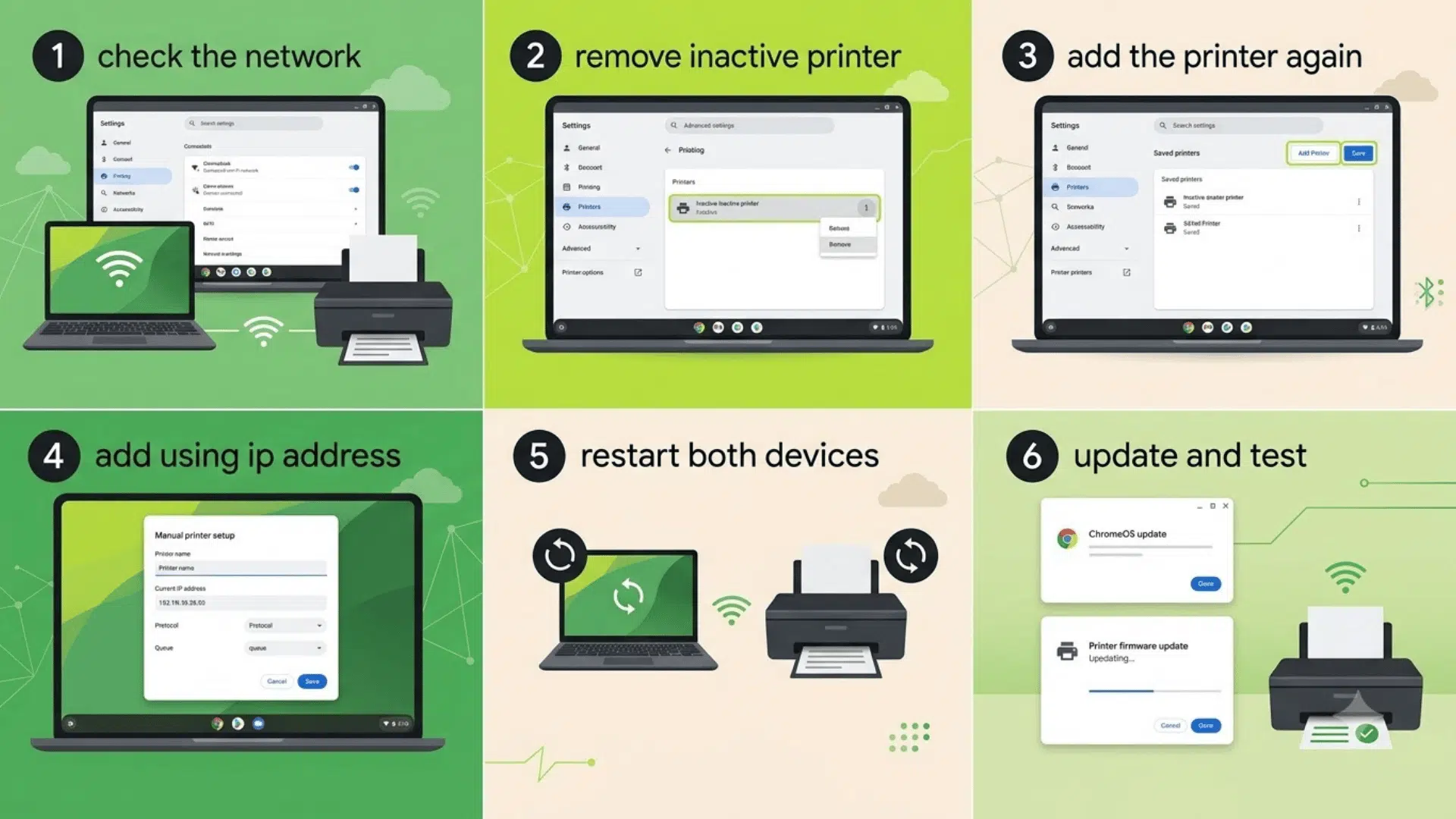
Chromebooks handle printing through ChromeOS settings and rely heavily on a stable network connection to maintain the printer link.
If your printer is showing offline on a Chromebook, these steps will cover the most common causes.
- Open Chromebook Settings
- Go to Advanced, select Printing, then open Printers and remove the inactive printer entry
- Save or add the printer again through the same menu
- Add the printer manually using its current IP address if it does not appear in the list
- Restart both the Chromebook and printer
- Install any available ChromeOS and printer firmware updates
- Print a test page to confirm
Tip: If the printer keeps disappearing from the Chromebook list, it is likely getting a new IP address each time the router restarts. Assigning the printer a fixed IP address through your router settings will stop this from happening repeatedly.
Working through the right steps for your device removes the guesswork and gets the printer back online faster. Most offline cases on any platform are resolved within the first three or four steps.
If the printer is still showing offline after completing all of these, the issue likely needs a driver reinstall, a firmware update, or a closer look at the network configuration from the router side.
Which Brand Tools Can Help Fix an Offline Printer?
Most printer brands include a free dedicated tool that can diagnose and fix offline issues in a few clicks. These tools check your connection, clear stuck queues, update drivers, and flag errors that are easy to miss manually.
If your printer is still showing offline after the basic fixes, running the official tool for your brand is the smartest next step before going deeper into system settings.
| Printer Brand | Tool or Service | How It May Help |
|---|---|---|
| HP | HP Print and Scan Doctor | Identifies common Windows printing and scanning problems |
| Brother | Brother Status Monitor | Displays connection, supply, and printer error information |
| Canon | Canon PRINT App | Reconnects supported printers and checks their status |
| Epson | Epson Smart Panel | Supports printer setup, connection checks, and maintenance |
| Windows | Printer Troubleshooter | Checks common queue, service, and configuration problems |
| Apple | Printers and Scanners Settings | Manages queues, drivers, IP setup, and saved printers |
I always run the brand tool before touching any manual settings personally. It has saved me a lot of unnecessary troubleshooting more times than I can count.
Note : Only download these tools directly from the printer manufacturer’s official website or your operating system provider. Third-party download sites often bundle unwanted software and should be avoided entirely.
How Can You Prevent a Printer From Going Offline?
Prevention takes less effort than troubleshooting. A few simple habits can keep your printer connected without interruption.
Place the printer within a strong Wi-Fi range, away from thick walls and electronics that cause interference. Check for driver and firmware updates on the manufacturer’s support page every few months and always restart the printer after installing them.
Assign the printer a fixed IP address through your router’s DHCP reservation setting. Remove old printer entries and duplicate queues from your device regularly.
Cancel stuck print jobs promptly. Reconnect the printer from scratch any time the Wi-Fi password changes, the router is replaced, or the network is renamed. It will not update those details automatically.
Small habits maintained consistently keep your printer online and save you from repeating the same fixes every few weeks.
When Should You Contact Printer Support?
Some offline issues go beyond what standard troubleshooting can fix. If any of the situations below apply to you, reaching out to the manufacturer or a professional technician is the right next step.
- No Internal Test Page: The printer cannot produce a test page on its own, which points to a hardware or firmware fault that needs professional diagnosis.
- Returning Error Codes: The same error code reappears after every restart, meaning the underlying cause has not been resolved by any standard fix.
- All Connections Fail: Wi-Fi, USB, and Ethernet have all been tested, and none of them restores the connection successfully.
- Unusual Noises or Overheating: The printer makes grinding, clicking, or rattling sounds, or gets unusually hot during normal operation.
- Office-Wide Offline Issue: The same offline problem is affecting multiple computers at once, which points to a network or server-level fault beyond a single device.
If you are unsure whether your issue qualifies for support, contact the manufacturer directly. Most brands offer free diagnosis by phone, chat, or their official support portal.
Note : Do not open internal printer components beyond the areas clearly approved in your printer manual. Accessing internal parts without guidance can void the warranty or cause further damage.
Final Take
A printer showing offline is rarely as serious as it looks, and I have seen that proven true more times than I can count. The message feels alarming, but the fix is almost always simpler than expected.
Most people spend more time worrying about it than actually fixing it. With the right steps in the right order, why is my printer offline goes from a stressful error to a five-minute solve.
The key is not to panic, not to skip steps, and not to assume the worst before you’ve worked through the basics.
You now have everything you need to handle this confidently. Give these steps a try the next time your printer acts up and see how quickly things turn around.
Frequently Asked Questions
Can a Printer Go Offline Due to a Recent Windows Update?
Yes. Windows updates sometimes reset printer settings or create driver conflicts. Reinstalling the printer driver after a major update usually restores the connection without needing further changes.
Does Turning Off the Printer Every Night Cause Offline Issues?
It can. Frequently powering off a network printer may cause it to receive a new IP address on restart, which the computer fails to recognize until the connection is manually refreshed.
Can Two Printers on the Same Network Interfere With Each Other?
Not directly. However, having multiple printers with similar names can cause the wrong one to be selected automatically. Naming each printer clearly in your device settings prevents most of these mix-ups.
Why Does My Printer Go Offline Only When Printing Large Files?
Large files can overwhelm the print queue or exceed the printer’s memory limit, triggering an offline status mid-job. Splitting large documents into smaller batches often prevents this from happening.